Lees weergave

Announcing Windows 11 Insider Preview Build 28020.1863 (Canary Channel)

Hello Windows Insiders, today we are releasing Windows 11 Insider Preview Build 28020.1863 to the Canary Channel. (KB 5083725)

What’s new in Canary Build 28020.1863

Changes and Improvements gradually being rolled out with toggle on*

  • This update includes a small set of general improvements and fixes that improve the overall experience for Insiders running this build on their PCs.

[General]

  • Fixed an issue that prevented some apps from signing in due to a false report of no internet connectivity.

Reminders for Windows Insiders in the Canary Channel

  • Many features in the Canary Channel are rolled out using Control Feature Rollout technology, starting with a subset of Insiders and ramping up over time as we monitor feedback to see how they land before pushing them out to everyone in this channel.
  • The desktop watermark shown at the lower right corner of the desktop is normal for Windows Insider pre-release builds.
  • Some features may show up in the Dev and Beta Channels first before showing up in the Canary Channel.
  • For Windows Insiders who want to be the first to get features gradually rolled out to you, you can turn ON the toggle to get the latest updates as they are available via Settings > Windows Update*. Over time, we will increase the rollouts of features to everyone with the toggle turned on. Should you keep this toggle off, new features will gradually be rolled out to your PC over time once they are ready.
  • Some features in active development we preview with Windows Insiders may not be fully localized and localization will happen over time as features are finalized. As you see issues with localization in your language, please report those issues to us via Feedback Hub.
  • To get off the Canary Channel, a clean install of Windows 11 will be required. As a reminder - Insiders can’t switch to a channel that is receiving builds with lower build numbers without doing a clean installation of Windows 11 due to technical setup requirements.
  • Check out Flight Hub for a complete look at what build is in which Insider channel.
Thanks, Windows Insider Program Team
  •  

Announcing Windows 11 Insider Preview Build for Canary Channel 29570.1000

Hello Windows Insiders, today we’re releasing Windows Insider Preview Build 29570.1000 to the Windows 11 Insider Canary Channel on the optional 29500 build series.

What’s new in Canary Build 29570.1000

Changes and Improvements gradually being rolled out with toggle on*

  • This update includes platform changes in moving to a new active development build.

[Gaming]

  • Xbox mode is now available on Windows 11 PCs, including laptops, desktops, and tablets. Inspired by the Xbox console experience, Xbox mode offers a streamlined, full‑screen interface that puts your games front and center while minimizing background distractions. Xbox mode is designed for those moments when you want to lean back, pick up a controller, and focus on the game. Enter Xbox mode from the Xbox appGame Bar settings, or by pressing Win + F11. For more information, see Full screen experience expands to more Windows 11 PC form factors.

Feedback: Share your thoughts in Feedback Hub (WIN + F) under Gaming and Xbox > Xbox Mode.

[Policy-Based Removal of Preinstalled Microsoft Apps]

  • This update adds support for a dynamic app removal list to the “Remove Default Microsoft Store packages” policy for Windows Enterprise and Education. Administrators can remove additional MSIX/APPX-packaged apps by specifying their app package family names using Group Policy. The dynamic list is not currently available in Intune Settings Catalog. Validation must be performed using Group Policy or custom OMA-URI. For more information, see Policy-based in-box app removal.

Feedback: Share your thoughts in Feedback Hub (WIN + F) under Developer Platform > App Deployment.

[Context Menu]

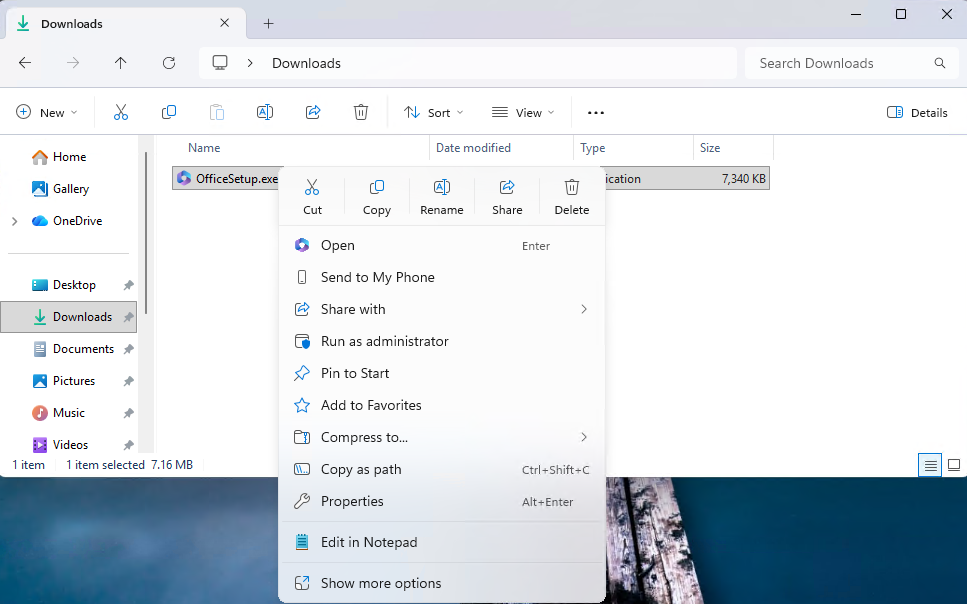
  • When right clicking on a .exe, .bat, or .cmd file, the context menu’s “Open” verb will now match the icon associated with the file’s default app.
[caption id="attachment_178900" align="alignnone" width="967"]The context menu’s “Open” verb matches the icon in the default app. The context menu’s “Open” verb matches the icon in the default app.[/caption]

Feedback: Share your thoughts in Feedback Hub (WIN + F) under File Folders and Online Storage > File Explorer.

[Touchpad] 

  • We’re adding a new setting in Settings > Bluetooth & Devices > Touchpad so you can choose how large the right-click zone size is (this is the portion in the bottom-right of your touchpad where pressing a single finger will result in a right-click), between default, small, medium, and large. Note – this setting only appears for touchpads that have a pressable surface for this. Some manufacturers may provide customization for this in their own apps – if you’ve customized your setting using an app like this, a “Custom” entry will be added to the dropdown, which preserves that value.

Feedback: Share your thoughts in Feedback Hub (WIN + F)under Input and Language > Touchpad.

[Lock screen] 

  • More widget options and support for lock screen widget personalization (previously referred to as “Weather and more”) are rolling out. After initial launch with Windows Insiders in the European Economic Area (EEA), these updates are expanding to all regions. You can add, remove, and rearrange lock screen widgets such as Weather, Watchlist, Sports, Traffic, and more. Any widget that supports the small sizing option can be added. To customize your lock screen widgets, go to Settings > Personalization > Lock screen.

FEEDBACK: Please file feedback in Feedback Hub (WIN + F) under Desktop Environment > Lock screen.

[Input]

  • Pen settings: we have made refinements to the Pen settings page including small changes to the options for the pen tail button. A new option, “Same as Copilot key”, enables the pen tail button to launch the same app as the Copilot key.

Feedback: Share your thoughts in Feedback Hub (WIN + F) under Devices and Drivers > Bluetooth – Keyboards, Mice, and Pens.

Reminders for Windows Insiders in the Canary Channel

  • These builds can be unstable and may be released with limited documentation. Join Windows Insider – Get early access to Windows 11 features & updates
  • The builds we release to the Canary Channel represent the latest platform changes early in the development cycle and should not be seen as matched to any specific release of Windows. Features and experiences included in these builds may never get released as we try out different concepts and get feedback. Features may change over time, be removed, or replaced and never get released beyond Windows Insiders. Some of these features and experiences could show up in future Windows releases when they’re ready.
  • Many features in the Canary Channel are rolled out using Control Feature Rollout technology, starting with a subset of Insiders and ramping up over time as we monitor feedback to see how they land before pushing them out to everyone in this channel.
  • The desktop watermark shown at the lower right corner of the desktop is normal for Windows Insider pre-release builds.
  • Some features may show up in the Dev and Beta Channels first before showing up in the Canary
  • For Windows Insiders who want to be the first to get features gradually rolled out to you, you can turn ON the toggle to get the latest updates as they are available via Settings > Windows Update*. Over time, we will increase the rollouts of features to everyone with the toggle turned on. Should you keep this toggle off, new features will gradually be rolled out to your PC over time once they are ready.
  • Some features in active development we preview with Windows Insiders may not be fully localized and localization will happen over time as features are finalized. As you see issues with localization in your language, please report those issues to us via Feedback Hub.
  • To get off the Canary Channel, a clean install of Windows 11 will be required.
  • Check out Flight Hub for a complete look at what build is in which Insider channel.
Thanks, Windows Insider Program Team
  •  

Releasing Windows 11 Builds 26100.8313 and 26200.8313 to the Release Preview Channel

Hello Windows Insiders, today we’re releasing Windows 11 Builds 26100.8313 and 26200.8313 (KB5083631) to Insiders in the Release Preview Channel on Windows 11, versions 24H2 (Build 26100) and 25H2 (Build 26200). This update is available through two release phases: gradual rollout and normal rollout. A gradual rollout delivers an update in phases, so features reach devices over time instead of all at once, meaning availability varies by device.​​​​​​​​​​​​​ A normal rollout is the broad release to all eligible devices at the same time, usually when it reaches general availability (GA).

Gradual rollout

Windows 11 PC experiences

This section highlights new features and enhancements for Windows 11 PCs, including AI-powered capabilities, continuous innovation, and performance improvements.
  • [Gaming] New! Xbox mode is now available on Windows 11 PCs, including laptops, desktops, and tablets. Inspired by the Xbox console experience, Xbox mode offers a streamlined, full‑screen interface that puts your games front and center while minimizing background distractions. Xbox mode is designed for those moments when you want to lean back, pick up a controller, and focus on the game. Enter Xbox mode from the Xbox app, Game Bar settings, or by pressing Win + F11. For more information, see Full screen experience expands to more Windows 11 PC form factors
  • [File Explorer]
    • Improves folder view consistency so customized settings (such as sorting files by name or adjusting icon size) now apply across all ways you open a folder. When you open the same folder from another app, such as a web browser, your preferences persist automatically. This improvement is especially helpful in the Downloads folder when Group by date is turned off.
    • Improves the speed and performance of File Explorer launch.1
    • Removes white flash when launching File Explorer in dark mode if File Explorer was set to launch to This PC or when resizing the details pane.
    • New! Adds “preview anyway” button to preview pane in File Explorer for files downloaded from the internet after viewing warning.
    • New! Expands the list of archive formats that can be used in File Explorer to include uu, cpio, xar, and NuGet Packages (nupkg).
    • Improves reliability of relevant explorer.exe processes stopping after closing File Explorer windows.
  • [Input]
    • New! You can feel haptic feedback effects on compatible input devices when performing certain actions, such as aligning objects in PowerPoint, snapping or resizing windows. These haptic signals can be turned on or off in Settings > Bluetooth & devices > Mouse, Touchpad, or Pen > Haptic signals. This experience is supported on Surface Slim Pen 2, ASUS Pen 3.0, and MSI pen 2 with haptic feedback. Support for additional compatible devices, including select mice such as Logitech MX Master 4, might become available as hardware partners release updates.
    • New! Voice typing on the touch keyboard now looks simpler and more intuitive. The updated design removes the full‑screen overlay and shows voice typing animations directly on the dictation key, helping you stay focused without extra visual distractions.
    • New! Adds a new Arabic 101 Legacy keyboard layout which can be added when selecting a keyboard for an Arabic language under Time & Language > Language & Region, for those that would prefer to use the keyboard design prior to recent changes with AltGr.
    • Improves reliability of setting custom tools under Settings > Bluetooth & Devices > Wheel.
    • Improves persistence of Fluid Dictation setting in voice typing.
    • Improves reliability of keyboard navigation for emoji panel (Windows key + Period).
    • Improves reliability of typing when using the ADLaM keyboard.
  • [Sharing] New! Drag Tray is now called Drop Tray, and its settings have moved from Nearby sharing to Settings > System > Multitasking. Drop Tray now uses a smaller peek view, which helps prevent accidental openings and makes it easier to dismiss when you work near the top of the screen.
  • [Introducing Agents on Taskbar] New! Windows is adding a new way to monitor your agents from the taskbar. This experience supports agents across first- and third-party apps, with Researcher in the Microsoft 365 Copilot app as the first adopter. When Researcher works on a report, Windows shows progress on the taskbar so you can check updates at a glance. Hover over the Microsoft 365 Copilot icon to see real-time progress. When the report is ready, Windows notifies you. Select the notification or the icon to return to the app and review and use the results.
  • [Enterprise State Roaming (ESR)] New! ESR can now be managed through Windows Backup for Organizations policies. This makes setup easier for IT administrators. To learn more, see Enterprise State Roaming
  • [Policy-Based Removal of Preinstalled Microsoft Apps] New! This update adds support for a dynamic app removal list to the “Remove Default Microsoft Store packages” policy for Windows Enterprise and Education. Administrators can remove additional MSIX/APPX-packaged apps by specifying their app package family names using Group Policy. The dynamic list is not currently available in Intune Settings Catalog. Validation must be performed using Group Policy or custom OMA-URI. For more information, see Policy-based in-box app removal.
  • [Windows Driver Policy update] New! This update improves Windows security by changing how the Windows kernel trusts third‑party drivers. Default trust for cross‑signed drivers is removed, while drivers from the Windows Hardware Compatibility Program (WHCP) and an allow list of trusted legacy drivers remain allowed. Windows audits driver compatibility for at least 100 hours and three reboots before enabling enforcement. After enforcement, a small number of cross‑signed drivers may be blocked. For more information, see the Windows driver policy documentation and the Advancing Windows driver security blog.
  • [Enhanced security and performance for batch files] New! Administrators and Application Control for Business policy authors now have additional control over how the system processes batch files and Command Prompt (CMD) scripts. Starting with this release, administrators can enable a more secure processing mode for batch files. This mode prevents batch files from changing during execution.

To enable this setting, add the following value to the registry:

Registry Key: HKEY_LOCAL_MACHINE\Software\Microsoft\Command Processor

Value name: LockBatchFilesWhenInUse

Type: DWORD

Data to be set: 0 (disabled) or 1 (enabled)

Policy authors can also enable this mode by using the LockBatchFilesWhenInUse application manifest control, as documented in the Application Control for Business manifest schema.

  • [Microsoft Store] Reduces unexpected errors when downloading and installing apps from the Store, in particular error 0x80070057, 0x80240008, and 0x80073d28.
  • [Fonts] This update includes improvements to the Leelawadee UI font family for the Thai, Lao, Khmer, and Lontara scripts to improve glyph sequencing, positioning, and rendering.
  • [Audio] Improves 3rd party driver compatibility with midisrv.exe.
  • [Taskbar] Improves reliability of loading the system tray area of the taskbar.
  • [Windows Hello]
    • Improves Windows Hello Face reliability.
    • Improves persistence of Windows Hello Fingerprint across upgrades.
  • [Storage]
    • Improves the performance when navigating to see storage on large volumes via Settings > System > Storage > Advanced Storage Settings > Disks & Volumes.
    • Increases the size limit for formatting FAT32 volumes via the command line from 32GB to 2TB.
  • [Delivery Optimization] Improves memory usage, reducing likelihood it will use an unexpectedly large amount of memory.
  • [Display and graphics] Improves persistence and availability of color profile options for supported monitors.
  • [Kiosk mode] Simplifies configuration for allowed packaged apps in kiosks when Microsoft Edge is one of the allowed apps.
  • [General Performance] Improves performance of launching startup apps after boot (apps which display under Settings > Apps > Startup).
  • [General Reliability] This update brings underlying changes to help improve explorer.exe reliability, including on login, when interacting with taskbar flyouts and task view, when unpinning items from File Explorer’s Quick Access, and more.
¹Availability may vary by device and market.

Normal rollout

This non-security update includes quality improvements. The following summary outlines key issues addressed by the KB update after you install it. Also, included are available new features. The bold text within the brackets indicates the item or area of the change.
  • [Secure Boot] With this update, Windows quality updates include additional high confidence device targeting data, increasing coverage of devices eligible to automatically receive new Secure Boot certificates. Devices receive the new certificates only after demonstrating sufficient successful update signals, maintaining a controlled and phased rollout.
  • [Windows Security] This update improves event logging related to CVE‑2024‑30098 by including the name of the affected application. This change makes it easier to identify applications that rely on smart card certificates and may need updates following recent security changes.
Thanks, Windows Insider Program Team
  •  

Announcing Windows 11 Insider Preview Build 26220.8271 (Beta Channel)

Hello Windows Insiders, today we are releasing Windows 11 Insider Preview Build 26220.8271 (KB 5083728) to the Beta Channel. Changes in Beta Channel builds and updates are documented in two buckets: new features, and improvements (including notable fixes) that are being gradually rolled out for Insiders who have turned on the toggle to get the latest updates as they are available (via Settings > Windows Update*) and then new features, and improvements (including notable fixes) rolling out to everyone in the Beta Channel. For more information, see the Reminders section at the bottom of this blog post.

Changes and Improvements gradually being rolled out with toggle on*

[Settings]

  • Based on feedback, we’re providing clarity regarding location options in Settings > Privacy & Security > Location. When Location services is turned off, options like Default location and Allow location override are unavailable because apps and services aren’t receiving location info. To make that clearer, these options will now appear disabled (greyed out) until Location services is turned back on.
  • We have improved the reliability of navigating to Settings > Apps > Installed apps.

[File Explorer]

  • We have updated iconography placement in the File Explorer search box to be more consistent across different PCs.
[caption id="attachment_178893" align="alignnone" width="265"]Old search box. Old search box.[/caption] [caption id="attachment_178891" align="alignnone" width="224"]New search box. New search box.[/caption] [caption id="attachment_178892" align="alignnone" width="225"]Existing search box on a Copilot+ PC. Existing search box on a Copilot+ PC.[/caption]
  • Improved File Explorer reliability.
  • Improved navigation pane usage for Voice Access users.

[Windows Hello]

  • Improved reliability and performance of Windows Hello fingerprint after your PC wakes from sleep.

[Input]

  • Improved performance of opening clipboard history.

[Fonts]

  • We’ve made some font improvements, including updating the Leelawadee UI font family for the Thai, Lao, Khmer, and Lontara scripts to help improve glyph sequencing, positioning, and rendering for these scripts.

Reminders for Windows Insiders in the Beta Channel

  • Updates are based on Windows 11, version 25H2 via an enablement package (Build 26220.8271).
  • Many features are rolled out using Controlled Feature Rollout technology, starting with a subset of Insiders and ramping up over time as we monitor feedback to see how they land before pushing them out to everyone in this channel.
  • The desktop watermark shown at the lower right corner of the desktop is normal for Windows Insider pre-release builds.
  • For Windows Insiders who want to be the first to get features gradually rolled out to you, you can turn ON the toggle to get the latest updates as they are available via Settings > Windows Update*. Over time, we will increase the rollouts of features to everyone with the toggle turned on. Should you keep this toggle off, new features will gradually be rolled out to your PC over time once they are ready.
  • Features and experiences included in these builds may never get released as we try out different concepts and get feedback. Features may change over time, be removed, or replaced and never get released beyond Windows Insiders. Some of these features and experiences could show up in future Windows releases when they’re ready.
  • Some features in active development we preview with Windows Insiders may not be fully localized and localization will happen over time as features are finalized. As you see issues with localization in your language, please report those issues to us via Feedback Hub.
  • Check out Flight Hub for a complete look at what build is in which Insider channel.
Thanks, Windows Insider Program Team
  •  

Announcing Windows 11 Insider Preview Build 26300.8276 (Dev Channel)

Hello Windows Insiders, today we are releasing Windows 11 Insider Preview Build 26300.8276 (KB 5083726) to the Dev Channel. Changes in Dev Channel builds and updates are documented in two buckets: new features, and improvements (including notable fixes) that are being gradually rolled out for Insiders who have turned on the toggle to get the latest updates as they are available (via Settings > Windows Update*) and then new features, and improvements (including notable fixes) rolling out to everyone in the Dev Channel. For more information, see the Reminders section at the bottom of this blog.

Changes and Improvements gradually being rolled out with toggle on*

[Settings]

  • Based on feedback, we’re providing clarity regarding location options in Settings > Privacy & Security > Location. When Location services is turned off, options like Default location and Allow location override are unavailable because apps and services aren’t receiving location info. To make that clearer, these options will now appear disabled (greyed out) until Location services is turned back on.
  • We have improved the reliability of navigating to Settings > Apps > Installed apps.

[File Explorer]

  • We have updated iconography placement in the File Explorer search box to be more consistent across different PCs.
[caption id="attachment_178893" align="alignnone" width="265"]Old search box. Old search box.[/caption] [caption id="attachment_178891" align="alignnone" width="224"]New search box. New search box.[/caption] [caption id="attachment_178892" align="alignnone" width="225"]Existing search box on a Copilot+ PC. Existing search box on a Copilot+ PC.[/caption]
  • Improved File Explorer reliability.
  • Improved navigation pane usage for Voice Access users.

[Windows Hello]

  • Improved reliability and performance of Windows Hello fingerprint after your PC wakes from sleep.

[Input]

  • Improved performance of opening clipboard history.

[Fonts]

  • We’ve made some font improvements, including updating the Leelawadee UI font family for the Thai, Lao, Khmer, and Lontara scripts to help improve glyph sequencing, positioning, and rendering for these scripts.

Reminders for Windows Insiders in the Dev Channel

  • Updates are based on Windows 11, version 25H2 via an enablement package (Build 26300.8276).
  • Many features are rolled out using Controlled Feature Rollout technology, starting with a subset of Insiders and ramping up over time as we monitor feedback to see how they land before pushing them out to everyone in this channel.
  • The desktop watermark shown at the lower right corner of the desktop is normal for Windows Insider pre-release builds.
  • For Windows Insiders who want to be the first to get features gradually rolled out to you, you can turn ON the toggle to get the latest updates as they are available via Settings > Windows Update*. Over time, we will increase the rollouts of features to everyone with the toggle turned on. Should you keep this toggle off, new features will gradually be rolled out to your PC over time once they are ready.
  • Features and experiences included in these builds may never get released as we try out different concepts and get feedback. Features may change over time, be removed, or replaced and never get released beyond Windows Insiders. Some of these features and experiences could show up in future Windows releases when they’re ready.
  • Some features in active development we preview with Windows Insiders may not be fully localized and localization will happen over time as features are finalized. As you see issues with localization in your language, please report those issues to us via Feedback Hub.
  • Check out Flight Hub for a complete look at what build is in which Insider channel.
Thanks, Windows Insider Program Team
  •  

Xbox gives PC gaming fans a first look at Metro 2039

Fans of the Metro series from 4A Games can check out a recap of a recent broadcast from Xbox First Look on the latest title in that storyline: Metro 2039, due to be released this winter. “Like the previous games in the series, it will be a story-driven, single-player campaign, crafted with skill and passion by a global team founded and still majority-based in Ukraine,” writes Xbox Wire’s Will Fulton. In Metro 2039, you’ll step into the character of “The Stranger” and return to a post-apocalyptic Moscow overrun by a fascist regime. This will be the series’ first fully voiced lead protagonist. Head over to Xbox Wire to find out more about the game, its story and its creators.
  •  

Introducing the ultimate college bundle: built for student life

College life is full in every sense of the word. Full schedules, full inboxes, full expectations. The pressure to keep up, stay productive and always be “on” is real. Windows is making it even easier to get ready for everything college brings – from job searches and exam prep to game nights and downtime with friends. Starting today, eligible U.S. students can get great deals on select Windows 11 PCs, plus the Microsoft College Offer with more than $500 in added value for free[1]. With the purchase of a new PC, unlock a full year of work and play:
  • 1 year of Microsoft 365 Premium[2] Power your coursework, group projects and everything in between with Word, Excel and PowerPoint, plus Copilot built in[3].
  • 1 year of Xbox Game Pass Ultimate[2] Unlock a library of hundreds of games, including new games like Forza Horizon 6 and Fable[4]. Play on PC, Xbox console and on more devices with unlimited cloud gaming – plus, subscribers get benefits and rewards[5].
  • A free design-your-own Xbox Wireless Controller to personalize your gaming setup – match your team, school or your favorite game with custom colors[6].
To get the Microsoft College Offer, shop a wide range of Windows 11 PCs to meet your unique needs, with a variety of designs, display sizes and memory options at exceptional value. You can find great deals on qualifying PCs, including these limited-time, retailer-specific savings available starting today:
Open laptop.

Lenovo IdeaPad Slim 3x

$499 from $749 at Best Buy[7] Great for students juggling classes, side projects and downtime, this device is built to support everyday college life. Ideal for streaming shows on the weekend, staying on top of online classes or getting assignments done.
Laptop in a tent position.

HP OmniBook X Flip

$849 from $949 at Best Buy[7] Designed for students who want performance and a premium experience. This PC can handle demanding creative workloads and multitasking for school, plus a flexible flip design that adapts to your needs outside the lecture hall.
Open laptop.

HP Victus

$950 from $1399 at HP[7] Built for play and performance, this PC keeps up with your coursework and your free time. Jump into games after class without switching devices. It’s a solid pick if gaming is part of how you relax and connect on campus.
Open laptop computer

Alienware 16 Aurora

$1299 from $1519 at Dell[7] Made for students who want one device that can handle it all – from homework sessions to streaming. It delivers smooth performance whether you’re juggling coursework or jumping into your favorite games after hours.
Check out qualifying devices from Acer, ASUS, Dell, HP, Lenovo and Microsoft Surface on offer at retailers including Amazon, Best Buy, Dell.com, HP.com, Microsoft.com and Walmart.

Study smarter with powerful productivity tools

Windows PC screen surrounded by a coffee cup, Post-it notes and icons from various Office programs.Student life isn’t just busy – it’s fragmented. Notes here. Deadlines there. Messages everywhere. That’s where Windows 11 comes in: supporting students throughout their busy days to help them get organized and stay connected across every facet, including schoolwork and personal projects. Talking to students, the vast majority are already using AI to manage it all: 86% report using AI for their studies[8] and according to another study nearly half of students surveyed view it as a tool to improve their understanding and build confidence[9]. AI doesn’t replace your thinking – it supports it. Microsoft 365 Premium acts as your personal coach and study partner. With Copilot built directly into the apps students already use, it’s easier to research with ease, plan with precision, create with confidence and protect what’s important. Students using Microsoft 365 Premium unlock higher usage limits, expanded access to advanced Copilot features and AI agents that can take on more complex tasks as their workload grows[3].
  • In Word, Copilot can turn scattered notes into a clear structure, or suggest ways to improve clarity, tone and flow as you revise without overwriting your voice, so you stay in control from rough draft to final submission.
  • In Excel, Copilot can help you better track a budget, deep dive on survey results and understand the “why” behind the numbers.
  • In PowerPoint, Copilot can quickly build your first draft presentation, suggest slide structure and help refine wording so your points land clearly.
  • In Outlook, Copilot can summarize long email threads, suggest quick replies and draft messages. Instead of reacting to every message, you get help catching up on your emails and responding thoughtfully – saving you time and stress.
If you need to go deeper, Researcher pulls trusted sources with citations for papers and projects, and Analyst (coming soon) turns your data into clear insights you can explain. Let’s look at how Copilot simplifies everyday tasks – whether you need help polishing your resume for an internship opportunity, or an extra hand keeping your budget in check: https://youtu.be/9mNCkTm-ywc

Polish your resume in Word with Copilot

https://youtu.be/hYftp6KvZNE

Track your budget in Excel with Copilot

On top of the Microsoft 365 and Xbox subscriptions available on offer with eligible Windows PCs, students can also take advantage of Copilot in Edge[10], which helps you learn by breaking things down in real-time within the context of your coursework: It can summarize what you’re reading, explain concepts in simple terms or help you explore a topic without bouncing between tabs. Copilot can also create quizzes, flashcards and podcasts from your material so you can prep for exams, identify gaps in your knowledge and build your confidence: https://youtu.be/4j3chZtjQvc

Study smarter with Copilot in Edge

See how else Copilot has your back with classes, projects and campus life.

Game on with the best PC games on Windows

Gaming computer screen surrounded by emoticons and gaming accessories.

Our commitment to making Windows the best place to game starts with having the most PC games across storefronts and platforms[11]. With Xbox Game Pass Ultimate, you get access to hundreds of high-quality games on Xbox console, PC, and supported devices, including new titles like Forza Horizon 6[4]. Plus, play on any screen with unlimited cloud gaming and get in-game benefits in League of Legends, Rainbow Six Siege, and more[4]. You also get Fortnite Crew, EA Play, and Ubisoft+ Classics included. Play and earn in the Store with Rewards[12]. Find your community with Xbox and play where you want. Plus, with Xbox Design Lab, you can customize colors for your new Xbox Wireless Controller’s body, back, bumpers and thumbsticks so it matches your individual style[5]. Whether you’re gaming between classes, competing with friends or unwinding after a long study session, a customized controller makes every play feel more personal. Your game. Your look. Your controller. When classes wrap up, students have even more ways to play with Xbox and Windows beyond what comes with the offer. Xbox mode brings the best of the Xbox experience to your PC. Rolling out to Windows 11 devices this month in the U.S. and other select markets, Xbox mode is a console-inspired, controller-optimized, dedicated gaming experience. You can seamlessly switch between Xbox mode and the Windows desktop, combining immersive gameplay with the flexibility of a PC on the same device. https://youtu.be/mKepo62-Lls

Xbox mode on Windows 11

Level up your laptop with a new Windows 11 PC

College is demanding. Technology shouldn’t make it harder. With the ultimate college bundle, it’s easy to find a Windows 11 PC that supports your learning, creativity and downtime, all with more than $500 in added subscription value included. Windows is built to keep up with busy student life, delivering performance and reliability you can count on so your PC stays fast and responsive throughout the semester. You’ll also have peace of mind with security built in, including features like Microsoft Defender antivirus and secure sign‑in that help protect your files, photos and personal info from day one, so you can focus on learning. When you choose a Copilot+ PC, you get even more – with long battery life[13] and advanced on-device AI built to help you hit deadlines, multitask confidently and stay ahead all semester long. Available to eligible U.S. college students who purchase a qualifying PC at Microsoft.com, retailers – including Amazon, Best Buy and Walmart – and directly from original device manufacturers, including Acer, ASUS, Dell, HP, Lenovo and Surface. Offer valid from April 15, 2026, to 11:59 p.m. Pacific Time on June 30, 2026, while supplies of eligible PCs last. Visit the offer page for full details, eligibility requirements and additional terms. [1] Offer ends June 30, 2026. Eligibility requirements apply, and students will need to verify their academic status using their college .edu email address. Redemption requires a Microsoft account and following the provided steps after purchase of a qualifying PC. [2] For new subscribers only. Valid payment method required; subscriptions auto‑renew. See terms and conditions for details. [3] AI features only available to subscription owner and cannot be shared; usage limits apply. Learn more. Minimum age limits may apply to use of AI features. Details. [4] Forza Horizon 6 coming May 19, 2026. Fable coming late 2026. [5] Game library and benefits vary over time, by device, and Xbox Game Pass plan. xbox.com/gamepass. Select devices (xbox.com/cloud-devices). Rewards require Microsoft account and vary by Rewards Level. Terms apply. xbox.com/rewards. [6] Upgrades available; additional fees apply. [7] Discounted pricing available for limited time, while supplies last. Available on select configurations only. See retailer for details. [8] Digital Education Council, Global AI Student Survey 2024. Digital Education Council Global AI Student Survey 2024 [9] Consumer Trend Index, August 2025. (Microsoft-conducted survey of more than 1,200 U.S. students) [10] Feature and app availability and functionality may vary by region, device type, and browser version. [11] Based on Steam’s catalog of PC games. Source: The Preferences Powering PC Gaming report by Ampere Analysis, commissioned by Microsoft, September 2025. [12] Microsoft account required. Rewards vary by Rewards Level. Terms apply: xbox.com/rewards. Gameplay rewards for 18+. Microsoft.com/msa [13] Battery life varies significantly by device and with settings, usage and other factors.

  •  

Announcing Windows 11 Insider Preview Build 28020.1812 (Canary Channel)

Hello Windows Insiders, today we are releasing Windows 11 Insider Preview Build 28020.1812 to the Canary Channel. (KB 5083824)

What’s new in Canary Build 28020.1812

Changes and Improvements gradually being rolled out with toggle on*

  • This update includes a small set of general improvements and fixes that improve the overall experience for Insiders running this build on their PCs.

[Touchpad]

  • We’re adding a new setting in Settings > Bluetooth & Devices > Touchpad so you can choose how large the right-click zone size is (this is the portion in the bottom-right of your touchpad where pressing a single finger will result in a right-click), between default, small, medium, and large. Note – this setting only appears for touchpads that have a pressable surface for this. Some manufacturers may provide customization for this in their own apps – if you’ve customized your setting using an app like this, a “Custom” entry will be added to the dropdown, which preserves that value.

Feedback: Share your thoughts in Feedback Hub (WIN + F)under Input and Language > Touchpad.

[Sharing]

  • Based on feedback we’re making some refinements to drag tray, using a smaller peek view to reduce accidental invocation and make it easier to dismiss when interacting near the top of the screen.

[Windows Security app]

  • We have recently started to roll out enhancements to the Windows Security app > Device security > Secure Boot experience, which shows green, yellow, and red icon badges as well as new text that reflects your device’s Secure Boot state and certificate status. Microsoft is updating Secure Boot certificates on consumer devices and some business PCs, and you can now check your certificate status with this new feature. This experience is disabled by default on enterprise IT managed devices and servers.

Feedback: Share your thoughts in Feedback Hub (WIN + F)under Apps > Windows Security.

[Feedback Hub Improvements]

  • Thanks Windows Insiders who have been sharing such great feedback about the new Feedback Hub version. As some of you may have already noticed, we're currently rolling out version 2.2604.101.0 to Dev and Canary. This includes design refinements based on your feedback, such as:
    • Improved the default window size, and now it will remember window size across session.
    • You can now use the mouse back button to go back between pages.
    • If you were seeing less community feedback than usual, that should be addressed now.
    • Upvote buttons for feedback should display correctly for Insiders using the Chinese display language now, … and more.

Please keep the feedback coming! You can share your thoughts under Feedback Hub (WIN + F) under Apps > Feedback Hub.

Reminders for Windows Insiders in the Canary Channel

  • Many features in the Canary Channel are rolled out using Control Feature Rollout technology, starting with a subset of Insiders and ramping up over time as we monitor feedback to see how they land before pushing them out to everyone in this channel.
  • The desktop watermark shown at the lower right corner of the desktop is normal for Windows Insider pre-release builds.
  • Some features may show up in the Dev and Beta Channels first before showing up in the Canary Channel.
  • For Windows Insiders who want to be the first to get features gradually rolled out to you, you can turn ON the toggle to get the latest updates as they are available via Settings > Windows Update*. Over time, we will increase the rollouts of features to everyone with the toggle turned on. Should you keep this toggle off, new features will gradually be rolled out to your PC over time once they are ready.
  • Some features in active development we preview with Windows Insiders may not be fully localized and localization will happen over time as features are finalized. As you see issues with localization in your language, please report those issues to us via Feedback Hub.
  • To get off the Canary Channel, a clean install of Windows 11 will be required. As a reminder - Insiders can’t switch to a channel that is receiving builds with lower build numbers without doing a clean installation of Windows 11 due to technical setup requirements.
  • Check out Flight Hub for a complete look at what build is in which Insider channel.
Thanks, Windows Insider Program Team
  •  

Announcing Windows 11 Insider Preview Build for Canary Channel 29565.1000

Hello Windows Insiders, today we’re releasing Windows Insider Preview Build 29565.1000 to the Windows 11 Insider Canary Channel on the optional 29500 build series.

What’s new in Canary Build 29565.1000

Changes and Improvements gradually being rolled out with toggle on*

  • This update includes platform changes in moving to a new active development build.

[General]

  • Improved velocity of Bubbles screensaver for monitors with higher refresh rates.

[Sharing]

  • Based on feedback we’re making some refinements to drag tray, using a smaller peek view to reduce accidental invocation and make it easier to dismiss when interacting near the top of the screen.

[Windows Security app]

  • We have recently started to roll out enhancements to the Windows Security app > Device security > Secure Boot experience, which shows green, yellow, and red icon badges as well as new text that reflects your device’s Secure Boot state and certificate status. Microsoft is updating Secure Boot certificates on consumer devices and some business PCs, and you can now check your certificate status with this new feature. This experience is disabled by default on enterprise IT managed devices and servers.

Feedback: Share your thoughts in Feedback Hub (WIN + F)under Apps > Windows Security.

[Feedback Hub Improvements]

  • Thanks Windows Insiders who have been sharing such great feedback about the new Feedback Hub version. As some of you may have already noticed, we're currently rolling out version 2.2604.101.0 to Dev and Canary. This includes design refinements based on your feedback, such as:
    • Improved the default window size, and now it will remember window size across session.
    • You can now use the mouse back button to go back between pages.
    • If you were seeing less community feedback than usual, that should be addressed now.
    • Upvote buttons for feedback should display correctly for Insiders using the Chinese display language now, … and more.

Please keep the feedback coming! You can share your thoughts under Feedback Hub (WIN + F) under Apps > Feedback Hub.

Reminders for Windows Insiders in the Canary Channel

  • These builds can be unstable and may be released with limited documentation. Join Windows Insider – Get early access to Windows 11 features & updates
  • The builds we release to the Canary Channel represent the latest platform changes early in the development cycle and should not be seen as matched to any specific release of Windows. Features and experiences included in these builds may never get released as we try out different concepts and get feedback. Features may change over time, be removed, or replaced and never get released beyond Windows Insiders. Some of these features and experiences could show up in future Windows releases when they’re ready.
  • Many features in the Canary Channel are rolled out using Control Feature Rollout technology, starting with a subset of Insiders and ramping up over time as we monitor feedback to see how they land before pushing them out to everyone in this channel.
  • The desktop watermark shown at the lower right corner of the desktop is normal for Windows Insider pre-release builds.
  • Some features may show up in the Dev and Beta Channels first before showing up in the Canary
  • For Windows Insiders who want to be the first to get features gradually rolled out to you, you can turn ON the toggle to get the latest updates as they are available via Settings > Windows Update*. Over time, we will increase the rollouts of features to everyone with the toggle turned on. Should you keep this toggle off, new features will gradually be rolled out to your PC over time once they are ready.
  • Some features in active development we preview with Windows Insiders may not be fully localized and localization will happen over time as features are finalized. As you see issues with localization in your language, please report those issues to us via Feedback Hub.
  • To get off the Canary Channel, a clean install of Windows 11 will be required.
  • Check out Flight Hub for a complete look at what build is in which Insider channel.
Thanks, Windows Insider Program Team
  •  

Announcing Windows 11 Insider Preview Build 26300.8170 (Dev Channel)

Hello Windows Insiders, today we are releasing Windows 11 Insider Preview Build 26300.8170 (KB 5083632) to the Dev Channel. Changes in Dev Channel builds and updates are documented in two buckets: new features, and improvements (including notable fixes) that are being gradually rolled out for Insiders who have turned on the toggle to get the latest updates as they are available (via Settings > Windows Update*) and then new features, and improvements (including notable fixes) rolling out to everyone in the Dev Channel. For more information, see the Reminders section at the bottom of this blog.

Changes and Improvements gradually being rolled out with toggle on*

[Storage]

  • We’re increasing the size limit for formatting FAT32 volumes via the command line from 32GB to 2TB.
  • Improved the performance when navigating to see storage on large volumes via Settings > System > Storage > Advanced Storage Settings > Disks & Volumes.
  • Updated Settings > System > Storage, so rather than seeing a UAC prompt immediately when you go to the page, you’ll only see it when going to view temporary files.

[Network]

  • Fixed issue causing Settings > Network & Internet > Data Usage to show large unrealistic values in recent Insider builds.

[Windows Security app]

  • We have recently started to roll out enhancements to the Windows Security app > Device security > Secure Boot experience, which shows green, yellow, and red icon badges as well as new text that reflects your device’s Secure Boot state and certificate status. Microsoft is updating Secure Boot certificates on consumer devices and some business PCs, and you can now check your certificate status with this new feature. This experience is disabled by default on enterprise IT managed devices and servers.

Feedback: Share your thoughts in Feedback Hub (WIN + F)under Apps > Windows Security.

[Feedback Hub Improvements]

  • Thanks Windows Insiders who have been sharing such great feedback about the new Feedback Hub version. As some of you may have already noticed, we're currently rolling out version 2.2604.101.0 to Dev and Canary. This includes design refinements based on your feedback, such as:
    • Improved the default window size, and now it will remember window size across session.
    • You can now use the mouse back button to go back between pages.
    • If you were seeing less community feedback than usual, that should be addressed now.
    • Upvote buttons for feedback should display correctly for Insiders using the Chinese display language now, … and more.

Please keep the feedback coming! You can share your thoughts under Feedback Hub (WIN + F) under Apps > Feedback Hub.

Reminders for Windows Insiders in the Dev Channel

  • Updates are based on Windows 11, version 25H2 via an enablement package (Build 26300.8170).
  • Many features are rolled out using Controlled Feature Rollout technology, starting with a subset of Insiders and ramping up over time as we monitor feedback to see how they land before pushing them out to everyone in this channel.
  • The desktop watermark shown at the lower right corner of the desktop is normal for Windows Insider pre-release builds.
  • For Windows Insiders who want to be the first to get features gradually rolled out to you, you can turn ON the toggle to get the latest updates as they are available via Settings > Windows Update*. Over time, we will increase the rollouts of features to everyone with the toggle turned on. Should you keep this toggle off, new features will gradually be rolled out to your PC over time once they are ready.
  • Features and experiences included in these builds may never get released as we try out different concepts and get feedback. Features may change over time, be removed, or replaced and never get released beyond Windows Insiders. Some of these features and experiences could show up in future Windows releases when they’re ready.
  • Some features in active development we preview with Windows Insiders may not be fully localized and localization will happen over time as features are finalized. As you see issues with localization in your language, please report those issues to us via Feedback Hub.
  • Check out Flight Hub for a complete look at what build is in which Insider channel.
Thanks, Windows Insider Program Team
  •  
❌