Normale weergave

OBS Studio 32.1.1

2 April 2026 om 21:54

32.1.1 Hotfix Changes

  • Fixed missing audio mixer tooltips [Warchamp7]
  • Fixed audio mixer minimum width being too large [Warchamp7]
  • Fixed audio mixer sorting weight for global and pinned sources [Warchamp7]
  • Fixed disabled sources appearing in audio mixer [Warchamp7]
  • Fixed missing toolbar actions for audio mixer [Warchamp7]
  • Fixed incorrect colors in audio mixer [Warchamp7]
  • Fixed audio deduplication incorrectly applying when an audio output capture source is set to monitor only [pkviet]

32.1 New Features

  • Overhauled the Audio Mixer [Warchamp7]
    • Adjusted the horizontal layout
    • Adjusted the vertical layout
    • Added button to swap layouts to the toolbar
    • Changed the default layout to vertical
    • Added button to toggle audio monitoring
    • Sources in the preview are now shown while in Studio Mode
    • Added ability to pin audio sources
      • Pinned sources are always displayed
      • Global audio sources are always pinned
    • Added ability to display sources set to hide
    • Added ability to display sources that are not in the current scene
  • Added WebRTC Simulcast Support [Sean-Der]
  • Added missing undo/redo actions for scene items [cg2121]
    • Scale filtering, blending mode, blending method, deinterlacing mode and deinterlacing field order
  • Added partial support for Canvases to obs-websocket [exeldro/tt2468/Warchamp7]

32.1 Changes

  • Improved security of browser sources using local files [Warchamp7]
  • Improved plugin manager by allowing enabling/disabling missing plugins [Warchamp7]
  • Removed "Source" from source names [Warchamp7]
  • Updated the Edit Transform dialog [Warchamp7]
  • Changed copying a scene item to copy all properties [cg2121/Warchamp7]
  • Disabled dock animations [Warchamp7]
  • Moved transition preview button to button box [exeldro]
  • Rearranged default dock positions [Warchamp7]
  • Increased media source playback slider update rate [Warchamp7]
  • Enabled palette for Light theme audio mixer [Warchamp7]
  • Changed default bitrates to 6000 kbps [mihawk90]

32.1 Bug Fixes

  • Fixed a crash if some source data was null [Penwy]
  • Fixed a crash on Linux when changing profiles or on application shutdown [hoshinolina]
  • Fixed a possible crash on macOS during application shutdown if YouTube docks were active [PatTheMav]
  • Fixed an issue where projector resolutions had decimals [Warchamp7]
  • Fixed sync of Preview/Program size and positioning [Warchamp7]
  • Refactored OBSBasic::Save to only save frontend canvas scenes/groups [dsaedtler]
  • Fixed NAL type for HEVC caption/BPM SEIs [dsaedtler]
  • Fixed an issue where video scaling could be incorrect in multivideo encoder scenarios [dsaedtler]
  • Fixed an issue with chapter markers having incorrect time when using file splitting [garyholmes]
  • Fixed an issue where some recordings could have black thumbnails [derrod]
  • Fixed an issue where the NVIDIA Blur and Background Blur could have banding or look splotchy [pkviet]
  • Fixed an issue where macOS Screen Capture would select an item for capture by default [jcm93]
  • Fixed an issue with PipeWire when capturing a device that does not require a framerate [tytan652]
  • Fixed an issue where PipeWire Camera framerates listed could be incorrect [tytan652]
  • Fixed an issue where HDR video playback in Media Source could be darker than expected [xtfo]
  • Fixed an issue that could cause OBS to become unable to change profiles or video settings [exeldro]
  • Fixed an issue that could cause transitions to become locked [Warchamp7]

Checksums

OBS-Studio-32.1.1-Sources.tar.gz: f4c17e1aa2a00efd8729ed6cfef9308bc6a2b6c583c187d7959eaa72eb2e3676
OBS-Studio-32.1.1-Ubuntu-24.04-x86_64-dbsym.ddeb: 243b047753fd8c1753e379913e80ff5e8bb9ab5d804778666891653ba20c1a14
OBS-Studio-32.1.1-Ubuntu-24.04-x86_64.deb: c69b5846e2eef622e902beb3606d614592735b4aac3b2a3c07bb7a1a5f52b9c4
OBS-Studio-32.1.1-Windows-arm64-PDBs.zip: 2f44c1f96bb671c8cc6dbbc51a9d8c9736a1d32d1ac1969cf69a53acf1f4fe86
OBS-Studio-32.1.1-Windows-arm64.zip: f54a9224adb1fdd496476475235527965327e93f912b64af9debdd833335aee3
OBS-Studio-32.1.1-Windows-x64-Installer.exe: 9b4b643a44154ed8bee5229a4e0c85f6826f76b7e38b1d0d1d7e8b349dfa38e1
OBS-Studio-32.1.1-Windows-x64-PDBs.zip: ad88f71888c4bd089fa1f63209b19ca082765247a00a8e19aa16a5eecc74f7d8
OBS-Studio-32.1.1-Windows-x64.zip: a4cc40a06d5a5dc158c792631b596a04b02d8fe99644a0f0bc3b12199dbce011
OBS-Studio-32.1.1-macOS-Apple-dSYMs.tar.xz: b597e805d476713118d4c9146f34876aa15482caec90d4ce851ba408ef8a59bd
OBS-Studio-32.1.1-macOS-Apple.dmg: e62c2fbea6872b015d0e9cf11f8be1ce4c545a5ce39da32420f754f2b0461dcb
OBS-Studio-32.1.1-macOS-Intel-dSYMs.tar.xz: 1a2b2e83d84ab50fe864d636f343acb38876809b397de0d3ba8a46c72dfd1854
OBS-Studio-32.1.1-macOS-Intel.dmg: 0a444c9b9b63f6871a592f0517a3c5114a08a5d555155f84e447a686e936750a

  •  

Asterisk Release 23.3.0-rc2

2 April 2026 om 19:03

The Asterisk Development Team would like to announce
release candidate 2 of asterisk-23.3.0.

The release artifacts are available for immediate download at
https://github.com/asterisk/asterisk/releases/tag/23.3.0-rc2
and
https://downloads.asterisk.org/pub/telephony/asterisk

Repository: https://github.com/asterisk/asterisk
Tag: 23.3.0-rc2

This release resolves issues reported by the community
and would have not been possible without your participation.

Thank You!

Change Log for Release asterisk-23.3.0-rc2

Links:

Summary:

  • Commits: 2
  • Commit Authors: 2
  • Issues Resolved: 3
  • Security Advisories Resolved: 0

User Notes:

Upgrade Notes:

Developer Notes:

Commit Authors:

  • George Joseph: (1)
  • nappsoft: (1)

Issue and Commit Detail:

Closed Issues:

  • 1844: [bug]: cdrel_custom isn't respecting the default time format for CEL records
  • 1845: [bug]:res_cdrel_custom produces wrong float timestamps
  • 1852: [bug]: res_cdrel_custom: connection to the sqlite3 database closes from time to time

Commits By Author:

  • George Joseph (1):

    • res_cdrel_custom: Resolve several formatting issues.
  • nappsoft (1):

    • res_cdrel_custom: do not free config when no new config was loaded

Commit List:

  • res_cdrel_custom: do not free config when no new config was loaded
  • res_cdrel_custom: Resolve several formatting issues.

Commit Details:

res_cdrel_custom: do not free config when no new config was loaded

Author: nappsoft
Date: 2026-04-02

When the res_cdrel_custom modules is reloaded and the config has not been changed asterisk should not free the old config. Otherwise the connection to the database will be closed and no new connection will be opened.

Resolves: #1852

res_cdrel_custom: Resolve several formatting issues.

Author: George Joseph
Date: 2026-03-31

Several issues are resolved:

  • Internally, floats were used for timestamp values but this could result
    in wrapping so they've been changed to doubles.

  • Historically, the default CEL eventtime format is <seconds>.<microseconds>
    with <microseconds> always being 6 digits. This should have continued to be
    the case but res_cdrel_custom wasn't checking the dateformat setting in
    cel.conf and was defaulting to %F %T. res_cdrel_custom now gets the default
    date format from cel.conf, which will be whatever the dateformat parameter
    is set to or <seconds>.<microseconds> if not set.

  • The timeval field formatter for both CDR and CEL wasn't handling custom
    strftime format strings correctly. This is now fixed so you should be able
    to specifiy custom strftime format strings for the CEL eventtime and CDR
    start, answer and end fields. For example: eventtime(%FT%T%z).

Resolves: #1844
Resolves: #1845

  •  

Asterisk Release 22.9.0-rc2

2 April 2026 om 18:52

The Asterisk Development Team would like to announce
release candidate 2 of asterisk-22.9.0.

The release artifacts are available for immediate download at
https://github.com/asterisk/asterisk/releases/tag/22.9.0-rc2
and
https://downloads.asterisk.org/pub/telephony/asterisk

Repository: https://github.com/asterisk/asterisk
Tag: 22.9.0-rc2

This release resolves issues reported by the community
and would have not been possible without your participation.

Thank You!

Change Log for Release asterisk-22.9.0-rc2

Links:

Summary:

  • Commits: 2
  • Commit Authors: 2
  • Issues Resolved: 3
  • Security Advisories Resolved: 0

User Notes:

Upgrade Notes:

Developer Notes:

Commit Authors:

  • George Joseph: (1)
  • nappsoft: (1)

Issue and Commit Detail:

Closed Issues:

  • 1844: [bug]: cdrel_custom isn't respecting the default time format for CEL records
  • 1845: [bug]:res_cdrel_custom produces wrong float timestamps
  • 1852: [bug]: res_cdrel_custom: connection to the sqlite3 database closes from time to time

Commits By Author:

  • George Joseph (1):

    • res_cdrel_custom: Resolve several formatting issues.
  • nappsoft (1):

    • res_cdrel_custom: do not free config when no new config was loaded

Commit List:

  • res_cdrel_custom: do not free config when no new config was loaded
  • res_cdrel_custom: Resolve several formatting issues.

Commit Details:

res_cdrel_custom: do not free config when no new config was loaded

Author: nappsoft
Date: 2026-04-02

When the res_cdrel_custom modules is reloaded and the config has not been changed asterisk should not free the old config. Otherwise the connection to the database will be closed and no new connection will be opened.

Resolves: #1852

res_cdrel_custom: Resolve several formatting issues.

Author: George Joseph
Date: 2026-03-31

Several issues are resolved:

  • Internally, floats were used for timestamp values but this could result
    in wrapping so they've been changed to doubles.

  • Historically, the default CEL eventtime format is <seconds>.<microseconds>
    with <microseconds> always being 6 digits. This should have continued to be
    the case but res_cdrel_custom wasn't checking the dateformat setting in
    cel.conf and was defaulting to %F %T. res_cdrel_custom now gets the default
    date format from cel.conf, which will be whatever the dateformat parameter
    is set to or <seconds>.<microseconds> if not set.

  • The timeval field formatter for both CDR and CEL wasn't handling custom
    strftime format strings correctly. This is now fixed so you should be able
    to specifiy custom strftime format strings for the CEL eventtime and CDR
    start, answer and end fields. For example: eventtime(%FT%T%z).

Resolves: #1844
Resolves: #1845

  •  

Asterisk Release 20.19.0-rc2

2 April 2026 om 18:41

The Asterisk Development Team would like to announce
release candidate 2 of asterisk-20.19.0.

The release artifacts are available for immediate download at
https://github.com/asterisk/asterisk/releases/tag/20.19.0-rc2
and
https://downloads.asterisk.org/pub/telephony/asterisk

Repository: https://github.com/asterisk/asterisk
Tag: 20.19.0-rc2

This release resolves issues reported by the community
and would have not been possible without your participation.

Thank You!

Change Log for Release asterisk-20.19.0-rc2

Links:

Summary:

  • Commits: 2
  • Commit Authors: 2
  • Issues Resolved: 3
  • Security Advisories Resolved: 0

User Notes:

Upgrade Notes:

Developer Notes:

Commit Authors:

  • George Joseph: (1)
  • nappsoft: (1)

Issue and Commit Detail:

Closed Issues:

  • 1844: [bug]: cdrel_custom isn't respecting the default time format for CEL records
  • 1845: [bug]:res_cdrel_custom produces wrong float timestamps
  • 1852: [bug]: res_cdrel_custom: connection to the sqlite3 database closes from time to time

Commits By Author:

  • George Joseph (1):

    • res_cdrel_custom: Resolve several formatting issues.
  • nappsoft (1):

    • res_cdrel_custom: do not free config when no new config was loaded

Commit List:

  • res_cdrel_custom: do not free config when no new config was loaded
  • res_cdrel_custom: Resolve several formatting issues.

Commit Details:

res_cdrel_custom: do not free config when no new config was loaded

Author: nappsoft
Date: 2026-04-02

When the res_cdrel_custom modules is reloaded and the config has not been changed asterisk should not free the old config. Otherwise the connection to the database will be closed and no new connection will be opened.

Resolves: #1852

res_cdrel_custom: Resolve several formatting issues.

Author: George Joseph
Date: 2026-03-31

Several issues are resolved:

  • Internally, floats were used for timestamp values but this could result
    in wrapping so they've been changed to doubles.

  • Historically, the default CEL eventtime format is <seconds>.<microseconds>
    with <microseconds> always being 6 digits. This should have continued to be
    the case but res_cdrel_custom wasn't checking the dateformat setting in
    cel.conf and was defaulting to %F %T. res_cdrel_custom now gets the default
    date format from cel.conf, which will be whatever the dateformat parameter
    is set to or <seconds>.<microseconds> if not set.

  • The timeval field formatter for both CDR and CEL wasn't handling custom
    strftime format strings correctly. This is now fixed so you should be able
    to specifiy custom strftime format strings for the CEL eventtime and CDR
    start, answer and end fields. For example: eventtime(%FT%T%z).

Resolves: #1844
Resolves: #1845

  •  

v1.4.0

2 April 2026 om 19:05

Changelog

  • 0559807 Always write complete files in sidecar meta provider
  • d8f9275 Do not expose directories that can't be buckets
  • c32ddff Update stage constants for ongoing requests
  • 686f58c chart/README.md hostPath usage warning
  • 464a82d chore(deps): bump actions/checkout from 4 to 6
  • d4c0e6b chore(deps): bump docker/build-push-action from 6 to 7
  • a71e94f chore(deps): bump docker/login-action from 3 to 4
  • 8351970 chore(deps): bump docker/metadata-action from 5 to 6
  • 6c7b03c chore(deps): bump docker/setup-buildx-action from 3 to 4
  • b27e42b chore(deps): bump docker/setup-qemu-action from 3 to 4
  • d2152b0 chore(deps): bump sigstore/cosign-installer from 4.0.0 to 4.1.0
  • 1ec724b chore(deps): bump sigstore/cosign-installer from 4.1.0 to 4.1.1
  • fe61e30 chore(deps): bump the dev-dependencies group with 17 updates
  • 504fe99 chore(deps): bump the dev-dependencies group with 22 updates
  • 85b40a6 chore(deps): bump the dev-dependencies group with 25 updates
  • 3a8d658 chore(deps): bump the dev-dependencies group with 5 updates
  • 7f9c943 chore: add helm lint to pr tests
  • 3b76df1 chore: consistent comments
  • 2ed4d7d chore: remove the unnecessary AmazonS3.xsd from s3response.
  • 97cc6bf chore: run go modernize tool
  • baf5cbf feat(chart): add HTTPRoute configuration
  • b47ef4e feat(chart): enable persistence by default, discuss more in README
  • af1a99c feat: add Helm chart for versitygw
  • 285d130 feat: add browser-based POST object upload support
  • db956fb feat: add cosign signing to chart OCI artifact
  • 9a3ccf6 feat: add option to change webui path prefix
  • 56cb36d feat: add option to disable copy-file-range for multipart uploads
  • 755029d feat: add persistence.hostPath to Helm chart
  • 710003f feat: add unix domain socket listener support to port option
  • 59002b2 feat: implement integration tests for browser-based POST object
  • 33917ad feat: implement quicker backend/posix walk algorithm
  • 052f236 feat: implement x-amz-source-expected-bucket-owner for CopyObject and UploadPartCopy
  • 73730d9 feat: noop plugin for gateway load testing
  • a152f29 feat: option to host webui on s3 port
  • e023f00 feat: remove /api/gateways webserver endpoint
  • 8795c15 feat: s3proxy default to credential chain with optional anonymous access
  • 3b17f05 feat: support response header overrides in HeadObject
  • 604848b fix(chart): fix cosign-installer tag
  • b154707 fix(chart): fix multidoc separator when 2 routes are enabled
  • 47af907 fix(chart): replace buggy chart-releaser action
  • 53ce309 fix(chart): use docker login for helm and cosign
  • 495b38a fix: abort scoutfs multipart uploads on error after successful moveblocks
  • 21a636b fix: add request headers and metadata headers limit
  • 3d47e7f fix: add x-amz-bucket-region to ListObjects(V2) response headers.
  • b44952d fix: allow Helm chart users to use their own, existing PVC
  • ffe7383 fix: allow list buckets to use default aws region us-east-1
  • dc31696 fix: azure ListBuckets pagination to use client-side continuation tokens
  • 929048c fix: azure PresignedAuth_UploadPart test failure
  • 271313b fix: azure close download body in CopyObject to prevent resource leak
  • afbeb7c fix: azure modernize part number loop check
  • 8534d28 fix: bracket IPv6 addresses in auto-detected webui gateway URLs
  • 90e240d fix: change ErrMissingDateHeader http status code to 403
  • 97bb705 fix: change the way object metadata is stored in posix
  • 927d1d6 fix: cleanup file descriptor leaks with chown fails
  • 22f0431 fix: cleanup tempfiles when error prevents calling link
  • bbe246e fix: enforce 5gb copy source object size threshold.
  • 2ef6cc3 fix: fix admin cli update user --project-id retrieval
  • a25408c fix: remove POST object multipart boundary prefix trimming
  • c260129 fix: retry link on ENOENT caused by racing DeleteObject
  • 13b3dc5 fix: serialize concurrent CompleteMultipartUpload calls via rename
  • fbff3f6 fix: update deprecated StandardOutput/StandardError type
  • 17e5e20 fix: webui location of tailwind.js asset
  • e0275ba fix: webui move explorer styling to theme.css
  • 07c970e fix: webui pass correct arguments to request() in putBucketPolicy

  •  

Distribution Release: Netrunner 26

2 April 2026 om 13:34
The DistroWatch news feed is brought to you by TUXEDO COMPUTERS. The Netrunner project has published a new version of its Debian-based distribution. Netrunner 26 is based on Debian 13 and ships with improved security hardening, the /tmp directory is now stored in RAM, and the distribution runs the XLibre X11 implementation. "The Netrunner team is happy to announce....
  •  

Our commitment to Windows quality

20 Maart 2026 om 20:00
Hello Windows Insiders, I want to speak to you directly, as an engineer who has spent his career building technology that people depend on every day. Windows touches more people's lives than almost any technology on Earth. Every day, we hear from the community about how you experience Windows. And over the past several months, the team and I have spent a great deal of time analyzing your feedback. What came through was the voice of people who care deeply about Windows and want it to be better. Today, I’m sharing what we are doing in response. Here are some of the initial changes we will preview in builds with Windows Insiders this month and throughout April. [caption id="attachment_178764" align="aligncenter" width="1024"]Windows 11 desktops with the taskbar positioned vertically on the bottom, top, left and right side of the screen. Desktops showing the taskbar positioned on the bottom, top, left and right side of the screen[/caption]
  • More taskbar customization, including vertical and top positions: Repositioning the taskbar is one of the top asks we’ve heard from you. We are introducing the ability to reposition it to the top or sides of your screen, making it easier to personalize your workspace.
  • Integrating AI where it’s most meaningful, with craft and focus: You will see us be more intentional about how and where Copilot integrates across Windows, focusing on experiences that are genuinely useful and well‑crafted. As part of this, we are reducing unnecessary Copilot entry points, starting with apps like Snipping Tool, Photos, Widgets and Notepad.
  • Reducing disruption from Windows Updates: Receiving updates should be predictable and easy to plan around, so we’re giving you more control. This includes the ability to skip updates during device setup to get to the desktop faster, restart or shut down without installing updates and pause updates for longer when needed, all while reducing update noise with fewer automatic restarts and notifications.
  • Faster and more dependable File Explorer: File Explorer is one of the most used surfaces in Windows. Our first round of improvements will focus on a quicker launch experience, reduced flicker, smoother navigation and more reliable performance for everyday file tasks.
  • More control over widgets and feed experiences: Widgets should feel helpful and relevant, not distracting or overwhelming. We’re introducing quieter defaults, more control over when and how widgets appear, and improved personalization for the Discover feed.
  • A simpler, more transparent Windows Insider Program: The Windows Insider Program is how you help shape the future of Windows, and it should be easy to understand what to expect and how to participate. We are implementing changes to make it easier for you to navigate with clearer channel definitions, easier access to new features, higher quality builds, better visibility into how your feedback shapes Windows, and more opportunities to engage directly with us.
  • Improved Feedback Hub, available starting today: Your feedback is essential to improving Windows, and it should be easy to share and see what others are saying. Today, we’re rolling out the largest update to Feedback Hub yet to our Insiders, with a redesigned experience that makes it faster and easier to submit feedback and engage with the community.
[caption id="attachment_178765" align="aligncenter" width="1024"]Feedback Hub app in Windows 11 showing the redesigned home screen and new feedback form. The new Feedback Hub app showing the redesigned home screen and feedback form[/caption] Building on these changes, what follows below is our broader plan and areas of focus for the year to raise the bar on Windows 11 quality. The work is underway. You can expect to see tangible progress that you’ll be able to feel as you preview builds from us throughout the rest of the year. Last night I had the chance to sit down with a small group of Windows Insiders here in Seattle to listen, to answer questions, and to share more about where we're headed. The Seattle meetup was the first of several stops our team will be making to engage in person, in more cities around the world, to connect with the Windows community. Thank you for holding us to a high standard. Windows is as much yours as it is ours. We’re committed to strengthening its foundation and delivering innovation where it matters, for you. Please keep the feedback coming, to help us shape the future of Windows together. Best, Pavan EVP, Windows + Devices _______

Delivering on Performance, Reliability and Craft

What follows is our plan to raise the bar on Windows 11 quality this year, with a focus on performance, reliability and well-crafted experiences. These areas have meaningful impact on how you experience Windows: how fast it starts and responds, how stable it is under real workloads, and how consistent and thoughtful the experience feels. Graphic of Windows improvement areas across performance, reliability, and craft.

[Performance]

We are focusing on making Windows 11 more responsive and consistent, so performance feels smooth and reliable. Over the course of the year, we’re improving system performance, app responsiveness, File Explorer, and the Windows Subsystem for Linux, helping Windows stay fast as you move between apps and workloads. Improving system performance: Reducing resource usage by Windows to free up more performance for what you’re doing.
  • Faster and more responsive Windows experiences, with early improvements already delivering launch time reductions in apps like File Explorer
  • Improved memory efficiency, lowering the baseline memory footprint for Windows, freeing up more capacity for the apps you run
  • More consistent performance, even under load, so apps stay responsive throughout the day
More fluid and responsive app interactions: Reducing interaction latency by moving core Windows experiences to the WinUI3 framework.
  • Improving the shared UI infrastructure that Windows experiences rely on, reducing interaction latency and overhead at the platform level
  • Faster responsiveness in core Windows experiences like the Start menu, by moving more experiences to WinUI3
Improving File Explorer fundamentals: Reducing latency and improving reliability across search, navigation and file operations.
  • Substantially lower latency for search, navigation and context menus
  • Copying and moving large files will be faster and more reliable
  • Faster launch and responsiveness for common file tasks
Elevating the Windows Subsystem for Linux (WSL) experience: Improving performance, reliability and integration for developers using Linux tools and environments on Windows.
  • Faster file performance between Linux and Windows
  • Improved network compatibility and throughput
  • More streamlined first-time setup and onboarding experience
  • Better enterprise management with stronger policy control, security and governance

[Reliability]

Reliability is the bedrock of trust. You should trust that your PC is going to be there and function when you need it most. Across the operating system, we will focus on improving the baseline reliability of areas such as the Windows Insider Program, drivers and apps, updates and Windows Hello. Strengthening reliability and quality of the Windows Insider Program: Making it clearer what to expect from each Insider channel, raising the quality bar for builds and strengthening feedback signals to improve build quality before broad release.
  • Clearer visibility into what features are included in each Insider build, so you know what to expect
  • More control over which new features you try, with easier switching between Insider channels to match your desired level of stability or early access
  • Higher quality builds entering each channel, with more rigorous validation and feedback signals before release
  • Stronger feedback loops across Windows so issues are identified, prioritized and addressed faster
Increasing OS, driver and app reliability: Delivering a smoother, more dependable Windows 11 experience by strengthening system stability, driver quality and app reliability across our vibrant ecosystem of silicon, ISV and OEM partners. Our priorities include:
  • Strengthening the Windows foundation by reducing OS level crashes, improving driver quality and app stability across our ecosystem so PCs run smoothly and reliably every day
  • Creating easier, faster and stable connections with Bluetooth accessories, fewer USB related crashes and connection loss, and improved printer discoverability and connections
  • More reliable camera and audio connections to increase your productivity at work and play
  • More consistent device wake (including further wake consistency improvements for docking scenarios) so you can get back to your work faster
Improving the Windows Update experience: Faster, more predictable updates with clearer control over restarts and timing.
  • Less disruption from Windows Update, moving devices to a single monthly reboot, while organizations and users who wish to get new features and fixes faster remain able to do so
  • More direct control over updates, including the ability to pause updates for as long as you need and restart or shut down without being forced to install them
  • Faster, more reliable update experiences, with clearer progress during updates and built‑in recovery to help keep devices stable if something goes wrong
Improving Windows Hello biometric authentication: We’re strengthening Windows Hello sign‑in so it feels reliable, effortless and secure, reducing friction while increasing confidence that your device recognizes you correctly.
  • More reliable facial recognition, so you can trust sign‑in to work when you need it
  • Faster and more dependable fingerprint sign‑in, with fewer retries
  • Easier secure sign‑in on gaming handhelds like the ROG Xbox Ally X, with full gamepad support for creating a PIN during setup and in Settings.

[Craft]

To us, craft is the discipline that turns functional products into loved ones through usability, polish, coherence and refinement. This year, you will see us invest in raising the bar on the overall usability of the experience, with more opportunities for personalization, less noise, less distraction and more control across the OS. That includes being thoughtful about how and where we bring AI into Windows, leading with transparency, choice and control, so that new capabilities enhance the experience rather than complicate it. Improving the Start and Taskbar experience: Making these core Windows surfaces more reliable, flexible and personalized so you can navigate your PC in the way that works best for you.
  • Start and Taskbar deliver even more consistent, dependable access to apps and files, so moving between your content feels fluid throughout the day
  • Expanded taskbar personalization options, including alternate taskbar positions and a smaller taskbar, giving you greater control over how this core surface fits your workflow
  • A more relevant Recommended section in Start will surface apps and content you care about most, with clear controls to customize the experience or turn it off
More focused user experience with less distractions: Making the Windows experience quieter, to help you stay focused, minimize distractions and stay in your flow.
  • Device setup on new Windows PCs is quieter and more streamlined, with fewer pages and reboots so getting started is simpler
  • Widgets surface information more intentionally by default, keeping content glanceable and reducing unnecessary interruptions
  • Simpler settings make it easier to personalize, opt into or turn off Widgets and feed content based on your preferences
  • Reduced notifications so you can stay focused throughout the day
Enhancing Search: Delivering faster, more accurate results with consistent search experience across Windows surfaces.
  • Find what matters faster, with search that surfaces apps, files and settings clearly so you can get to the right result quickly
  • Clearer and more trustworthy results, with results from content on your device easy to understand and clearly distinct from web results
  • A more consistent search experience across the Taskbar, Start, File Explorer and Settings
As part of this effort, we are evolving how Windows is built behind the scenes to raise the quality bar and deliver innovation where it matters most, shaped by the feedback we are hearing from you. This includes deeper validation and broader testing across real-world hardware and usage scenarios before new experiences reach Windows Insiders, and a more intentional approach to where and how new capabilities are introduced. The result will be higher quality builds, more meaningful innovation and greater flexibility in choosing what you want to try. This is how we will continue to build and ship Windows 11, so we can deliver better experiences with greater confidence, month after month. In line with Microsoft's Secure Future Initiative, we will continue to make Windows more secure with every release, building in new capabilities and strengthening security by default to help protect users, devices and data. As we improve and innovate, we look forward to your continued feedback on where we can keep making Windows better.

  •  

Copilot App on Windows: Opening web links alongside your conversations begins rolling out to Windows Insiders

5 Maart 2026 om 00:01
Hello Windows Insiders,   In today's update, we are introducing a new way to get things done in the Copilot App on Windows. Now, when you click to open a link, Copilot opens the content in a sidepane next to your conversation instead of a separate browser window, so you don't lose context.    With your permission, Copilot will also have access to the context of the tabs you open in that conversation (and only in that conversation), so you can ask clarifying questions, summarize information across tabs, or ask Copilot's help in drafting exactly the right words needed for the task. Tabs you open will be saved with the conversation, so you can return to them when you come back to that conversation. Additionally, if you choose to enable it, you can sync passwords and form data so it's easier to work within Copilot.  [caption id="attachment_178674" align="alignnone" width="1024"]View web content in a sidepane next to your conversation without leaving the app. View content in a sidepane next to your conversation without leaving the app.[/caption] Today's release also comes with an update to the CopilotApp that makes it faster, more reliable, and packed with all of the latest Copilot features that make the PC experience even better.As part of this update, some features like Podcasts and Study and Learn mode from Copilot.com are getting added, while others may be pulled back while we iterate on the experience; we willadd priority features back in before the updated app is generally available.   These updates (Copilot app version 146.0.3856.39 and higher) are beginning to roll out to all Insider Channels. Availability may vary as we gradually expand the rollout to Insiders worldwide. We’re excited to preview these improvements with our Insider community and ensure we deliver a great Copilot experience for all Windows customers. With the power of the web, you'll be able to get even more things done with Copilot.    FEEDBACK: Please provide feedback directly within the Copilot app by clicking on your profile icon and choosing “Give feedback”.     Thanks,  Microsoft Copilot Team  
  •  

Announcing New Optional Windows 11 Insider Preview Build for Canary Channel 29531.1000

18 Februari 2026 om 23:04
Hello Windows Insiders, today we’re releasing a new optional update to the Windows 11 Insider Canary Channel, continuing our work to bring you early access to platform changes as they take shape. As part of this ongoing development, Canary Channel will move forward on two update paths. This will help us validate platform changes at different stages while continuing to deliver new features and experiences to Insiders in the Canary channel.

What this means for Canary Channel Insiders

Today, Windows Insiders in the Canary Channel already have available to preview Windows 11 Insider Preview Build 28020.1611. This build path will continue to focus on previewing new features and experiences in Canary for Windows 11, version 26H1, and moving forward will continue to be identified as a 28000 series build. Available starting today, Insiders can take an optional update under Settings > Windows Update > Advanced options > Optional updates which will move your device to a new active development Build 29531.1000. Once you opt in to this path, future builds will be identified as 29500 series builds and newer. Please note, because of the focus on platform development for this path, you may notice a temporary loss in some features that you have today. These features will return to this new active development build. Going forward, each Canary Channel build will be announced in its own blog post, so you’ll always know exactly what’s new—and what to expect—based on the build you’re receiving. You can always confirm which build you’re running by typing winver into the Windows search box and selecting About Windows. This will show your exact build number and version.

Choosing the right path for you

We generally recommend that Insiders continue on the update path they’re already on, as this helps maintain stability and predictability within each build population. That said, some Insiders—especially those who prefer getting the newest platform changes as early as possible—may choose to move to a newer development path when available. This flexibility allows us to experiment, learn quickly, and incorporate feedback before changes move further along in development. As a reminder - Insiders can’t switch to a channel that is receiving builds with lower build numbers without doing a clean installation of Windows 11 due to technical setup requirements. This means Insiders can’t go back to 28000 series builds after taking the optional update.
What’s new in Canary Build 29531.1000
Changes and Improvements

  • This update includes platform changes in moving to a new active development build.
Reminders for Windows Insiders in the Canary Channel

  • These builds can be unstable and may be released with limited documentation. Join Windows Insider – Get early access to Windows 11 features & updates
  • The builds we release to the Canary Channel represent the latest platform changes early in the development cycle and should not be seen as matched to any specific release of Windows. Features and experiences included in these builds may never get released as we try out different concepts and get feedback. Features may change over time, be removed, or replaced and never get released beyond Windows Insiders. Some of these features and experiences could show up in future Windows releases when they’re ready.
  • Many features in the Canary Channel are rolled out using Control Feature Rollout technology, starting with a subset of Insiders and ramping up over time as we monitor feedback to see how they land before pushing them out to everyone in this channel.
  • The desktop watermark shown at the lower right corner of the desktop is normal for Windows Insider pre-release builds.
  • Some features may show up in the Dev and Beta Channels first before showing up in the Canary Channel.
  • Some features in active development we preview with Windows Insiders may not be fully localized and localization will happen over time as features are finalized. As you see issues with localization in your language, please report those issues to us via Feedback Hub.
  • To get off the Canary Channel, a clean install of Windows 11 will be required.
  • Check out Flight Hub for a complete look at what build is in which Insider channel.
Thanks, Windows Insider Program Team
  •  

Notepad and Paint updates begin rolling out to Windows Insiders

21 Januari 2026 om 19:02
Hello Windows Insiders, today we are beginning to roll out updates for Notepad and Paint apps to Windows Insiders in the Canary and Dev Channels on Windows 11.

Notepad (version 11.2512.10.0)

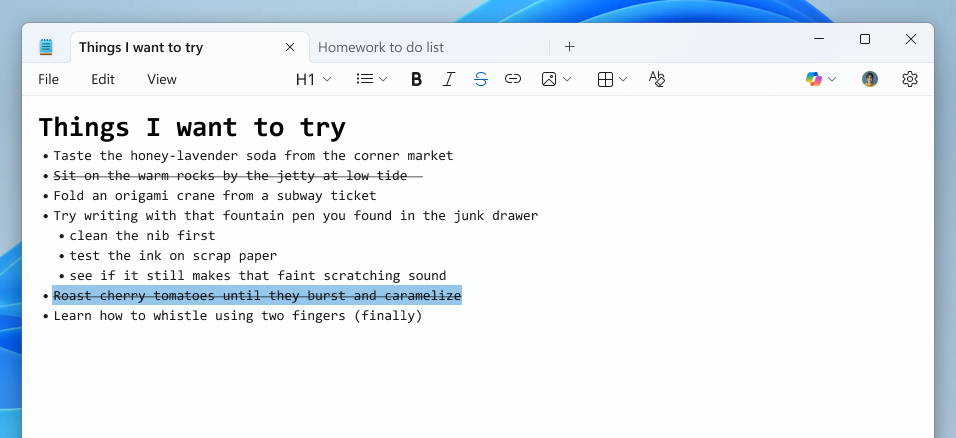
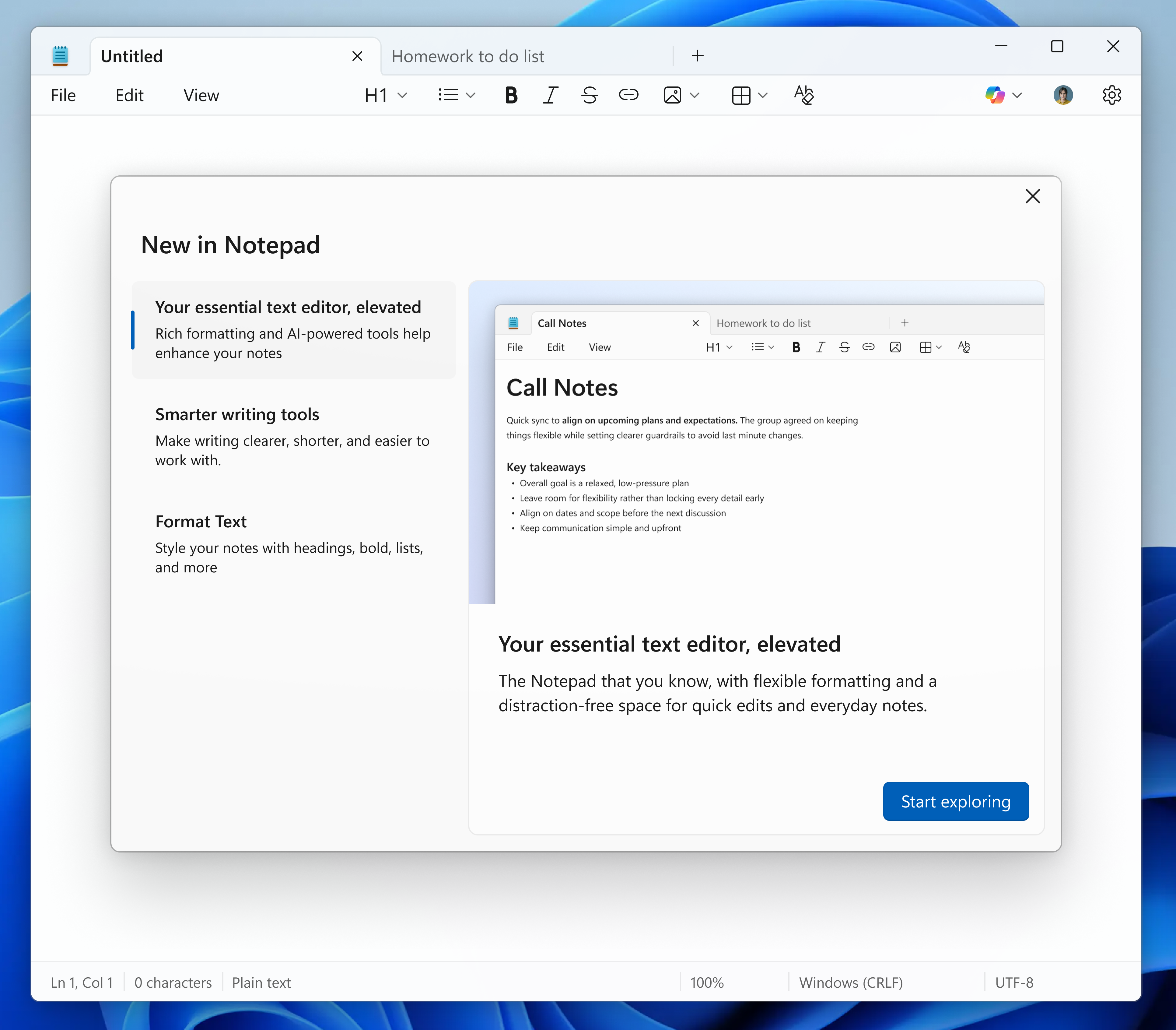
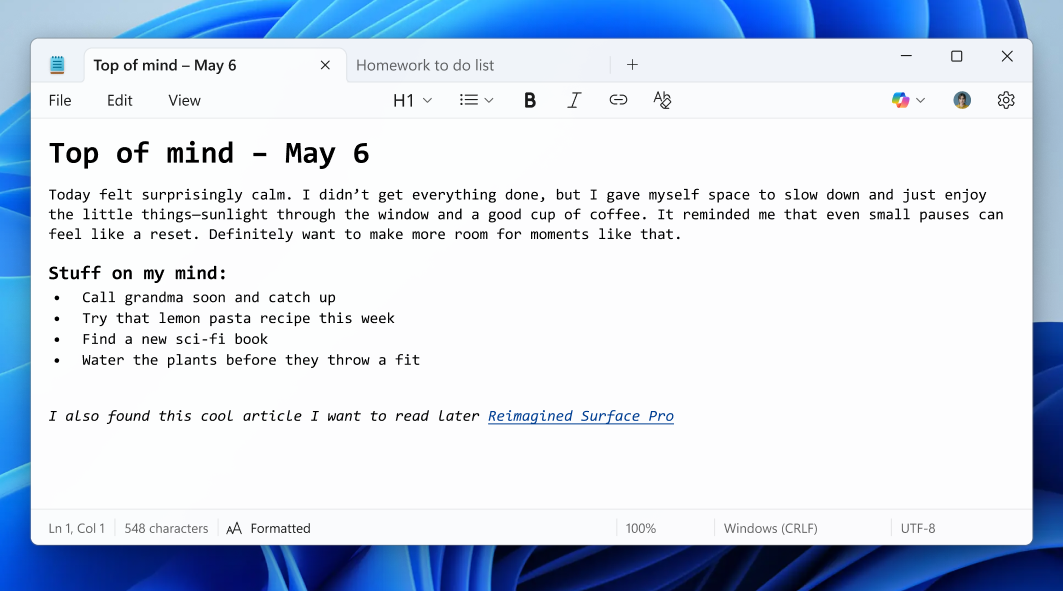
In this update, we’re introducing multiple improvements to Notepad. First, we are expanding support of lightweight formatting to include additional Markdown syntax features. This includes strikethrough formatting and nested lists. To get started, explore these new options in the formatting toolbar, keyboard shortcuts, or by editing the Markdown syntax directly. [caption id="attachment_178546" align="alignnone" width="956"]Notepad app screenshot of a nested list and strikethrough formatted created using the Increase indent command. Notepad app screenshot of a nested list and strikethrough formatted created using the Increase indent command.[/caption] We are also introducing a new welcome experience in Notepad designed to help users discover and learn about the app’s latest and most useful features. This dialog provides a quick overview of what’s possible in Notepad and serves as a helpful starting point for both new and returning users. You can close it anytime and revisit it later by clicking the megaphone icon in the top-right corner of the toolbar. [caption id="attachment_178547" align="alignnone" width="1024"]Notepad app screenshot of the updated “What’s New” first run experience. Notepad app screenshot of the updated “What’s New” first run experience.[/caption] Finally, we are expanding support for streaming results for AI text features. Whether generated locally or in the cloud, results for Write, Rewrite, and Summarize will start to appear quicker without the need to wait for the full response, providing a preview sooner that you can interact with. To use Write, Rewrite, and Summarize in Notepad, you will need to sign in with your Microsoft account. FEEDBACK: Please file feedback in Feedback Hub (WIN + F)under Apps > Notepad.

Paint (version 11.2512.191.0) 

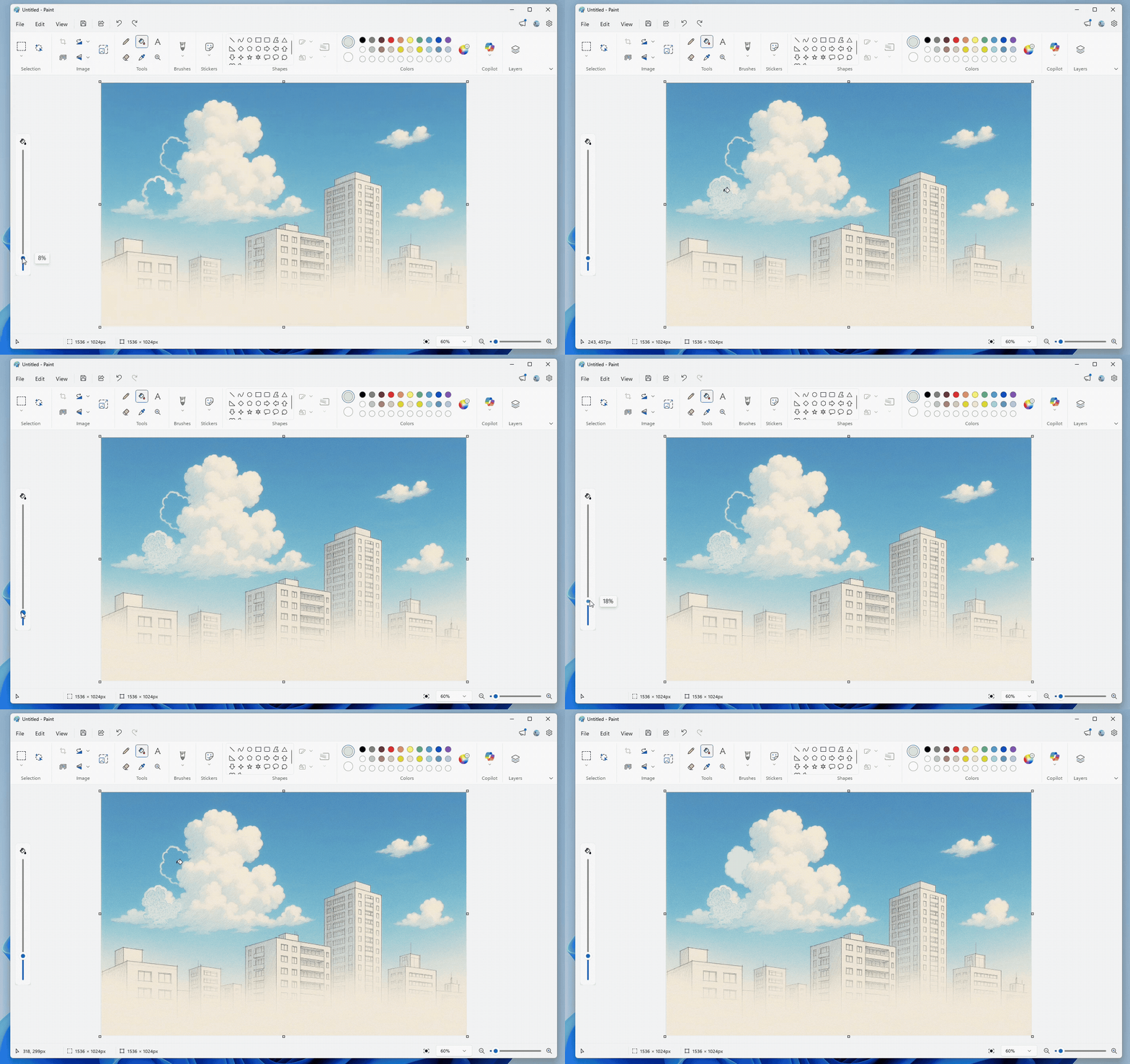
In this update, we’re introducing two new features to Paint, Coloring book and fill tolerance slider. Coloring book, an AI-powered feature that lets you create unique coloring book pages from a text prompt. To get started, open Paint and select the Coloring book option from the Copilot menu. Once the side panel is open, type in a description of the coloring book you want to create, like “a cute fluffy cat on a donut” or "a house with a garden and fence" and hit the Generate button. Paint will then generate a set of unique coloring book pages based on your prompt. Once the coloring book pages are generated, you can click on any one of them to Add to canvas, copy, or save it for later use. [caption id="attachment_178548" align="alignnone" width="1024"]Paint app showing a cat on a donut coloring book page. Paint app showing a cat on a donut coloring book page.[/caption] Coloring book will be available only on Copilot+ PCs. To use Coloring book, you will need to sign in with your Microsoft account. We’re also adding a fill tolerance slider, giving you control over how precisely the Fill tool applies color. To get started, select the Fill tool and use the slider on the left side of the canvas to adjust the tolerance to your desired level. Experiment with different tolerance settings to achieve clean fills or creative effects. [caption id="attachment_178553" align="alignnone" width="1426"]Paint app showing Fill tool with tolerance set to 8% versus 18%. Paint app showing Fill tool with tolerance set to 8% versus 18%.[/caption] FEEDBACK: Please file feedback in Feedback Hub (WIN + F)under Apps > Paint. As always, we love getting feedback from the community and we will be looking out for your thoughts and suggestions on these updates! Thanks, Dave Grochocki, Principal Group Product Manager – Windows Inbox Apps
  •  

Copilot on Windows: New text editing feature begins rolling out to Windows Insiders

19 December 2025 om 20:18
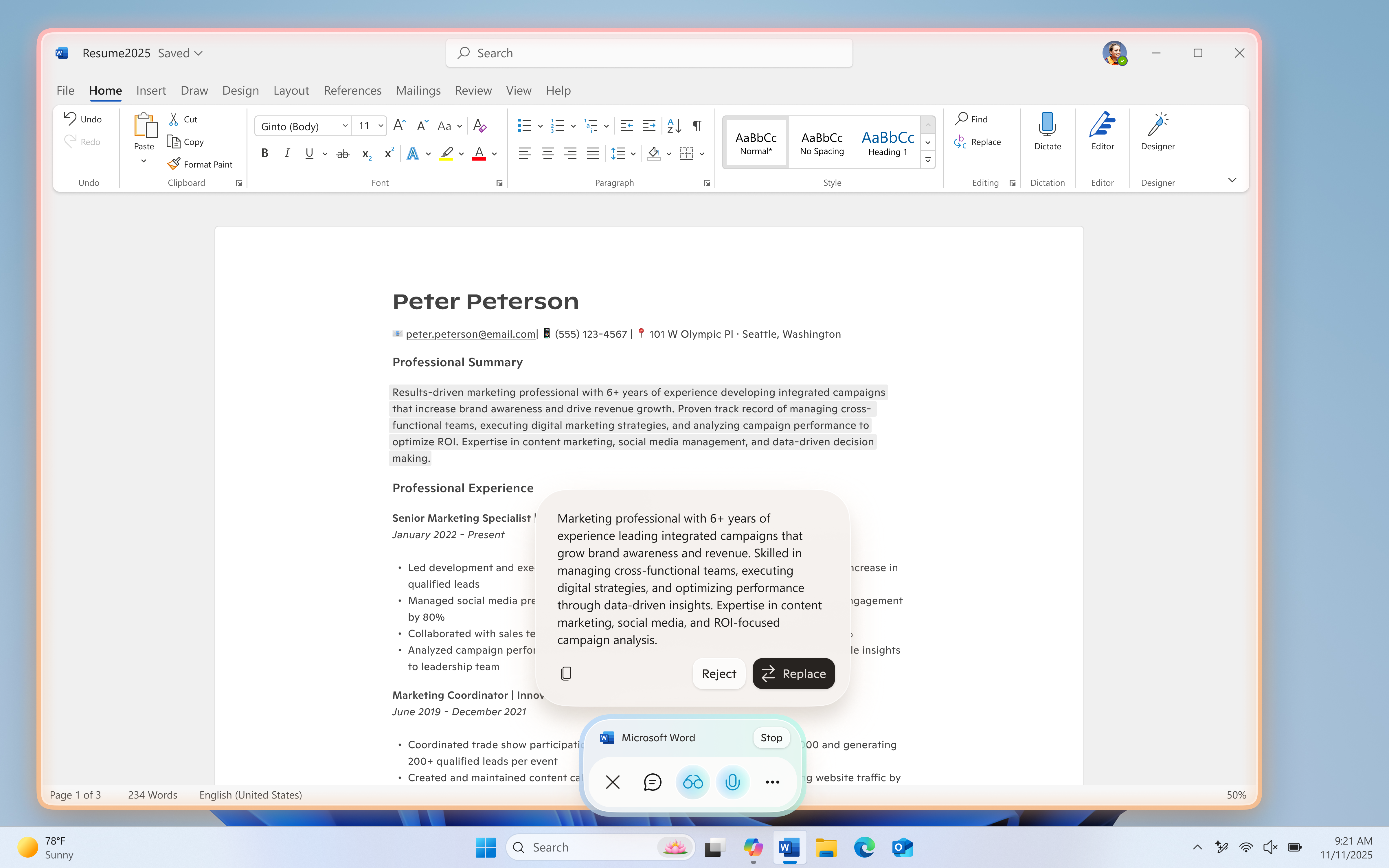
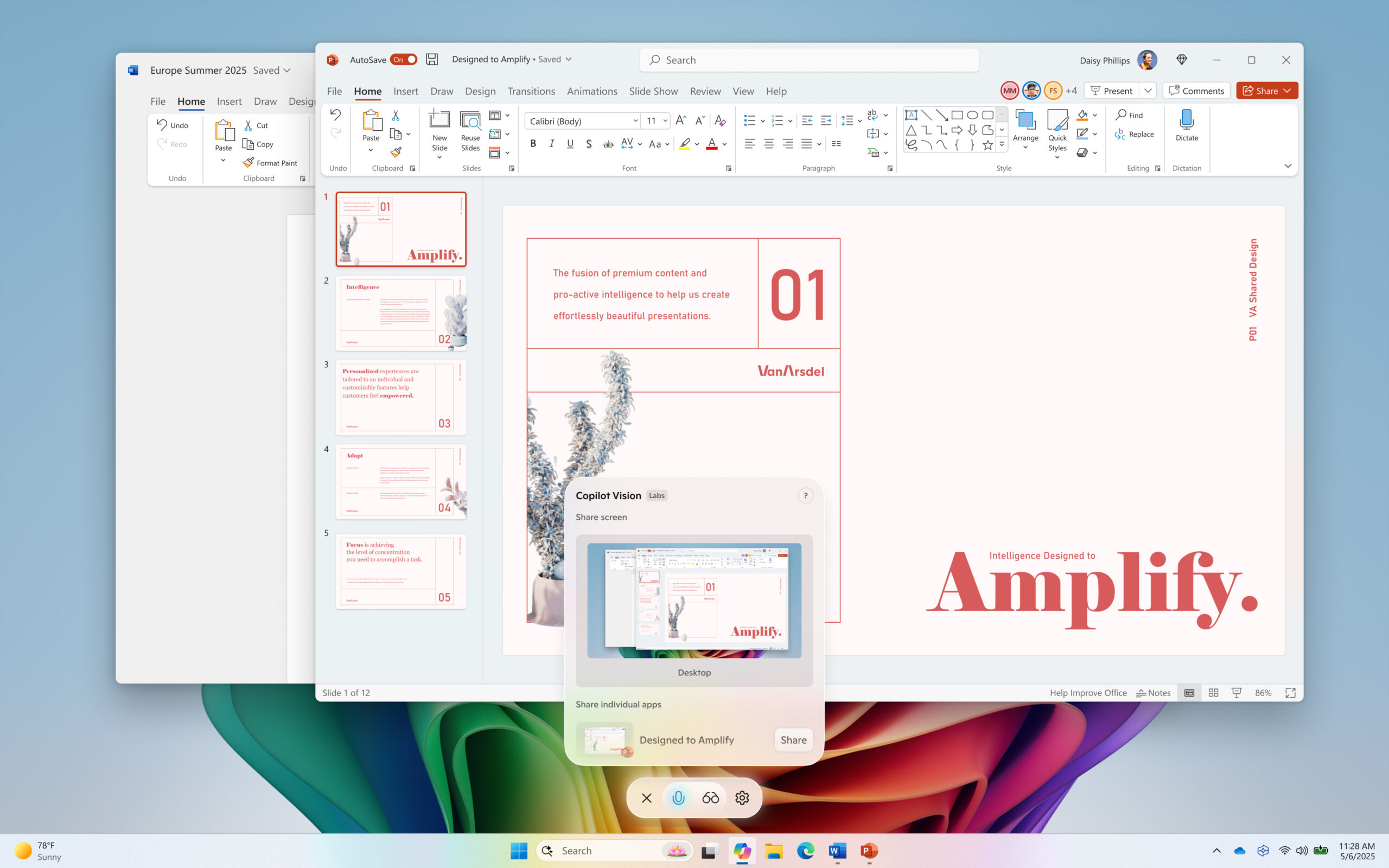
Hello Windows Insiders, we are excited to begin rolling out a new update for the Microsoft Copilot app on Windows that introduces the following changes and improvements: Copilot Actions for Text Editing: Windows Insiders can use Copilot to rewrite, refine, or edit text in real time during Copilot Vision sessions, enabling smooth, in‑flow collaboration and editing. To start a Vision session, open the Copilot app and select the glasses icon in the bottom right of the chat bar. Then choose the window you want to share that includes a doc or app you are editing in, and Copilot will begin analyzing what’s on your screen. Place your cursor in any text field, click into the text field, and speak naturally, using your own words. For example, you could say, “rewrite this to be more formal”, “make this clearer”, or “simplify this text”. Copilot will then suggest an edit directly in-flow. You’ll see a preview before any changes are made, so you can accept or refine the suggestion while staying focused on your task. Copilot Vision remains a fully opt-in feature and will only be activated when a user chooses to turn it on. Copilot Actions for text editing requires the Copilot Actions toggle to be enabled in Settings in the Copilot App. Users who enable this toggle will also have access to Copilot Actions for long-running tasks, a distinct feature in Copilot Labs which you can learn about here. We’re continuously exploring how Copilot can empower users to be more productive, craft high-quality content, and reduce the friction of getting started. We’re actively refining this feature based on feedback and real-world use to better support those goals. [caption id="attachment_178509" align="alignnone" width="1024"]UI showing Copilot Actions for text editing during a Copilot Vision session. UI showing Copilot Actions for text editing during a Copilot Vision session.[/caption] The latest Copilot app update (version 1.25121.60.0 and higher) is now beginning to roll out to all Insider Channels through the Microsoft Store. To use Copilot Actions for text editing, users will also need Windows version 26200.6899 or later. This feature is gradually rolling out to Windows Insiders worldwide, excluding the EEA, so availability may vary. We’re excited to preview these improvements with our Insider community and ensure we deliver a great Copilot experience for all Windows customers. FEEDBACK: Please provide feedback directly within the Copilot app by clicking on your profile icon and choosing “Give feedback”. Thanks, Microsoft Copilot Team
  •  

Notepad update begins rolling out to Windows Insiders

21 November 2025 om 19:06
Hello Windows Insiders, today we are beginning to roll out updates for Notepad to Windows Insiders in the Canary and Dev Channels on Windows 11.

Notepad (version 11.2510.6.0)

In this update, we are introducing two new features—expanded formatting support with tables and streaming results for AI text features.

Tables

We are expanding lightweight formatting in Notepad with support for tables! You can now easily insert tables in your document to help structure your notes. To get started, look for the new Table option in the formatting toolbar or by adding them using Markdown syntax directly. Once inserted, you can perform quick edits to add or remove rows and columns in the right-click context menu or from the Table menu in the toolbar. [caption id="attachment_178438" align="alignnone" width="1024"]Notepad open with table as part of formatted content with menu open to add new table in the formatting toolbar. Notepad open with table as part of formatted content with menu open to add new table in the formatting toolbar.[/caption]

Streaming Results for AI Text Features

We are also improving the experience for Write, Rewrite, and Summarize with streaming result responses. Results will start to appear quicker without the need to wait for the full response, providing a preview sooner that you can interact with. [caption id="attachment_178439" align="alignnone" width="1024"]Notepad displaying generated summary appearing word by word. Notepad displaying generated summary appearing word by word.[/caption] Streaming support for Rewrite is limited to results generated locally on Copilot+ PCs at this time. To use Write, Rewrite, and Summarize in Notepad, you will need to sign in with your Microsoft account. FEEDBACK: Please file feedback in Feedback Hub (WIN + F)under Apps > Notepad. As always, we love getting feedback from the community and we will be looking out for your thoughts and suggestions on these updates! Thanks, Dave Grochocki, Principal Group Product Manager – Windows Inbox Apps
  •  

Full screen experience expands to more Windows 11 PC form factors for Windows Insiders

21 November 2025 om 19:02
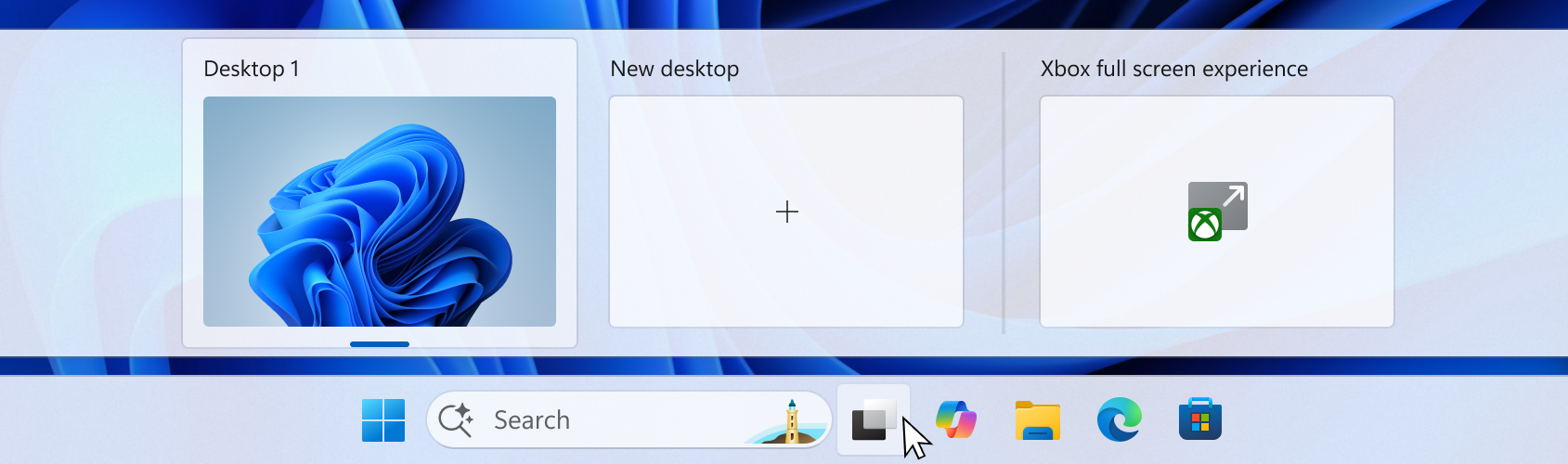
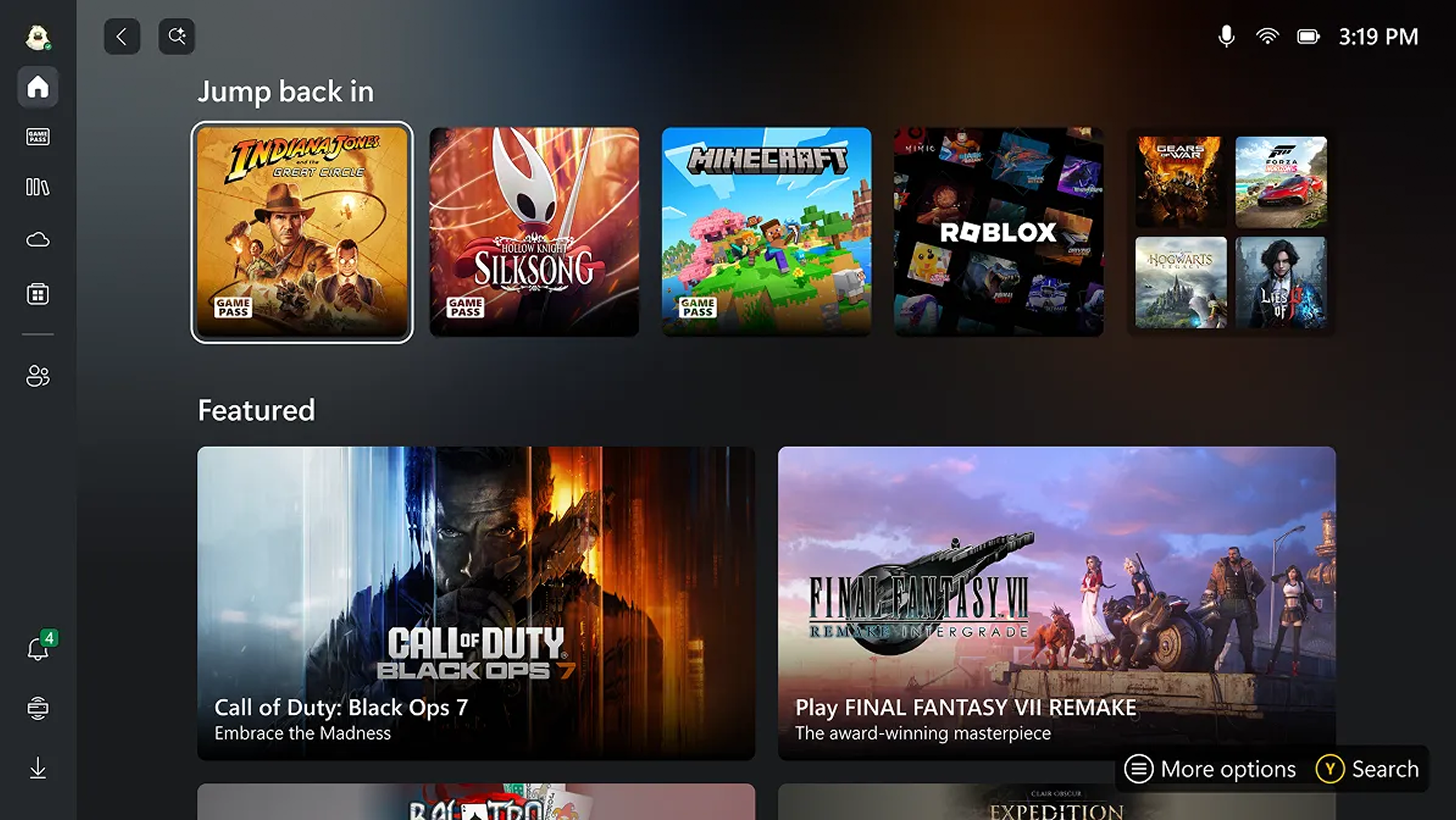
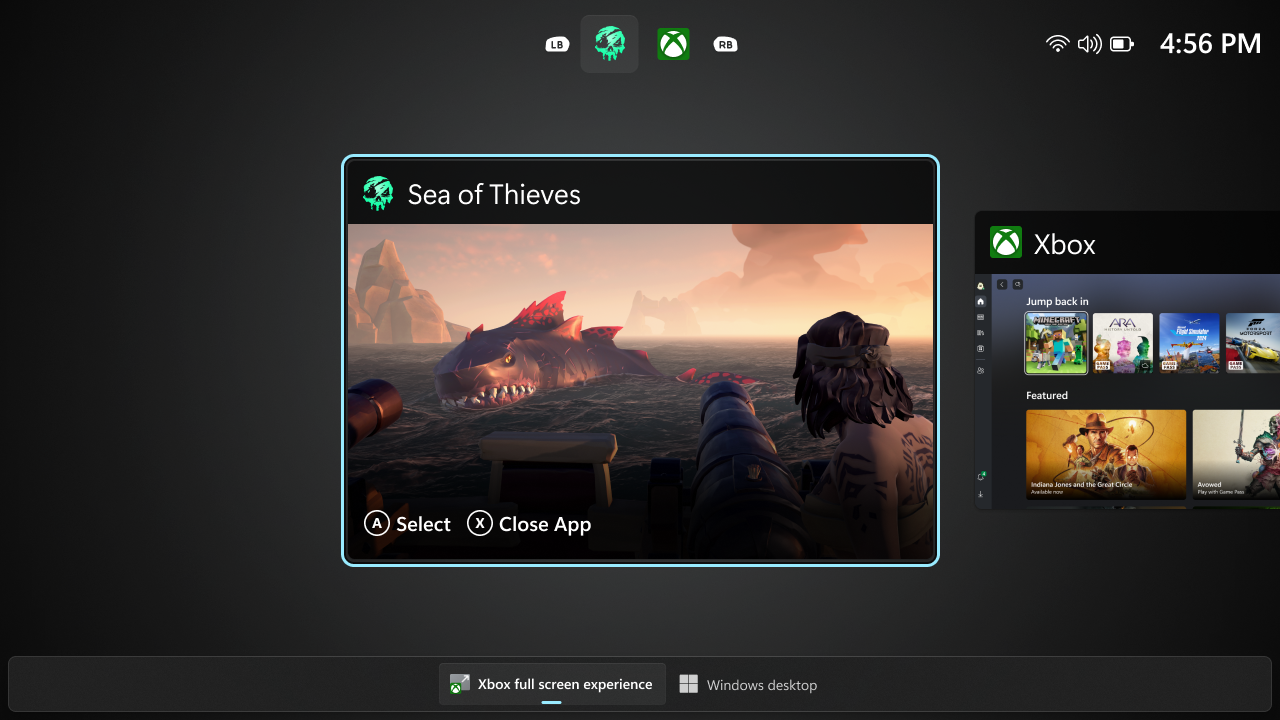
Hello Windows Insiders! We appreciate the excitement around the latest Windows handhelds and have heard feedback (and seen the creativity!) from those wanting this experience on more devices. Today, we’re excited to begin previewing a new experience for gaming on Windows 11 PCs. Alongside today’s general availability of full screen experience on more Windows handhelds currently in market, today’s Windows Insider Preview Build 26220.7271 offered to the Dev and Beta Channels expands the Xbox full screen experience to additional devices such as laptops, desktops, and tablets. Windows has long been the foundation for innovation with its open platform—one that has defined PC gaming. In partnership with Xbox, we’re creating experiences designed for when, where, and how, people play. Full screen experience is purpose-built for gaming and adds another way to enjoy games on your PC, delivering an immersive experience for players who want a console-like feel—while keeping the flexibility and choice that PC players value. Designed with console-style navigation in mind, the Xbox full screen experience offers a clean, distraction-free interface for controller-first gaming. When it’s time to take a break from, grab your controller and dive into the immersive, simplified Xbox full screen experience on your PC. When you’re done gaming, switch back to your desktop and pick up right where you left off. We’ve tailored the full screen experience for PCs to make switching in and out of the desktop as streamlined as possible. Xbox full screen experience, hover over the Task View icon on your taskbar and choose Xbox full screen experience. You can also open Task View by pressing Win + Tab. [caption id="attachment_178432" align="alignnone" width="1024"]UI of the task view interface showing the option to access Xbox full screen experience. UI of the task view interface showing the option to access Xbox full screen experience.[/caption] You can also open Xbox full screen experience in Game Bar > Settings or by pressing Win + F11 to toggle the experience.  These entry points can be managed in Windows Settings under Gaming > Full screen experience, where you can turn off the experience entirely if you prefer. Once you’ve entered the Xbox full screen experience, you’ll see the Xbox home screen and can access your games, including Xbox, Game Pass, Xbox Play Anywhere, and your installed games from other popular storefronts. [caption id="attachment_178434" align="alignnone" width="1024"]UI of the Xbox full screen experience home screen. UI of the Xbox full screen experience home screen.[/caption] It’s easy to switch between your open apps and games with just a long press on the Xbox button on your controller or on your keyboard. [caption id="attachment_178433" align="alignnone" width="1024"]UI showing the Task View in Xbox full screen experience on PC.  UI showing the Task View in Xbox full screen experience on PC.[/caption] Some keyboard shortcuts, like those that show desktop or search, intentionally behave differently in Xbox full screen experience than they do on the standard desktop to keep the experience focused on gaming. When you’re ready to switch back to your desktop, you can either choose the Windows desktop option from Task View, exit from Game Bar settings, , or simply hit the Windows key on your keyboard—no reboot required. Availability:  Starting today, the Xbox full screen experience is gradually rolling out with the Windows Insider Preview Build (26220.7271) to the Dev and Beta channels. This feature requires the Xbox app from the Microsoft Store. The rollout is phased, so not all Insiders will receive the update right away. To be among the first to try these new features on your Windows 11 PC, join the Xbox Insiders Program and opt into the PC Gaming preview through the Xbox Insiders Hub. We’ll continue adding new Xbox Insiders to the rollout over time. We are committed to delivering a seamless experience and look forward to hearing thoughts and suggestions from the Windows and Xbox Insider communities. FEEDBACK: Share your thoughts in Feedback Hub (WIN + F) under Gaming and Xbox > Gaming Full Screen Experience. Thanks, Ian LeGrow, CVP, Windows + Devices
  •  

Copilot on Windows: Copilot Actions begins rolling out to Windows Insiders

18 November 2025 om 01:31
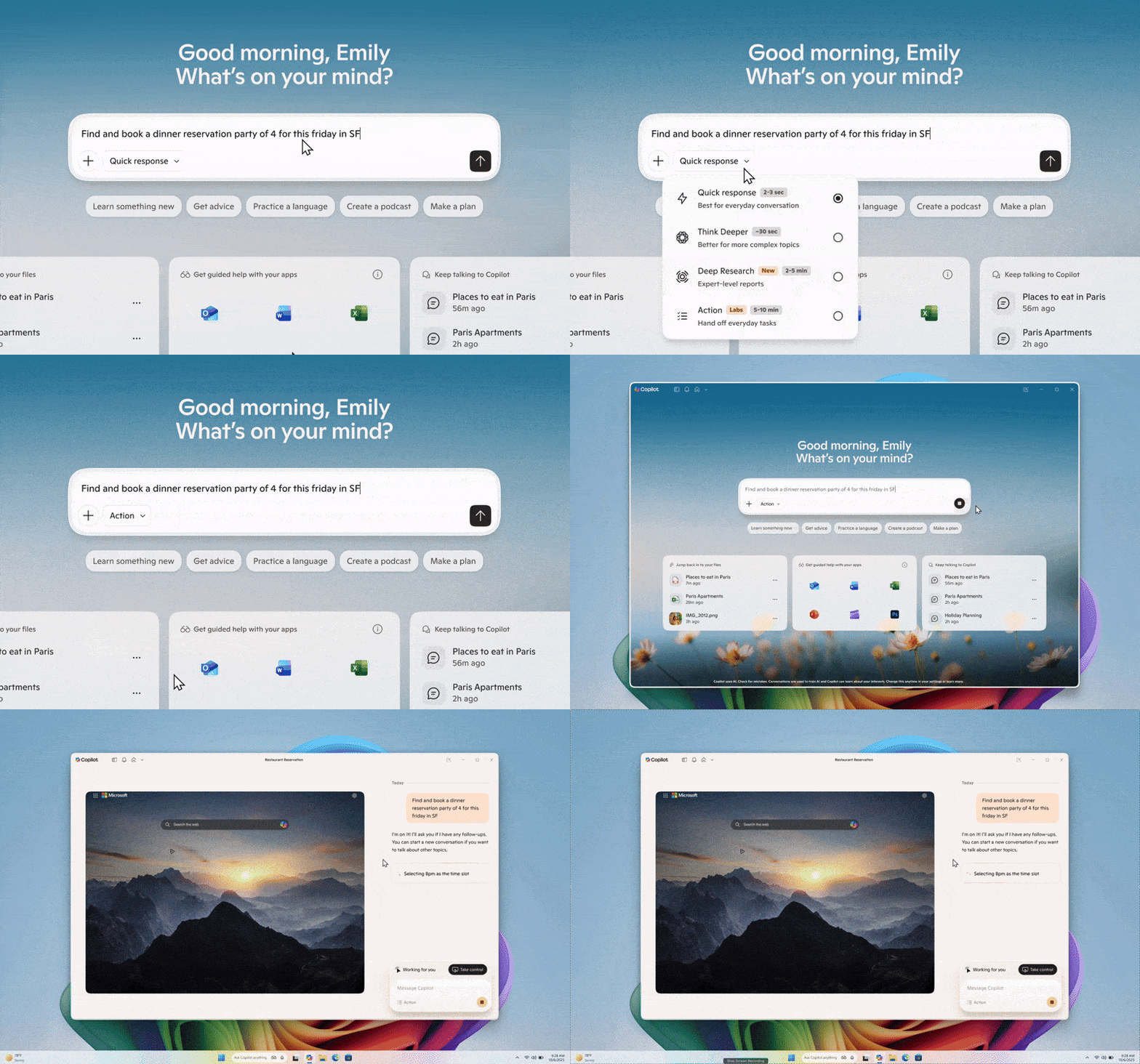
Hello Windows Insiders, we are excited to begin rolling out a new update for the Microsoft Copilot app on Windows that introduces the following changes and improvements: Copilot Actions: Windows Insiders can now use Copilot Actions to perform tasks directly on local files in Windows in an Agent Workspace, a contained, policy-controlled, and auditable environment. As a general-purpose agent, simply describe the task you want to complete in your own words, and the agent will attempt to complete it by interacting with desktop and web applications in a contained environment separate from the interactive user session – like a separate desktop instance just for Copilot. Whether you need a hand sorting through your recent vacation photos, organizing your Downloads folder, converting your files, or need to extract info from a PDF, Copilot Actions can do the heavy lifting for you based on the context of what’s on your PC. At this time, Copilot Actions is an experimental Copilot Labs feature which may make mistakes or encounter challenges with complex interfaces, please monitor their work closely. We welcome your feedback as we seek to improve the experience. At any time, you can take over the task or check in on the progress of the action, including reviewing what actions have been taken. We’ll be starting with a narrow set of use cases while we optimize model performance and learn. You can find more information about our security and privacy controls here, and FAQs here. To get started, select “Take Action” from the drop down in the composer. Optionally, provide Copilot Actions with files or folders by selecting “Attach file” or “Attach folder” from the + button. Copilot will then take a few moments to create a Desktop, before starting to work on your task. [caption id="attachment_178407" align="alignnone" width="800"]UI showing how Copilot Actions performs tasks directly on local files in Windows in an Agent Workspace. UI showing how Copilot Actions performs tasks directly on local files in Windows in an Agent Workspace.[/caption] This Copilot app update (version 1.25112.74 and higher) is beginning to roll out across all Insider Channels via the Microsoft Store.  The above-mentioned feature is gradually rolling out to Insiders worldwide, excluding EEA, so not all Insiders will get the update right away. We are excited to be previewing improvements with our Insiders to ensure all our customers have a great Copilot experience on Windows. FEEDBACK: Please provide feedback directly within the Copilot app by clicking on your profile icon and choosing “Give feedback”. Thanks, Microsoft Copilot and Windows Team
  •  

Extending Bluetooth® LE Audio on Windows 11 with shared audio (preview)

31 Oktober 2025 om 18:04
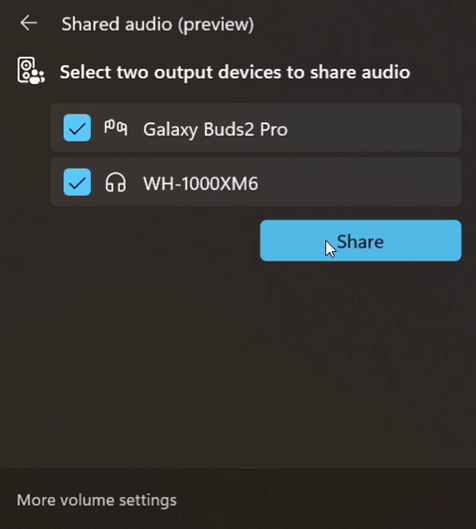
[Updated 3/05] Shared audio continues to improve, with per-accessory volume sliders, a taskbar icon while sharing, and expanded device readiness for this preview. Check it out here with the Windows Insider Build 26300.7939 or later on Dev & Beta channels.   Today’s Windows 11 Insider Preview Build (26220.7051) for Dev & Beta Channels begins gradual rollout of shared audio (preview), a new experience being previewed that allows your audio to be shared between two separate headphones, speakers, earbuds, or hearing aids.  Built on top of Bluetooth LE Audio broadcast technology, shared audio lets your supported Windows 11 PC transmit an audio stream to two Bluetooth audio accessories at the same time. Update 10/31: This preview is currently only supported on the Copilot+ PCs listed below, but more devices may be supported once available to general audiences. Shared audio lets students share music with a friend while studying or brings family members closer by watching a movie together on an airplane. As Insiders, you have the first opportunity to explore this feature and provide feedback before it rolls out more broadly. To use shared audio, pair and connect two compatible Bluetooth LE Audio accessories to your Windows 11 PC, then use the “Shared audio (preview)” tile in quick settings to start sharing audio. Use the “Stop sharing” button to end an active sharing session. [caption id="attachment_178365" align="alignnone" width="476"]Shared audio (preview) settings showing two connected devices and the Share button to get started using the experience. Shared audio (preview) settings showing two connected devices and the Share button to get started using the experience.[/caption]

Compatible Copilot+ PCs

Shared audio (preview) is supported on select Windows 11 Copilot+ PCs listed below with compatible Bluetooth and audio driver updates, and we expect additional Windows 11 PCs to add support for shared audio later. Available today:
  • Surface Laptop, 13.8-inch and 15-inch* | Qualcomm Snapdragon X
  • Surface Laptop for Business, 13.8 and 15-inch* | Qualcomm Snapdragon X
  • Surface Pro, 13-inch** | Qualcomm Snapdragon X
  • Surface Pro for Business, 13-inch** | Qualcomm Snapdragon X
  • [UPDATE 11/20] Surface Laptop, 13-inch | Qualcomm Snapdragon X
  • [UPDATE 11/20] Surface Laptop for Business, 13-inch | Qualcomm Snapdragon X
  • [UPDATE 11/20] Surface Pro, 12-inch | Qualcomm Snapdragon X
  • [UPDATE 11/20] Surface Pro for Business, 12-inch | Qualcomm Snapdragon X
  • [UPDATE 1/29] Samsung Galaxy Book4 Edge | Qualcomm Snapdragon X
Coming soon:
  • Samsung Galaxy Book5 360 | Intel Core Ultra Series 200
  • Samsung Galaxy Book5 Pro | Intel Core Ultra Series 200
  • Samsung Galaxy Book5 Pro 360 | Intel Core Ultra Series 200
* Previously known as Surface Laptop 7th Edition ** Previously known as Surface Pro 11th Edition

Compatible Bluetooth LE Audio accessories

Shared audio (preview) is compatible with a wide range of Bluetooth LE Audio accessories. This includes, but is not limited to, Samsung Galaxy Buds2 Pro, Buds3 and Buds3 Pro, Sony WH-1000XM6, and recent LE Audio capable hearing aids from ReSound and Beltone. Shared audio and other innovative Windows Bluetooth audio experiences, like super wideband stereo, are built on top of LE Audio technology. Look for LE Audio support when purchasing your next headphones, earbuds, speaker, or assistive hearing device.

Requirements to try shared audio (preview)

To try out shared audio (preview), enroll your compatible Windows 11 Copilot + PC in the Windows Insider Dev or Beta Channels, and install the latest OS and driver updates through Windows Update. For Windows Insiders who want to be the first to get features gradually rolled out to you, you can turn ON the toggle to get the latest updates as they are available via Settings > Windows Update. Over time, we will increase the rollouts of features to everyone with the toggle turned on. Should you keep this toggle off, new features will gradually be rolled out to your PC over time once they are ready. If you own a Copilot+ PC on the coming soon list, look for driver updates to be offered to you through Windows Update in the coming weeks. The “Shared audio (preview)” tile will appear in Quick Settings when your system has the necessary driver updates to support the feature. It is highly recommended to use the manufacturers’ app for your Bluetooth audio accessories to ensure LE Audio support is enabled and that the latest firmware updates are installed. If after updating, your Bluetooth accessory is connected to your PC but does not show under the “Shared audio (preview)” tile, try removing it from your PC, and then re-pairing it.

Share your feedback

We welcome and appreciate all feedback to help refine the shared audio experience during preview. Please file feedback in Feedback Hub (WIN + F) under Bluetooth – Audio quality, glitches, choppiness and stuttering.
  •  

Copilot on Windows: Vision with text input begins rolling out to Windows Insiders

28 Oktober 2025 om 21:47
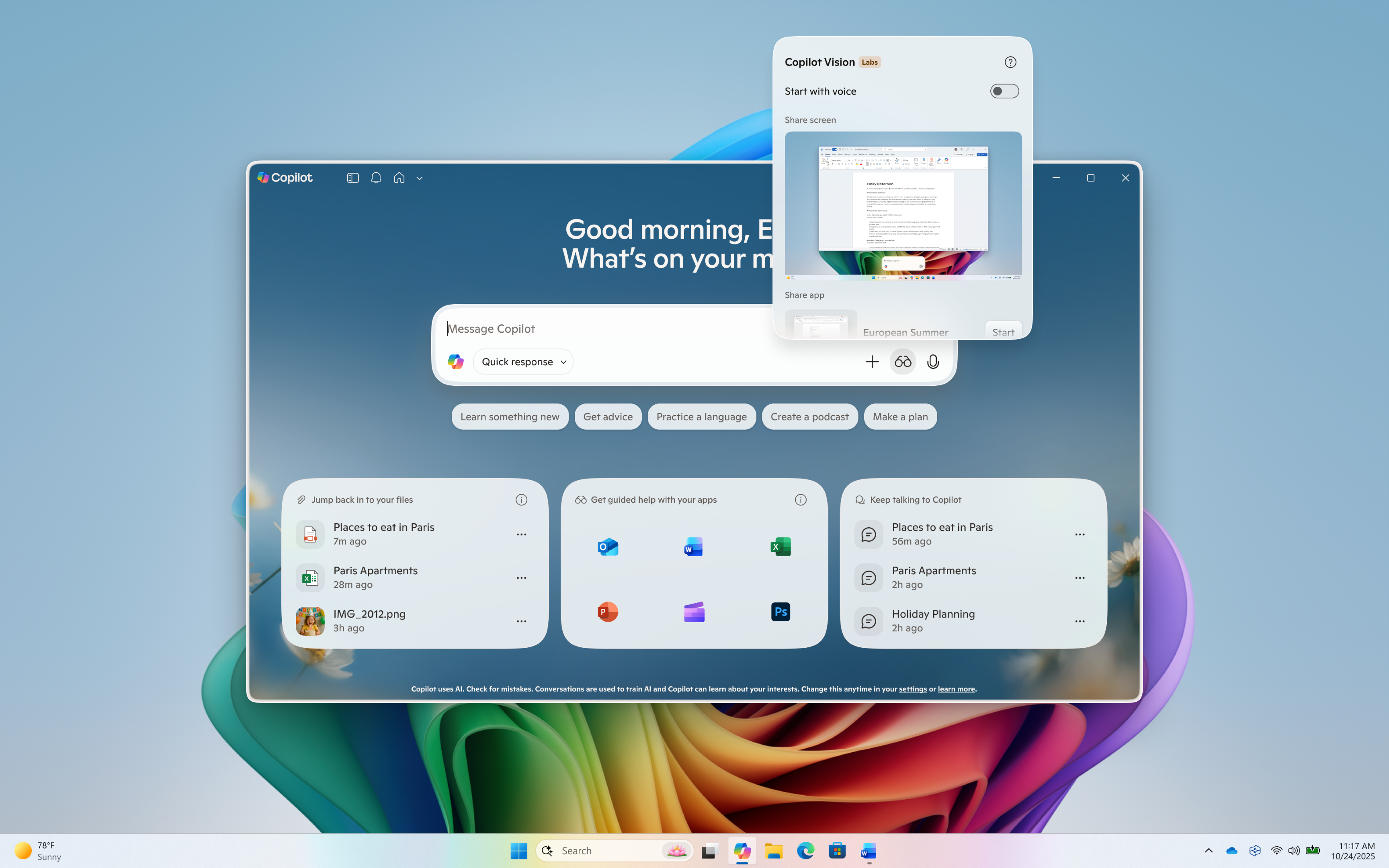
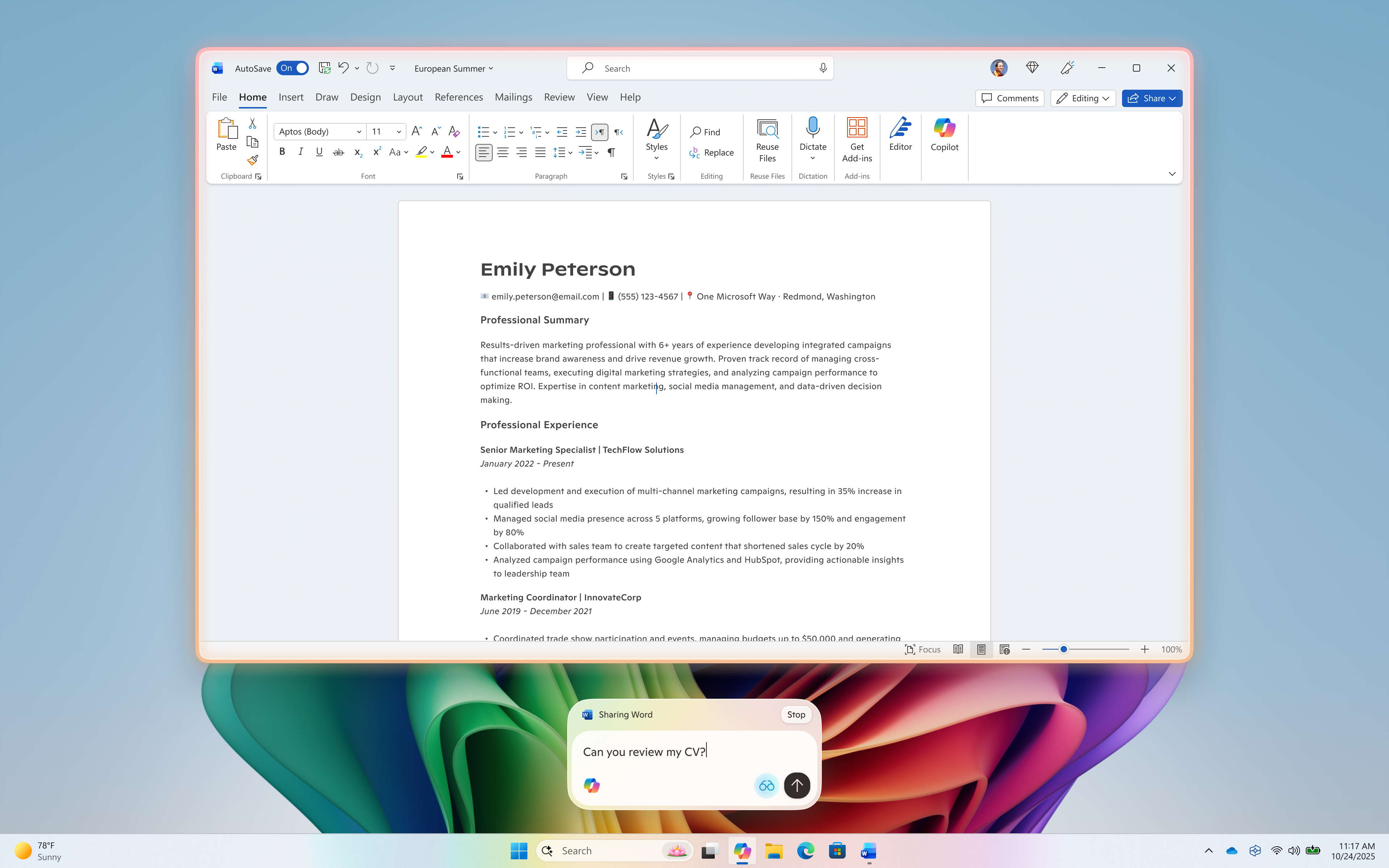
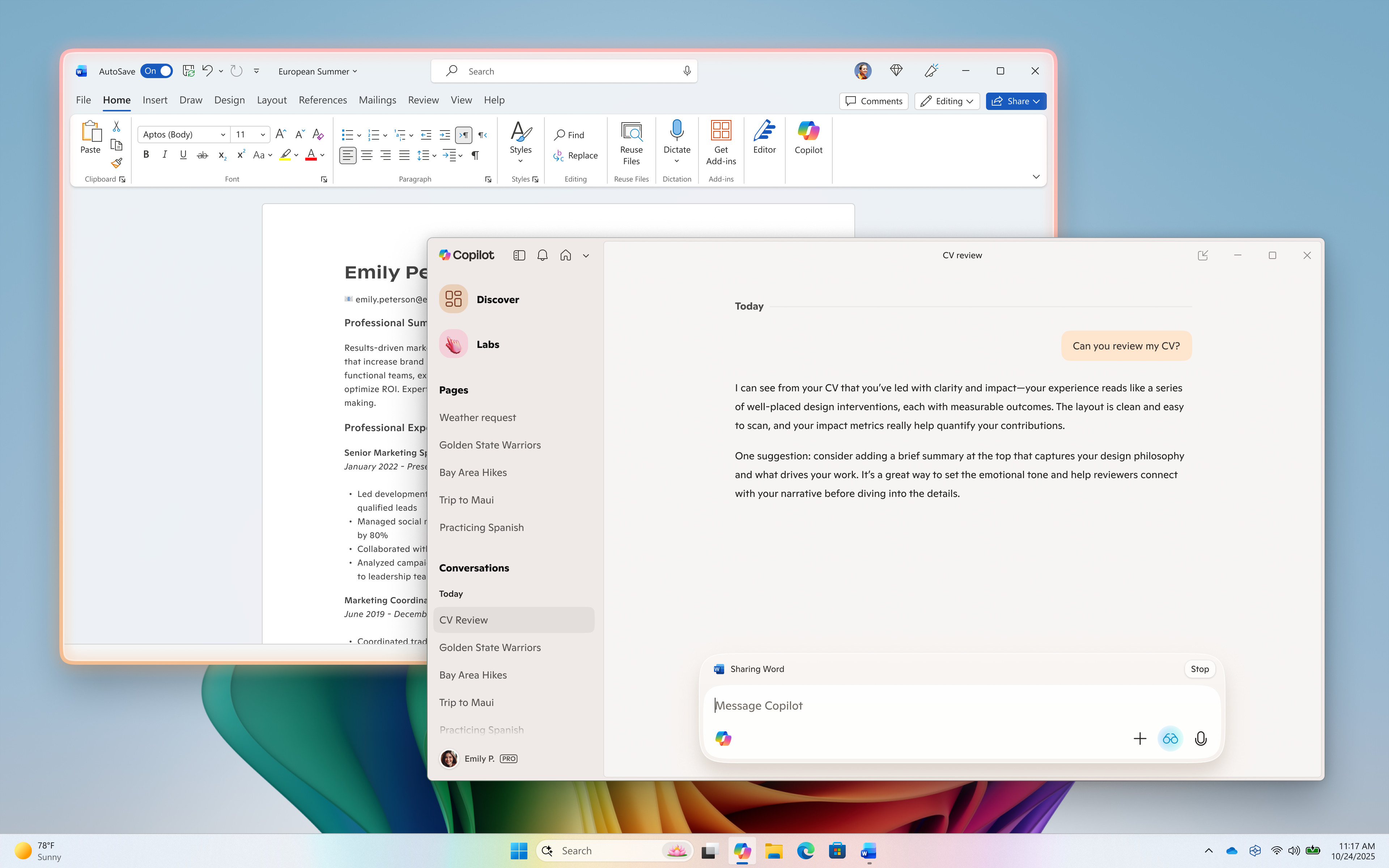
Hello Windows Insiders, we are excited to begin rolling out a new update for the Microsoft Copilot app on Windows that introduces the following changes and improvements: Vision with text-in, text-out: Windows Insiders can now converse with Copilot Vision using text, with Copilot responding in text within the same chat window. Previously you could only use Vision using voice, and Copilot would coach you through it aloud. Share any app or screen, and Copilot can help analyze, offer insights, or answer your questions. To get started click the glasses icon in your composer, toggle off the ‘Start with voice ‘setting, and select which app or screen you want to share with Copilot. You will see a glow around the app or window that you are sharing with Copilot.  Type your questions, and Copilot will respond in text within the same chat window. Pressing the mic button will transition the text Vision session to a  voice Vision session, and you can continue the conversation using your voice. To stop sharing, press ‘Stop’ or ‘X’ in the composer. We are continuing to explore how Vision can best serve our users, so some functionality, like highlights that visually point out elements on the screen, is not supported with today’s release. Please provide feedback on your experience directly within the Copilot app by clicking on your profile icon and choosing “Give feedback”. Whether you forget your headphones or just prefer engaging via text, Vision can support you across whichever scenario suits you best. [caption id="attachment_178349" align="alignnone" width="1024"]Click on the glasses icon, toggle off ‘Start with voice’, and share your screen to start Vision with text. Click on the glasses icon, toggle off ‘Start with voice’, and share your screen to start Vision with text.[/caption] [caption id="attachment_178351" align="alignnone" width="1024"]Type your questions or chat about what you’re sharing Type your questions or chat about what you’re sharing[/caption] [caption id="attachment_178350" align="alignnone" width="1024"]Copilot responds in text Copilot responds in text[/caption] This Copilot app update (version 1.25103.107 and higher) is beginning to roll out across all Insider Channels via the Microsoft Store. The above-mentioned features are gradually rolling out so not all Insiders will get the update right away. We are excited to be previewing improvements with our Insiders to ensure all our customers have a great Copilot experience on Windows. FEEDBACK: Please provide feedback directly within the Copilot app by clicking on your profile icon and choosing “Give feedback”. Thanks, Microsoft Copilot Team
  •  

Restyle in Paint begins rolling out to Windows Insiders

22 Oktober 2025 om 19:14
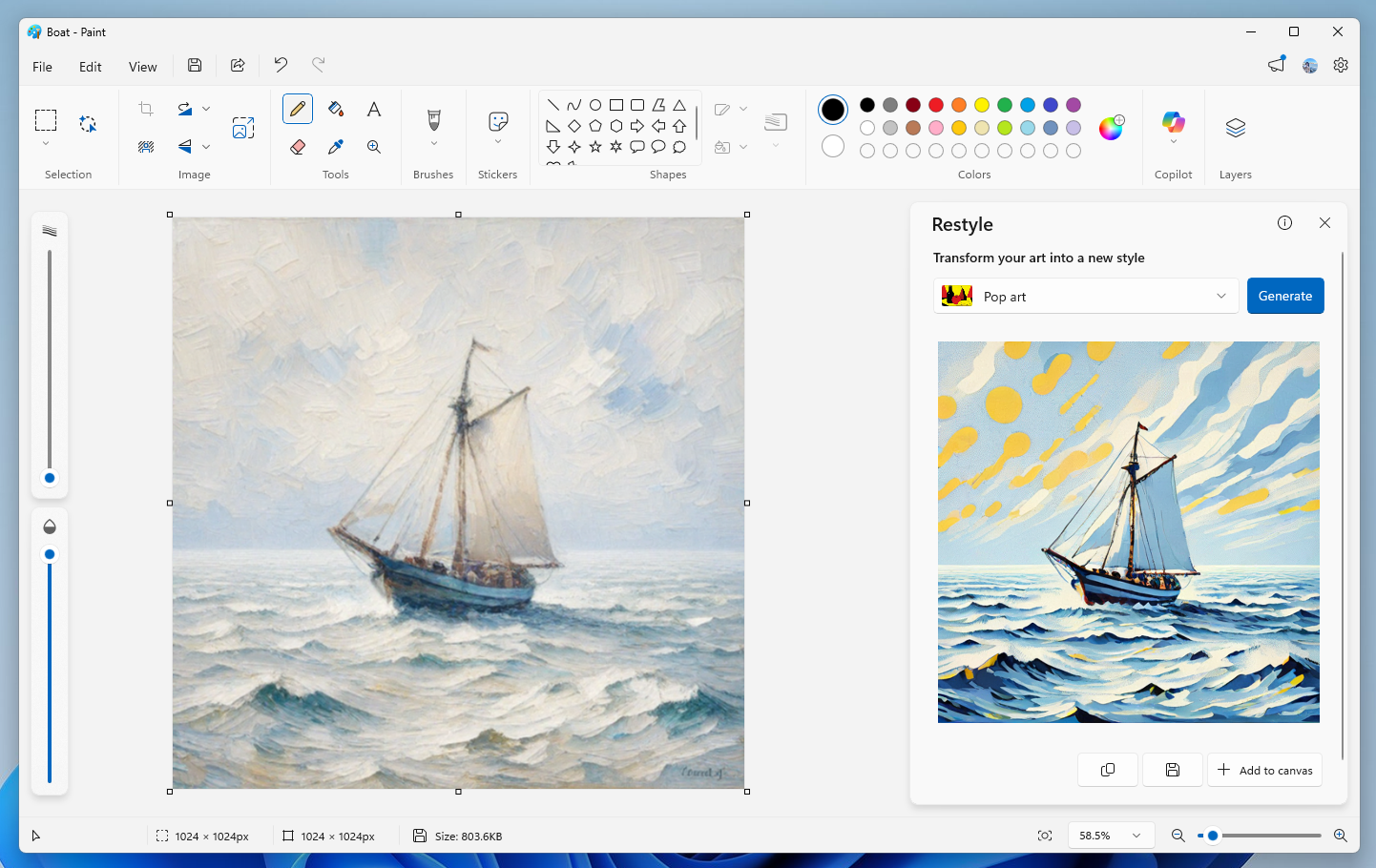
Hello Windows Insiders, today we are beginning to roll out updates to Paint to Windows Insiders in the Canary, Dev & Beta Channels on Windows 11. Paint (version 11.2509.441.0) In this update we are introducing Restyle, an AI-powered feature that lets you transform the art style of images on the canvas. To get started, open Paint and select the Restyle option from the Copilot menu. Choose from a preset list of styles and select the Generate button. Once the restyled images are generated, you can click on the Add to canvas button, copy, or save it for later use. [caption id="attachment_178331" align="alignnone" width="1024"]Paint showing a sailboat styled into Pop art. Paint showing a sailboat styled into Pop art.[/caption]

Restyle will be available on Snapdragon-powered Copilot+ PCs. To use Restyle, you will need to sign in with your Microsoft account.

FEEDBACK: Please file feedback in Feedback Hub (WIN + F) under Apps > Paint. As always, we love getting feedback from the community and we will be looking out for your thoughts and suggestions on these updates! Thanks, Dave Grochocki, Principal Group Product Manager – Windows Inbox Apps
  •  

Copilot on Windows: Settings support begins rolling out to Windows Insiders

14 Oktober 2025 om 01:11
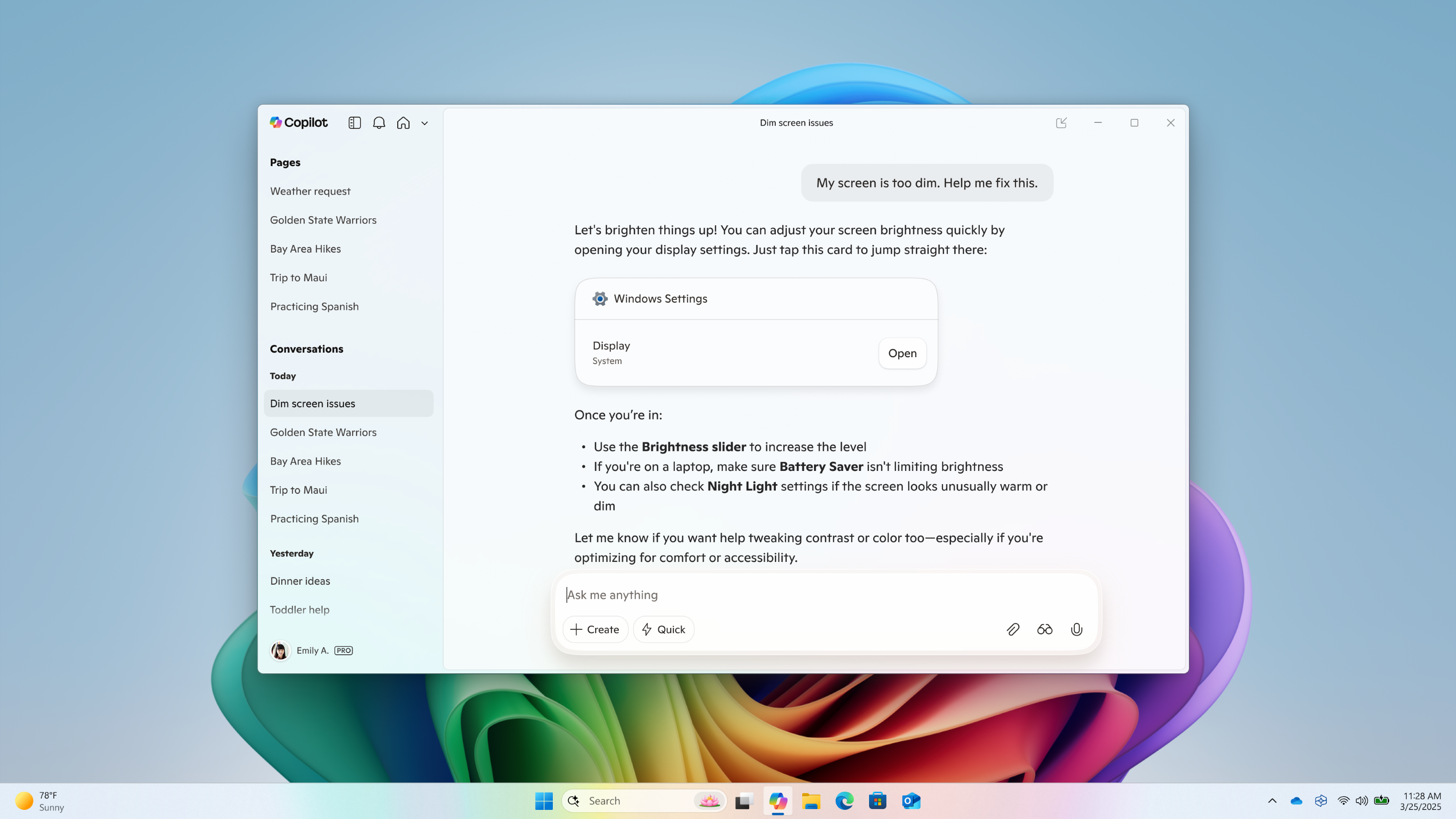
Hello Windows Insiders, we are excited to begin rolling out a new update for the Microsoft Copilot app on Windows that introduces the following changes and improvements: Direct Settings Access: Now, if Copilot on Windows users ask a question related to their PC settings, Copilot will provide a direct link to the relevant Windows Settings. Just ask 'Make my screen easier to read' or 'Help me focus by reducing distractions,' and Copilot will guide you to the Windows settings page. [caption id="attachment_178315" align="alignnone" width="1024"]Direct Settings access in Copilot on Windows Direct Settings access in Copilot on Windows[/caption] This Copilot app update (version 1.25095.161 and higher) is beginning to roll out across all Insider Channels via the Microsoft Store. The above-mentioned features are gradually rolling out so not all Insiders will get the update right away. We are excited to be previewing improvements with our Insiders to ensure all our customers have a great Copilot experience on Windows. FEEDBACK: Please provide feedback directly within the Copilot app by clicking on your profile icon and choosing “Give feedback”. Thanks, Microsoft Copilot Team
  •  

Copilot on Windows: Connectors, and Document Creation begin rolling out to Windows Insiders

9 Oktober 2025 om 23:11
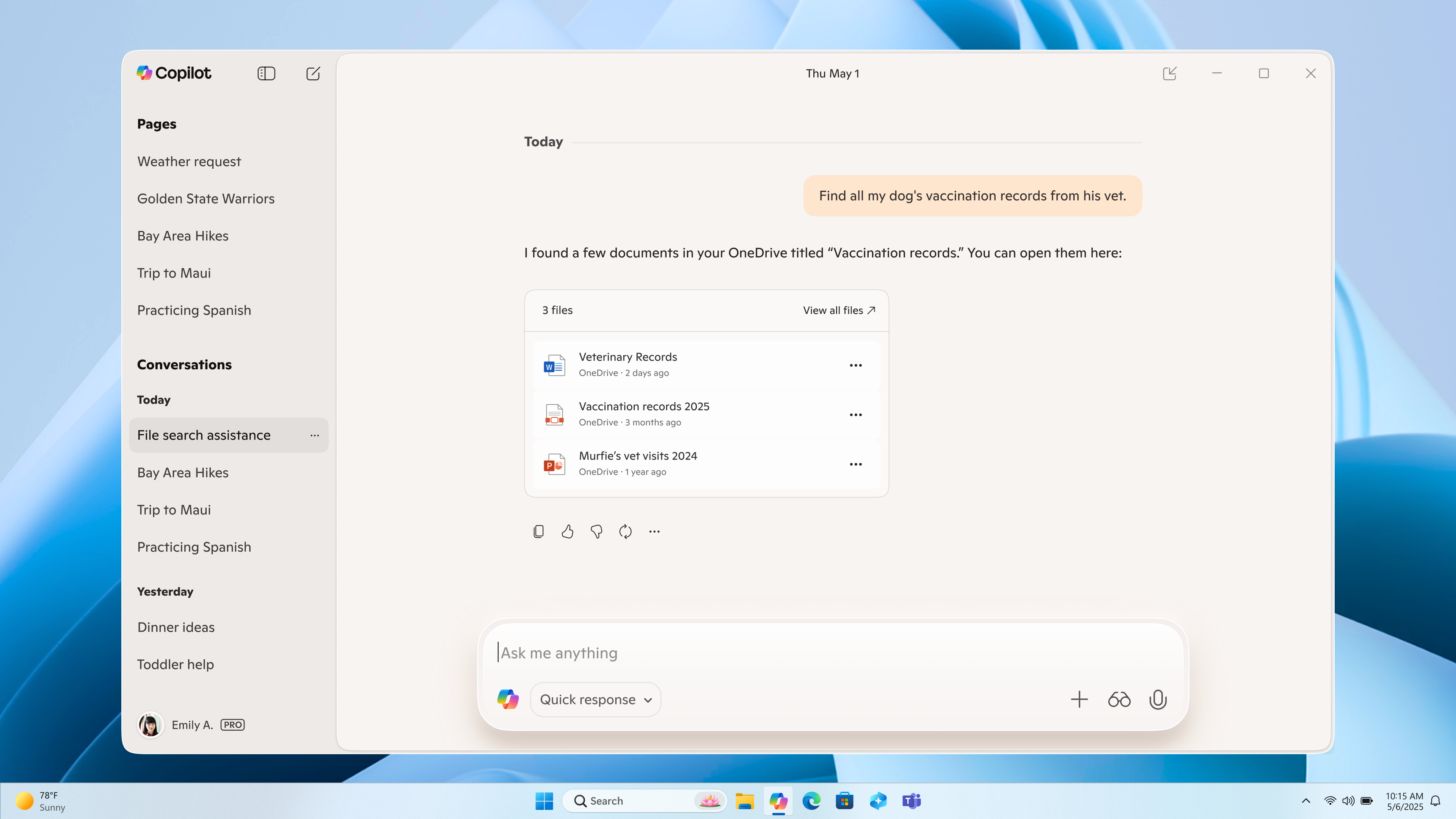
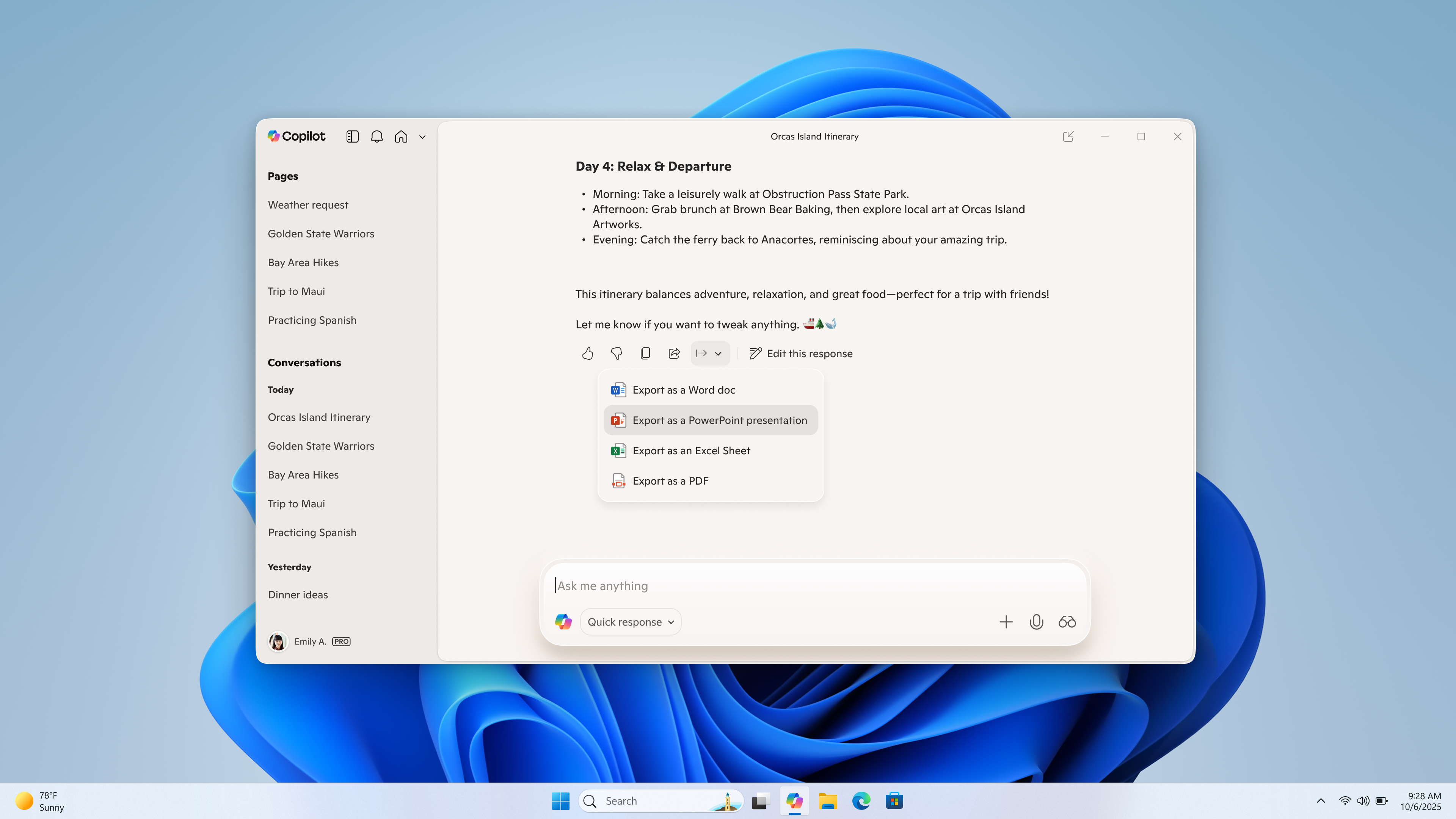
Hello Windows Insiders, we are excited to begin rolling out a new update for the Microsoft Copilot app on Windows that introduces the following changes and improvements: Connectors: Copilot on Windows now supports connecting to personal services like OneDrive, Outlook (including email, contacts, and calendar), Google Drive, Gmail, Google Calendar, and Google Contacts. These connections make it easier for users to find their content across multiple accounts. In this initial release, Copilot enables natural language search across all your connected services.  For example, you can ask:
  • “What’s the email address for Sarah?”
  • “Find my school notes from last week.”
And Copilot will retrieve relevant information from your connected accounts. You can link both Microsoft and third-party accounts to Copilot. This feature is opt-in. Access can be granted by opening the Settings page in the Copilot Windows app, scrolling to the Connectors section, and enabling OneDrive, Outlook, Google Drive, Gmail, Google Calendar, or Google Contacts. [caption id="attachment_178297" align="alignnone" width="1024"]Connectors – OneDrive file search in Copilot on Windows Connectors – OneDrive file search in Copilot on Windows[/caption] Document Creation and Export: Copilot on Windows now supports creating and exporting content into multiple file formats with a simple prompt. Users can generate Word documents, Excel spreadsheets, PDFs, or PowerPoint presentations and more directly from their Copilot session. Just ask Copilot, “Export this text to a Word document” or “Create an Excel file from this table,” and Copilot will create the file for you. With just a prompt, you can instantly turn ideas, notes, and data into shareable and editable documents with no extra steps or tools required. And for responses with 600 characters or more, Copilot also includes a default export button that lets you send text directly to Word, PowerPoint, Excel, or PDF. [caption id="attachment_178298" align="alignnone" width="1024"]Document creation and export in Copilot on Windows Document creation and export in Copilot on Windows[/caption] This Copilot app update (version 1.25095.161.0 and higher) is beginning to roll out across all Insider Channels via the Microsoft Store. The above-mentioned features are gradually rolling out so not all Insiders will get the update right away. We are excited to be previewing improvements with our Insiders to ensure all our customers have a great Copilot experience on Windows. FEEDBACK: Please provide feedback directly within the Copilot app by clicking on your profile icon and choosing “Give feedback”. Thanks, Microsoft Copilot Team
  •  

AI-powered Auto-Categorization now available in Microsoft Photos

26 September 2025 om 00:11
Hello Windows Insiders, We’re excited to announce an update to the Microsoft Photos app, now rolling out on Windows 11 across all Insider channels. This release brings a powerful new feature on Copilot+ PCs that leverages AI to organize photos into categories for easier recall.

Auto-Categorization

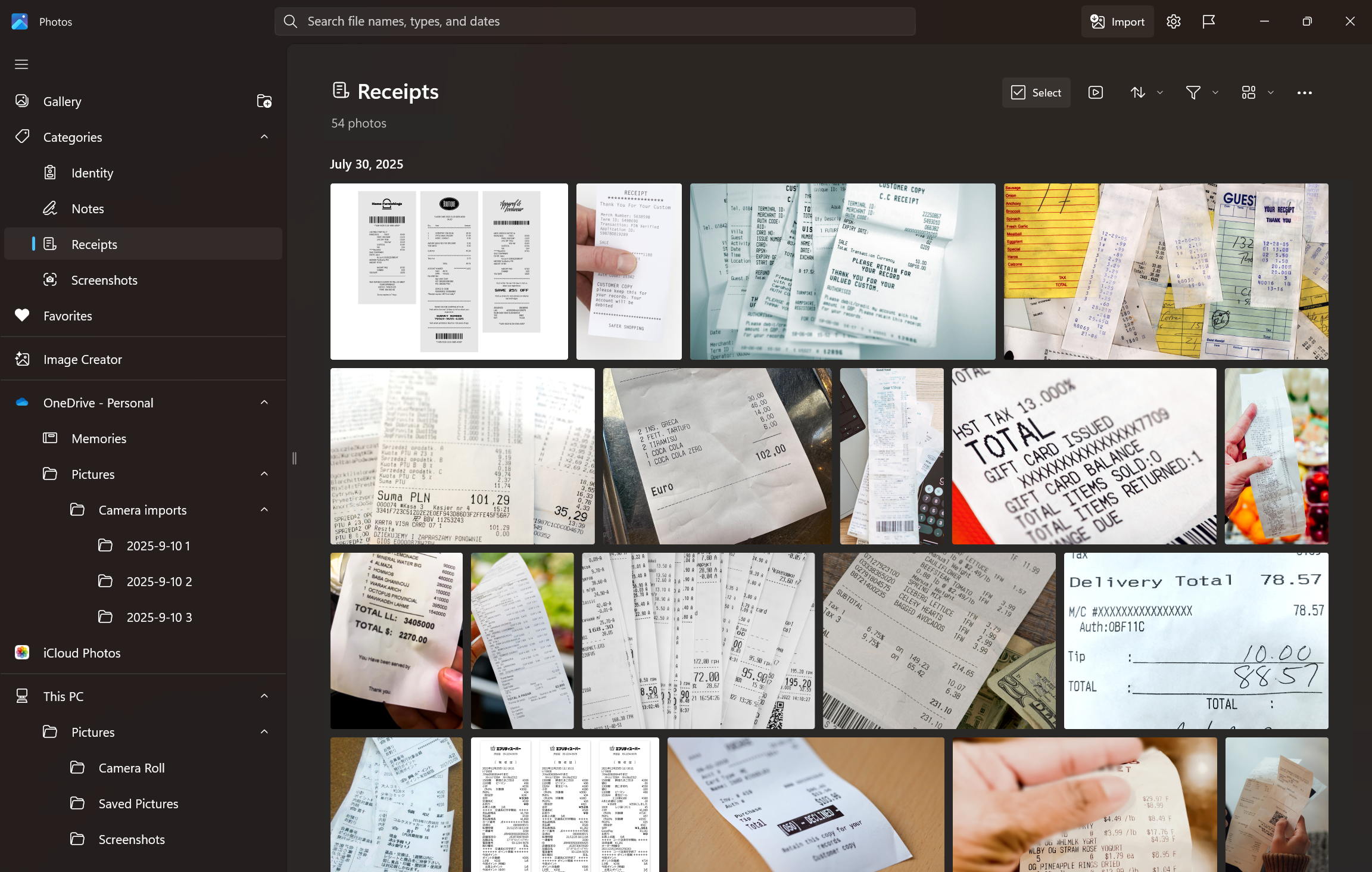
Auto-Categorization automatically detects and organizes your photo collection into meaningful categories like screenshots, receipts, identity documents, and notes using AI. It’s designed to save time, reduce clutter, and make your photo library easier to navigate. [caption id="attachment_178269" align="alignnone" width="1024"]A photo showing Windows Photos app categorizing images of Receipts using the AI powered Auto-categorization feature. A photo showing Windows Photos app categorizing images of Receipts using the AI powered Auto-categorization feature.[/caption] How Auto-Categorization works:
  • Smart sorting into categories: Photos are automatically grouped into predefined folders based on visual content, such as handwritten notes, printed documents, or receipts.
  • Language-agnostic recognition: The AI model can identify document types regardless of the language in the image. For example, a Hungarian passport will still be categorized as “Passport,” even if the text isn’t in English.
  • Explore your organized photo library with Auto-Categorization in Photos.
  • Use the Left Nav or Search bar to find categorized images instantly.
  • Change categories manually or provide feedback to improve accuracy.
NOTE: Auto-Categorization is available on Copilot+ PCs and categories are limited to four categories (screenshots, receipts, identity documents, and notes).

Other fixes and improvements

  • Super Resolution is now available across Snapdragon, AMD and Intel® powered Copilot+ PCs and will prompt you to download the model package.
Please make sure to update your app to version 2025.11090.25001.0 or higher via the Microsoft Store. This update is currently rolling out, so it (and above-mentioned features and improvements) may not be available right away. As always, we love getting your feedback so please share your thoughts in Feedback Hub (Win + F) under Apps > Photos. Thanks, Ronnie Myers, Senior Product Manager
  •  

Paint, Snipping Tool, and Notepad app updates begin rolling out to Windows Insiders

17 September 2025 om 21:29
UPDATE 9/24: The following updates and features for Paint, Snipping Tool, and Notepad are now rolling out to Windows Insiders in the Beta and Release Preview Channels. Hello Windows Insiders, today we are beginning to roll out updates to Snipping Tool to Windows Insiders in the Canary and Dev Channels on Windows 11.

Paint (version 11.2508.361.0)

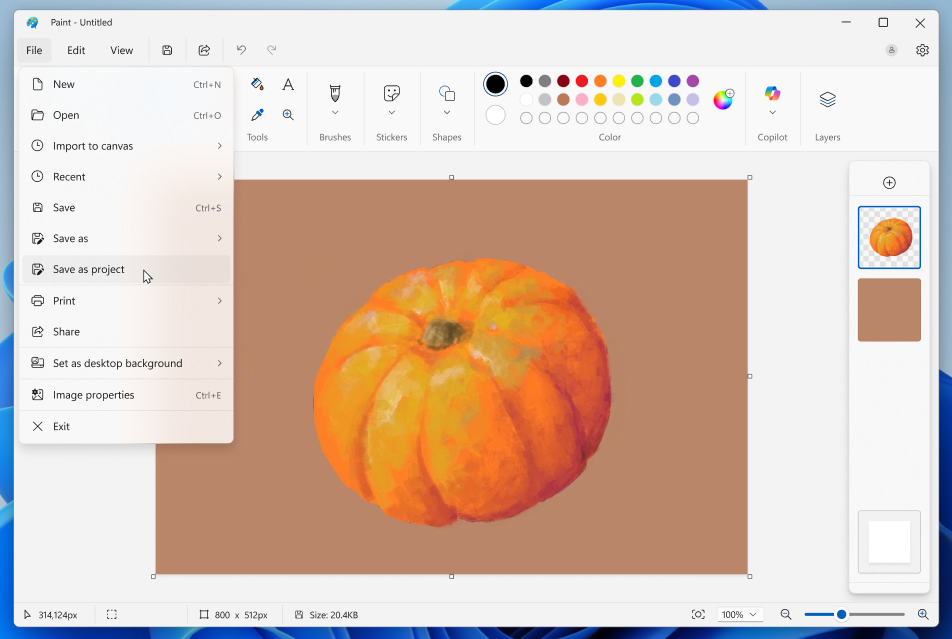
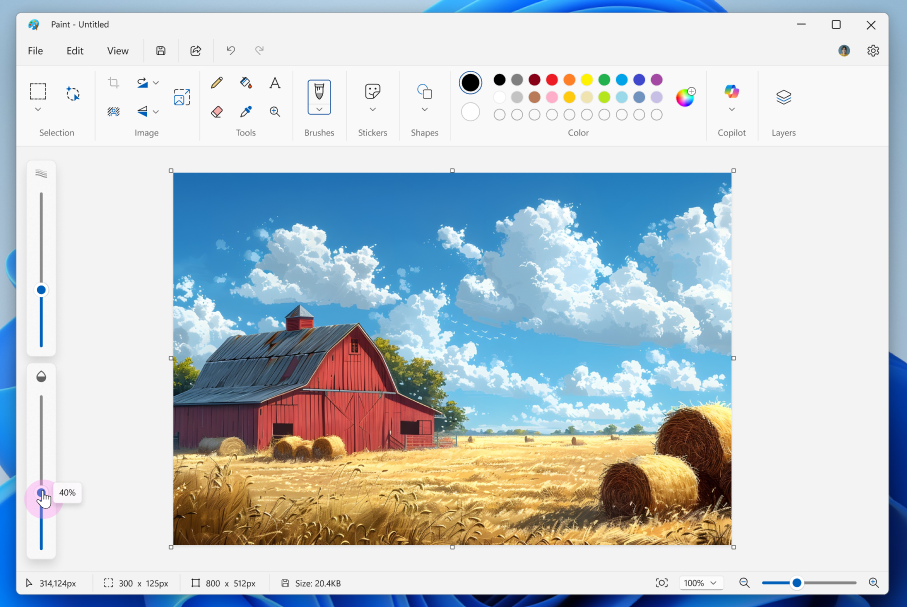
In this update, we’re excited to introduce two powerful enhancements that bring more flexibility to your creative workflow. First, we’re introducing project files, you can now save your creation as an editable Paint project file and seamlessly pick up where you left off. Once you're ready to save your artwork, go to the File menu and select Save as project. The File Explorer will open, allowing you to choose a location and save your work as a .paint file. When you're ready to return, simply open the file to launch it in Paint, right where you left off. [caption id="attachment_178246" align="alignnone" width="952"]Paint app screenshot of pumpkin and saving as a project file. Paint app screenshot of pumpkin and saving as a project file.[/caption] We’re also adding an opacity slider, giving you control over the transparency of your strokes with the Pencil and Brush tools. To get started, select either tool and use the slider on the left side of the canvas to adjust the opacity to your desired level. Try experimenting with both the size and opacity sliders to create smooth blends and layered effects that bring your artwork to life. [caption id="attachment_178247" align="alignnone" width="907"]Paint app screenshot of barn with opacity adjusting to 40%. Paint app screenshot of barn with opacity adjusting to 40%.[/caption] FEEDBACK: Please file feedback in Feedback Hub (WIN + F) under Apps > Paint.

Snipping Tool (version 11.2508.24.0)

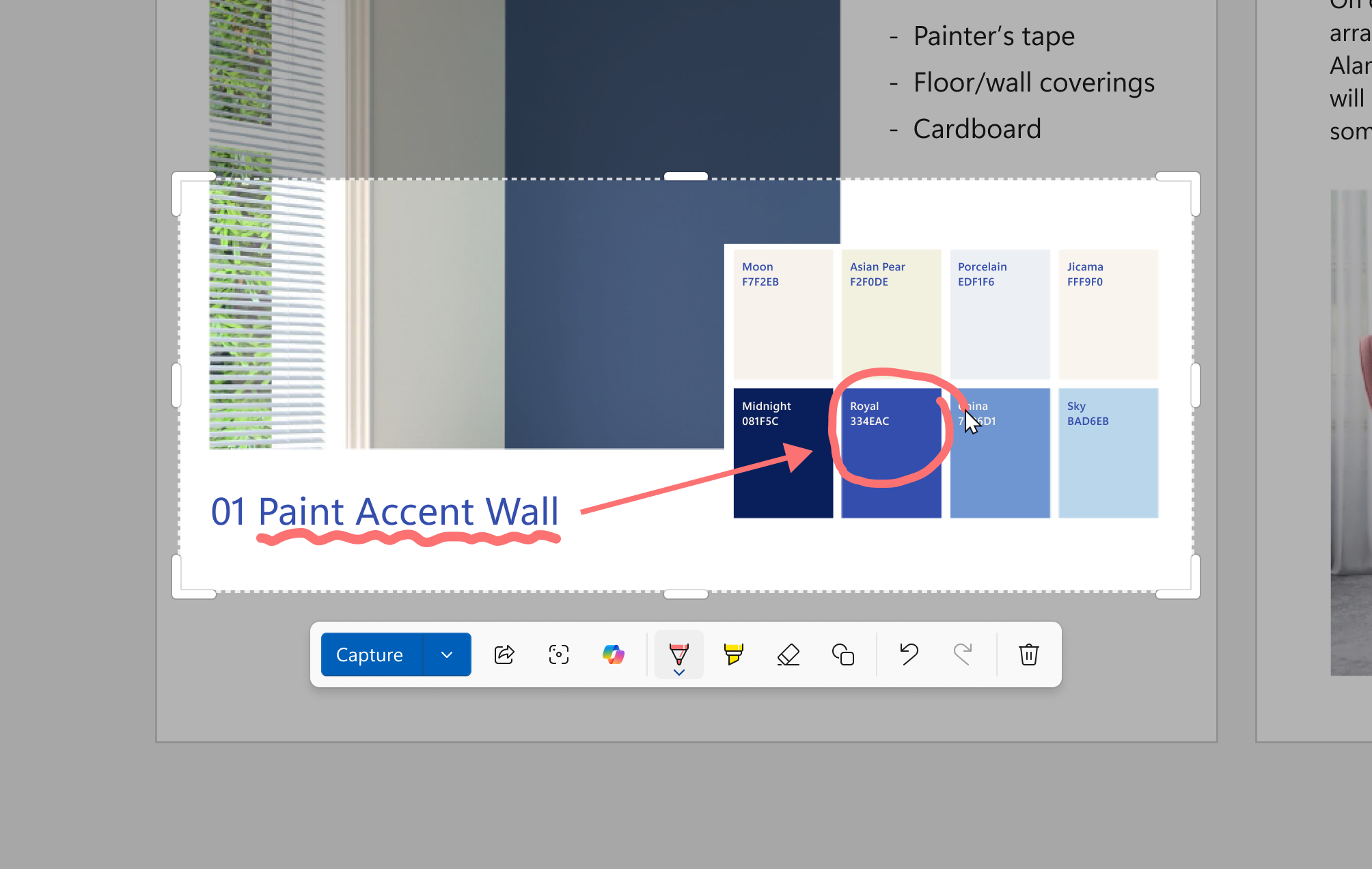
In this update, we’re introducing Quick markup – a faster way to annotate your screenshots and streamline your workflow! [caption id="attachment_178248" align="alignnone" width="438"]Snipping Tool Capture Toolbar with the cursor hovering over the new Quick markup tool. Snipping Tool Capture Toolbar with the cursor hovering over the new Quick markup tool.[/caption] To get started, open Snipping Tool via Win + Shift + S or launch the app directly. Before capturing your selection area, you’ll now see a Quick markup button in the top toolbar. Click on this button to toggle the feature on, or use the keyboard shortcut Ctrl + E. Once the button is on, go ahead and select your selection region. You’ll notice after this, you’ll be able to markup and make edits to your image right in Snipping Tool’s selection area before finalizing your screenshot! [caption id="attachment_178249" align="alignnone" width="1024"]Snipping Tool Quick markup toolbar with a screenshot of color swatches. A single color is circled with the pen tool using Quick markup to bring attention to it. Snipping Tool Quick markup toolbar with a screenshot of color swatches. A single color is circled with the pen tool using Quick markup to bring attention to it.[/caption] In the Quick markup toolbar, you’ll find the classic pen, highlighter, and eraser tools, along with shapes and emojis to make quick edits to your image. Re-cropping the selection area can be done with the grabbers around the perimeter. You’ll also be able to streamline your workflows by clicking on the Share, Visual Search with Bing, or Ask Copilot buttons. Please note that for these options, the image will not be copied to your clipboard or autosaved. FEEDBACK: Please file feedback in Feedback Hub (WIN + F) under Apps > Snipping Tool.

Notepad (version 11.2508.28.0)

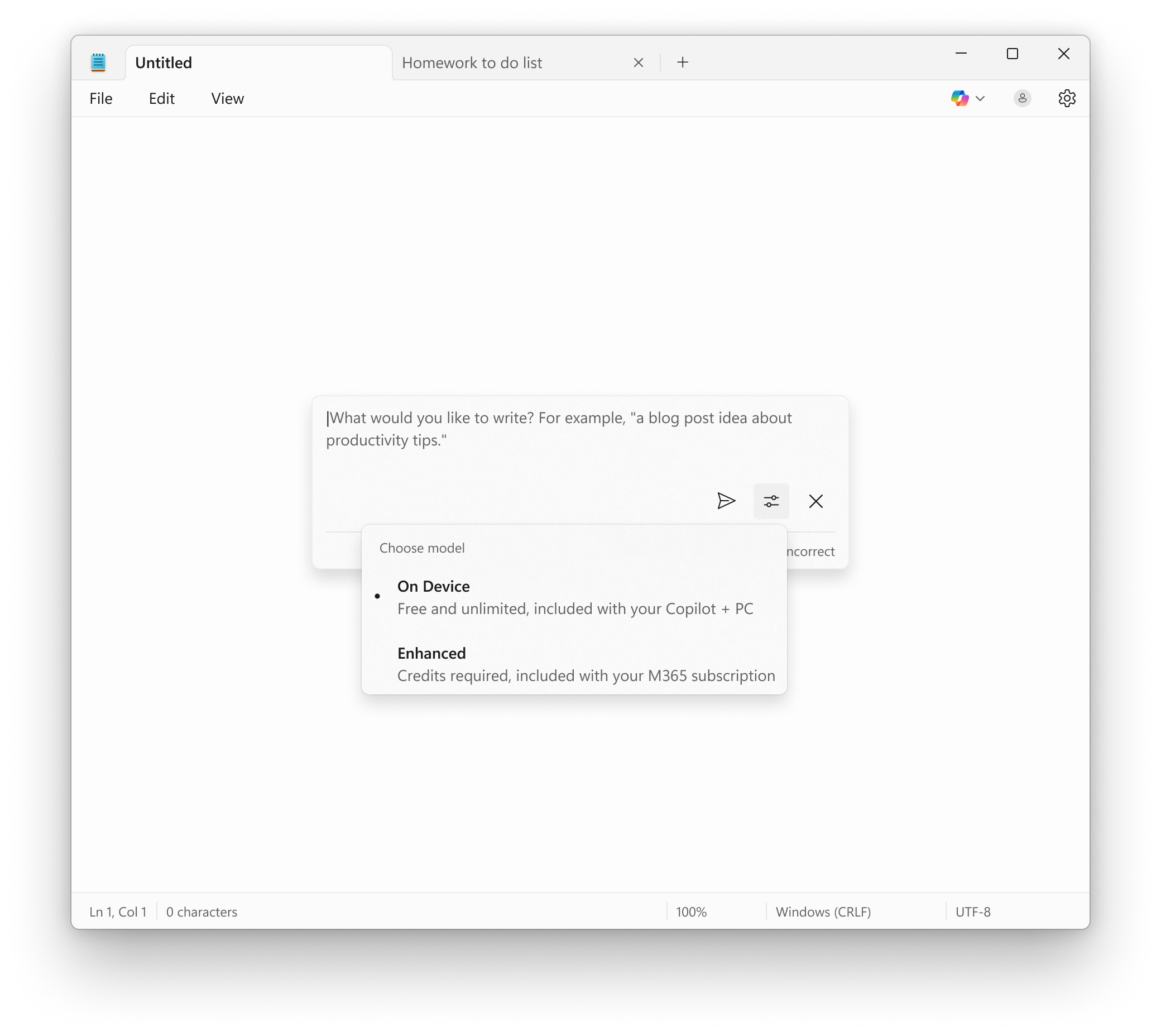
Notepad now supports AI features like Summarize, Write, and Rewrite on Copilot+ PCs, with no subscription required. If you have a subscription, you can seamlessly switch between local and cloud models based on your needs. If you’re not signed in or don’t have a subscription, you can use the local model to accomplish your tasks. For now, these features support English only, making premium AI more accessible and flexible for everyone. [caption id="attachment_178250" align="alignnone" width="1024"]Notepad showing Write prompt with the ability to use the local model on your Copilot+ PC without a subscription. Notepad showing Write prompt with the ability to use the local model on your Copilot+ PC without a subscription.[/caption] FEEDBACK: Please share your feedback in Feedback Hub (WIN + F) under Apps > Notepad. As always, we love getting feedback from the community and we will be looking out for your thoughts and suggestions on these updates! Thanks, Dave Grochocki, Principal Group Product Manager – Windows Inbox Apps
  •  

Copilot on Windows: Semantic Search and new home begin rolling out to Windows Insiders

20 Augustus 2025 om 19:01
Hello Windows Insiders, we are excited to begin rolling out a new update for the Microsoft Copilot app on Windows that introduces the following changes and improvements: Semantic file search*, available on Copilot+ PCs, is a smarter and faster way to find your files using natural language. With today’s update, you can now leverage the power of improved search capabilities right from the Copilot on Windows app. This provides yet another way to find your documents and photos on your PC without having to remember the exact file names or exact words in file content. For example, you can find images by typing “find images of bridges at sunset on my PC”, find your resume documents with similar terms like “find my cv” or describing content of the file that you’re looking for like “find the file with the chicken tostada recipe”. You can adjust your permissions for what Copilot can access, retrieve, or read in Copilot Settings under Permission settings. [caption id="attachment_178158" align="alignnone" width="1024"]Semantic file search (available on Copilot+ PC) helps find images of a landscape. Semantic file search (available on Copilot+ PC) helps find images of a landscape.[/caption] The new Copilot home experience brings your recent apps, files and conversations into Copilot and at your fingertips. Now it’s easier to get guided help: when you click on a recent application in the “get guided help with your apps” section, a Vision session will begin to help you get started. Or you can have Copilot take action on a recent document or photo – click the file of choice in the left pane and it’s uploaded to the Copilot chat window. From there you can have Copilot summarize the content, identify objects in an image, or just chat about it. How does Copilot know what files I have? Copilot shows you files you've recently opened on your device by referencing the standard Windows "Recent" folder.  Like any application on Windows, Copilot can show those recent files used by apps like Word or Photos to help you quickly find your work.  These are local files stored on your computer, and Copilot doesn’t scan your entire system or upload anything automatically. Only files that are compatible with Copilot** and have been recently accessed will appear in the list. If you choose to attach a file and send it to Copilot, that action gives Copilot permission to process it — nothing is shared unless you explicitly do so. [caption id="attachment_178159" align="alignnone" width="1024"]Redesigned Copilot on Windows home. Redesigned Copilot on Windows home.[/caption] Use Vision to get real-time guidance on what’s on your screen or attach a file to your Copilot conversation for summaries, insights, and helpful pointers. Whether you're planning, creating, or catching up, Copilot is ready to help you. This Copilot app update (version 1.25082.132.0 and higher) is beginning to roll out across all Insider Channels via the Microsoft Store. The above-mentioned features are gradually rolling out so not all Insiders will get the update right away. We are excited to be previewing improvements with our Insiders to ensure all our customers have a great Copilot experience on Windows. FEEDBACK: Please provide feedback directly within the Copilot app by clicking on your profile icon and choosing “Give feedback”. Thanks, Microsoft Copilot Team *Works with specific text, image, and document formats only; optimized for select languages (English, Chinese (Simplified), French, German, Japanese, and Spanish). See aka.ms/copilotpluspcs. **File types currently supported for file upload include .png, .jpeg, .svg, .pdf, .docx, .xlsx, .csv, .json, and .txt.
  •  

Xbox PC App Experience Expanding on Arm®-based Windows 11 PCs

13 Augustus 2025 om 19:12
Today, we’re beginning to roll out an update for Arm®-based Windows 11 PCs, which introduces changes and improvements to the Xbox PC app experience. Game Downloads: The Xbox PC app experience is expanding to support game downloads and local play on Arm®-based Windows 11 PCs. Insiders can download titles from the Xbox PC app catalog unlocking more games to play locally on Arm®-based Windows 11 PCs – including titles offered through your  PC Game Pass or Game Pass Ultimate subscription. Windows and Xbox are working closely together to ensure compatibility across the catalog, and we’re developing new features that will enable more games to be played on Arm®-based Windows 11 PCs in the coming months. We’re excited to team up with Insiders to continue testing and helping us enable full access to your library of games. [caption id="attachment_178130" align="alignnone" width="602"]PC Gaming Preview. Join the PC Gaming Preview on your Arm®-based Windows 11 PC![/caption] This update (version 2508.1001.27.0 and higher) is available to Windows Insiders who are also Xbox Insiders enrolled in the PC Gaming Preview on their Arm®-based Windows 11 PCs, located in the Xbox Insider Hub. If you’re not enrolled in the PC Gaming Preview, here’s how to get started:
  • Download the Xbox Insider Hub from the Microsoft Store.
  • Launch the Xbox Insider Hub and sign-in with your Microsoft account you use for gaming.
  • Under “Previews”, navigate to “PC Gaming” and click join.
  • Once the Xbox Insider Hub shows you as “joined” for the PC Gaming Preview – go to the Microsoft Store and check for updates and you should see an Xbox PC app update for version 1001.27.0 or higher).
These features will roll out gradually over time, so some Insiders may see the update before others. FEEDBACK: To provide feedback or report a problem, click on the “Feedback” item in the “Profile & Settings” menu. Thanks, Brynnan Fink – Principal Program Manager, Windows Silicon and System Integration Peter Dawoud – Principal Product Manager, Windows Silicon and System Integration Brandon LeBlanc – Principal Product Manager, Windows Insider Program Nicole Allen – Senior Director, Xbox Next Generation
  •  

Previewing a refreshed Link to Windows experience for Android phones

24 Juli 2025 om 18:13
Hello Windows Insiders, We’re excited to begin rolling out an update for the Link to Windows app that includes a refreshed experience for Windows Insiders. This update brings a modernized design, smarter onboarding, and new ways to access content and remotely control your PC including the ability to lock your PC — all from your Android phone. Please note that this experience is rolling out, so not all Insiders will see it right away. Whether you're already using Link to Windows and Phone Link or just getting started, this update is designed to make your cross-device experience more seamless, intuitive, and powerful.

A new home for connected experiences

We’ve reimagined the Link to Windows app as a connected PC experience hub — a central place where you can access, share, and control content between your Android phone and Windows PC.
  • Recent activity: Quickly access your most recently received files and clipboard items of your PC.
  • PC at a glance: Check your PC’s battery, and Wi-Fi status from your phone.
  • Remote actions from Link to Windows:
    • Send files to your PC from within Link to Windows.
    • Lock your PC remotely when PC is connected.
    • Mirror your phone’s screen to your PC.
[caption id="attachment_178084" align="alignnone" width="335"]The refreshed Link to Windows experience on an Android phone. The refreshed Link to Windows experience on an Android phone.[/caption]

More intuitive onboarding for getting started

We’re updating the onboarding experience that lets you set up Link to Windows directly from your Android device — no PC required to get started. This helps you discover the value of connected experiences right away, with contextual permission prompts and a simplified setup with clear instructions on what to do next when you get to your PC. These features are designed to give you more control and flexibility, especially when you're away from your desk.

How to try out the refreshed Link to Windows experience on your Android phone

Here is how Windows Insiders can try out the new refreshed Link to Windows experience for their Android phone today:
  1. Make sure you’re running the latest Windows Insider Preview build on your PC from any Insider Channel and Phone Link version is 1.25062.83.0 or higher.
  2. Opt-in to the Link to Windows Beta from the Play Store.
  3. Update the Link to Windows app from the Play Store and ensure the version is 1.25071.155 or higher.
  4. Pair your Android phone to your PC from Link to Windows on your phone and Phone Link on your PC.
  5. Finally, go to Windows Settings > Bluetooth & devices > Mobile devices > Manage devices and ensure you are logged in with the same Microsoft account as Link to Windows and see your Android phone listed and enabled.

Give feedback

Be sure to give us feedback and let us know what you think as you try out the refreshed Link to Windows experience:
  • Directly from Link to Windows on your Android phone via Phone > Give Feedback > Link to Windows.
  • Or by using Feedback Hub and submitting feedback under Devices and Drivers > Linked devices.
Thanks, Phone Link & Cross-Device Experiences Team
  •  

Copilot on Windows: Vision Desktop Share begins rolling out to Windows Insiders

15 Juli 2025 om 22:58
Hello Windows Insiders, we are beginning to roll out an update for the Microsoft Copilot app on Windows via the Microsoft Store which introduces the following changes and improvements to Copilot Vision on Windows: Desktop Share: Now you can choose to share your whole desktop with Copilot. When you share your desktop (or any specific browser or app window), Copilot can see what you see and talk to you about it in real time. It can help analyze content, provide insights, and answer your questions, coaching you through it aloud. Get tips on making improvements to your creative project, help with improving your resume, or guidance while navigating a new game. To get started click the glasses icon in your composer, select the desktop that you’d like to share, and ask Copilot to help with whatever you’re working on. To stop sharing, press 'Stop' or 'X' in the composer. [caption id="attachment_178066" align="alignnone" width="1024"]Copilot Vision on Windows with desktop share. Copilot Vision on Windows with desktop share.[/caption] Access Vision from your Voice conversation: Now you can turn on Vision from a Voice conversation. When you're talking with Copilot and want to provide additional context on whatever you’re working on, simply click on the glasses icon and share your screen. This Copilot app update (version 1.25071.125 and higher) is beginning to roll out across all Insider Channels via the Microsoft Store. These updates will first roll out to Insiders in markets where Windows Vision is enabled. The above-mentioned features are gradually rolling out so not all Insiders will get the update right away. We are excited to be previewing improvements with our Insiders to ensure all our customers have a great Copilot experience on Windows. FEEDBACK: Please provide feedback directly within the Copilot app by clicking on your profile icon and choosing “Give feedback”. Thanks, Microsoft Copilot Team
  •  

GIF export in Snipping Tool begins rolling out to Windows Insiders

19 Juni 2025 om 19:12
UPDATE 6/26: The following update for Snipping Tool is now rolling out to Windows Insiders in the Beta and Release Preview Channels. Hello Windows Insiders, today we are beginning to roll out an update to Snipping Tool to Windows Insiders in the Canary and Dev Channels on Windows 11.

Snipping Tool (version 11.2505.21.0)

GIF export

In this update, we are adding GIF export for screen recordings – designed to boost your productivity and turn quick captures into shareable moments. To get started, open Snipping Tool’s screen recorder via Win + Shift + R or launch the app and toggle to screen recording mode. Record a screen recording video. Once the recording preview opens in the Snipping Tool app, click on the “Export GIF” button in the top toolbar. [caption id="attachment_177999" align="alignnone" width="637"]Snipping Tool playback app window toolbar with the cursor hovering over the new “Export GIF” tool. Snipping Tool playback app window toolbar with the cursor hovering over the new “Export GIF” tool.[/caption] You will be prompted to select a preferred GIF quality between low and high quality. Then, you can save your GIF to your files or skip this step and copy it directly to your clipboard! [caption id="attachment_178000" align="alignnone" width="484"]Snipping Tool GIF Export tool with the low GIF quality option selected. Snipping Tool GIF Export tool with the low GIF quality option selected.[/caption] Please note: GIF export is limited to videos that are 30 seconds or less. If your video is longer than 30 seconds, Snipping Tool will offer to export the first 30 seconds of your video instead. FEEDBACK: Please file feedback in Feedback Hub (WIN + F) under Apps > Snipping Tool. As always, we love getting feedback from the community and we will be looking out for your thoughts and suggestions on these updates! Thanks, Dave Grochocki, Principal Group Product Manager – Windows Inbox Apps
  •  

AI-powered Relight and Search now available in Microsoft Photos

6 Juni 2025 om 20:53
Hello Windows Insiders, We’re excited to announce an update to the Microsoft Photos app, now rolling out on Windows 11 across all Insider channels. This release brings powerful new features on Copilot+ PCs, designed to help you enhance, rediscover, and organize your photos with ease.

Relight

The new Relight feature lets you take control of lighting like never before. You can position up to three light sources, set the light color, and set the focus point where all lights automatically point. Brightness and intensity controls provide additional fine-tuning to achieve the desired effect. For quicker edits, built-in presets offer ready-made lighting styles that can be applied with a single click. Relight simplifies complex lighting adjustments into a visual, intuitive experience for correcting poor lighting or applying creative effects. NOTE: Relight will be available on Snapdragon-powered Copilot+ PCs, with AMD and Intel® powered Copilot+ PCs coming in the next few months.   [caption id="attachment_177950" align="alignnone" width="2968"]Adjust lighting sources, target, color, and intensity with Relight in Photos. Adjust lighting sources, target, color, and intensity with Relight in Photos.[/caption]

Improved photo search with natural language

Finding the right photo is getting easier as we’re enabling the improved, semantically-based Windows search in the Photos app. You can now quickly find the photos you’re looking for, using your own words, simply by entering descriptions like “sunset at the beach” or “family outdoor fun” —and Photos will surface the most relevant results. You no longer need to remember the exact file names or try to find what you’re looking for based on other properties like date, time, or file type. The improved search works on photos in your Pictures Library that are saved locally and have been indexed. Learn more about how semantic indexing works on Copilot+ PCs including supported file types and languages. [caption id="attachment_177951" align="alignnone" width="3548"]Semantic, natural language search in Photos. Semantic, natural language search in Photos.[/caption]

Entra ID Support for Restyle Image and Image Creator

Commercial users signed in with Microsoft Entra ID can now access Restyle Image and Image Creator, previously only available to users signed in with their Microsoft accounts. To get these new features and fixes, update your Photos app to version 2025.11060.5006.0 and higher. As always, please share your feedback via Feedback Hub (WIN + F) under Apps > Photos. Thanks, Yvonne Hsieh, Principal PM Manager
  •  

Updates to Windows for the Digital Markets Act

2 Juni 2025 om 21:41
[UPDATE 8/28] The ability to uninstall the Microsoft Store in EEA is now rolling out to Windows 10 and 11 retail PCs. [UPDATE 7/25]The default browser changes have started rolling out to Windows 10 and 11 retail PCs. Note that Windows 11 will include the functionality for the default browser to Pin to Start, but Windows 10 will not. The Start menu design on Windows 10 is different and shows a list of all apps when opened (including new apps at the top), and the pinned section is optimized for Live Tiles which not all apps support.  [UPDATE 6/26] There was an issue in the configuration for the default browser changes in the Beta Channel release originally noted. That configuration issue has been resolved, and these changes will now be available with Build 26120.4452 in the Beta Channel. The default browser changes remain on track to start rolling out on retail PCs in July.
We've discovered a bug in the Windows Search functionality and have paused the rollout of the Microsoft Bing app's latest version which opens web content in the default browser. That bug is on track to be fixed in the June non-security preview update and after that we'll resume the Microsoft Bing app rollout. In the meantime, the changes are available in Insider Preview builds and will finish rolling out to retail on Windows 10 and Windows 11 in July. ----------------------------------------
As part of Microsoft’s ongoing commitment to compliance with the Digital Markets Act, we are making the following changes to Windows 10, Windows 11, and Microsoft apps in the European Economic Area (EEA). We’ll update this post as these changes are shipped, first in Windows Insider builds and then in retail builds.

Default browser

Currently, changing the default browser with the “Set default” button sets http, https, .htm, and .html. Additional file and link types will now be set in the EEA.
  • Setting the default browser in Settings with the “Set default” button will now set the following link and file types (if the browser registers for them) in the EEA:
    • Link types: ftp, http, https, read
    • File types: .htm, .html, .mht, .mhtml, .shtml, .svg, .xht, .xhtml, .xml
  • Setting the default browser with the “Set default” button will pin it to the Taskbar in the EEA, unless you choose not to by unselecting the checkboxes.
  • You can set the .pdf file type default for browsers (if the browser registers for it) in the EEA.
[caption id="attachment_177927" align="alignnone" width="735"]Default apps settings page showing new functionality for pinning and .pdf file type. Default apps settings page showing new functionality for pinning and .pdf file type.[/caption] Some of these default browser changes have already started rolling out to the Beta Channel in Build 26120.4151, and the rest of the functionality in Windows 10 and Windows 11 will start rolling out to retail in July.

Windows Search

In the EEA, apps can provide web search results in Windows Search. This design has been updated to be more fully featured and improve the user experience across multiple providers.
  • If an app registers a web search provider, it is automatically enabled when the app is installed.
  • It is easier to view results from many web search providers at the same time, and you can still use the scoping tabs at the top to narrow down your results.
  • Web search providers can be reordered in Settings so you can easily customize your experience.
These Windows Search changes are already available in Windows Insider builds and will finish rolling out to retail builds on Windows 10 and Windows 11 in early June. Updated developer documentation is available here: Windows Search providers - Windows apps | Microsoft Learn. [caption id="attachment_177928" align="alignnone" width="515"]Search results from Windows Search showing multiple web search providers shown at the same time. Search results from Windows Search showing multiple web search providers shown at the same time.[/caption] [caption id="attachment_177929" align="alignnone" width="735"]Settings for web search providers with ability to reorder them. Settings for web search providers with ability to reorder them.[/caption]

Microsoft Store

In the EEA, you will now be able to uninstall the Microsoft Store. Apps installed and distributed from the Microsoft Store will continue to get updates even if the Microsoft Store is uninstalled, keeping them secure and up to date.
  • The Microsoft Store can be uninstalled from Start and Settings in the EEA, just like other apps.
  • You will be able to reinstall the Microsoft Store.
[caption id="attachment_177930" align="alignnone" width="515"]Ability to uninstall the Microsoft Store in the EEA. Ability to uninstall the Microsoft Store in the EEA.[/caption] This change will be available later this year on Windows 10 and Windows 11 devices in the EEA. Developers have always been able to distribute their Store apps through the Microsoft Store Web Installer, such as on their own website, and this will continue to work when the Store is uninstalled.

Microsoft apps

A few changes are being made to Microsoft apps in the EEA, including:
  • The Microsoft Bing app, which is a provider of web search experiences in Windows Search, now opens web content with the default browser in the EEA. This change is already available in Windows Insider builds and will finish rolling out to retail on Windows 10 and Windows 11 in early June.
  • The Start Experiences app, which is a provider of widget and feed experiences in the Widgets Board and Lock Screen, now opens web content with the default browser in the EEA. This change will start rolling out in June to Windows 11. On Windows 10 there is no Widgets Board, instead, any application can create a dockable window on the Taskbar using desk bands. Microsoft Edge uses this capability for its News & Interests feature, which isn’t changing – it will continue opening web content directly.
  • Microsoft Edge will not prompt you to set it as the default browser unless you open it directly, for example, by clicking on its icon on the Taskbar. This change is available in the EEA starting with Edge version 137.0.3296.52, which was released on May 29, 2025.
  • When Microsoft Edge is uninstalled, other Microsoft apps won’t prompt you to reinstall it in the EEA (excluding PWAs distributed in the Microsoft Store using Microsoft Edge technology). A few apps are still being updated with this change and will start rolling out in June to Windows 10 and Windows 11.
Thanks, Windows Insider Program Team
  •  

Text Formatting in Notepad begin rolling out to Windows Insiders

30 Mei 2025 om 19:00
UPDATE 6/4: The following update and features for Notepad are now rolling out to Windows Insiders in the Beta and Release Preview Channels. Hello Windows Insiders, today we are beginning to roll out an update to Notepad to Windows Insiders in the Canary and Dev Channels on Windows 11.

Notepad (version 11.2504.50.0 11.2504.52.0)

[caption id="attachment_177924" align="alignnone" width="1063"]Notepad window open showing formatted content. Notepad window open showing formatted content.[/caption] With this update, we are introducing lightweight formatting in Notepad, providing additional flexibility in how you structure content across your files. The experience supports Markdown style input and files for users who prefer to work directly with the lightweight markup language. To get started, use the new formatting toolbar to apply formatting as you type or to selected text, including bold and italic styling, hyperlinks, and support for simple lists and headings. If at any point you want to return to plain text, you can clear all formatting from the formatting toolbar or from the edit menu. You can switch between formatted Markdown and Markdown syntax views in the view menu or by selecting the toggle button in the status bar at the bottom of the window. If you prefer, you can disable support for formatting entirely in app settings. FEEDBACK: Please share your feedback in Feedback Hub (WIN + F) under Apps > Notepad. As always, we love getting feedback from the community and we will be looking out for your thoughts and suggestions on this update! Thanks, Dave Grochocki, Principal Group Product Manager – Windows Inbox Apps
  •  
❌