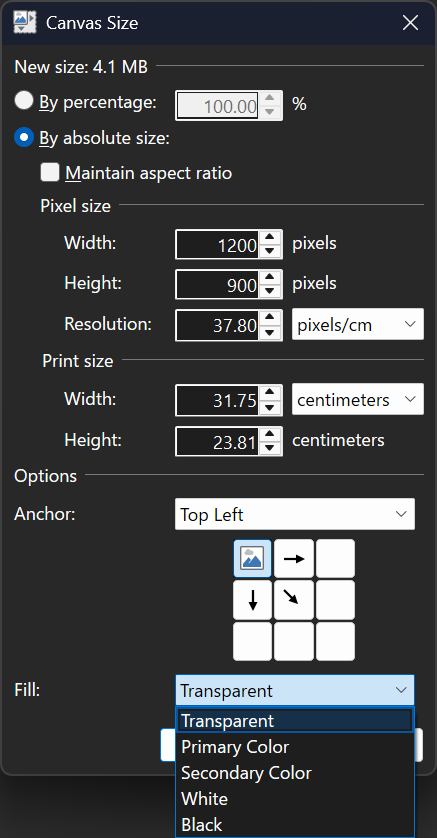
This is a small update that contains fixes for some bugs and that were discovered in 5.1, as well as a new Fill option in the Image -> Canvas Size dialog. It also has workarounds for some bugs in Sentinel One (antivirus) that were causing crashes in the installer and hangs during app startup.
Get the Update
There are two releases of Paint.NET:
Microsoft Store release (recommended)
You can purchase it here. This helps fund development and is an alternative or supplement to sending in a donation. In addition, updates happen automatically in the background when you’re not using the app.
If you already have it installed, the update should happen automatically once Microsoft certifies the update, usually within the next day or so. To get the update immediately (once it’s certified), you can follow the instructions listed here.
If you already have it installed, you should be offered the update automatically within the next few days, but you can also get it immediately by going to Settings -> Updates -> Check Now.
Added the ability to choose the fill color when expanding the image with Image->Canvas Size
Fixed the ability to paste images with transparency from Firefox
Fixed the ability to paste certain types of images with transparency from Microsoft Office applications
Changed Edit->Cut and Edit->Crop to Selection to completely zero out pixels outside of the selected area, which could otherwise be a privacy issue.
Fixed the inability to load an image with a bad ICC color profile. The color profile will now be ignored and the image will be treated as if it had an sRGB color profile.
Fixed the titlebar text being drawn in the active text color when the window is not active when using Light or Blue themes
Reverted the removal of the Settings checkbox that lets you disable overscroll
Fixed a crash in the Levels adjustment UI due to a rounding error
Fixed a race condition in resource loading that sometimes caused the zoom level in the status bar to display as “ScaleFactor.Percentage.Format”
Fixed some graphical corruption, hang, or crash issues caused by Nahimic A-Volute malware
Worked around a crash (“0xc000007b”) in the installer caused by Sentinel One antivirus.
Worked around a hang at app startup if Sentinel One antivirus.
Fixed many cases of screen blanking, rendering glitches, and crashes on systems with certain NVIDIA GeForce GPUs, and certain displays with support for overlays and/or VRR (FreeSync, GSYNC). This appears to be a bug in NVIDIA’s driver.
Fixed effects calling Dispose() on the IServiceProvider when they shouldn’t have been. This affected plugins like CodeLab and Plugin Browser.
Updated the bundled AVIF FileType to version 3.11.0.0 (thanks @null54!)
This fix will hopefully further soothe the issues some have been reporting with blanking screens and GPU crashes.
After a multi-day investigation involving performance profiling and discussions with some subject matter experts (DirectX Discord Server), I believe what’s happening is a result of multi-plane outputs (MPOs, aka overlays) intersecting with VRR (variable refresh rate, FreeSync, GSYNC) and PDN’s use of multiple on-screen flip-model swapchains. Each swapchain was rendering unthrottled, and they were not synchronized.
The solution, I’m hoping, is that I’ve applied VSync to everything except the canvas. Only the canvas is latency sensitive enough to warrant using an unthrottled framerate (akin to NVIDIA’s “Fast VSync”).
The screen blanking issue appears to be a bug in NVIDIA’s GPU driver, but may also be a bug in the firmware of some displays. I have not yet been able to test this on an AMD GPU to see if it happens there, but I’m planning to do that next.
Improved (hopefully fixed) the screen blanking issue that is happening mostly on systems with NVIDIA GeForce GPUs on displays with high refresh rates and/or VRR support (GSYNC/FreeSync)
Download and Install
This build is available via the built-in updater as long as you have opted-in to pre-release updates. From within Settings -> Updates, enable “Also check for pre-release (beta) versions of paint.net” and then click on the Check Now button. You can also use the links below to download an offline installer or portable ZIP.
You can also download the installer here (for any supported CPU and OS), which is also where you can find downloads for offline installers, portable ZIPs, and deployable MSIs.
Fixed Edit->Cut and Edit->Crop to Selection not zeroing out transparent pixels, which could be a privacy issue.
Fixed swapchain valid rect propagation, which may fix some cases of flickering or trails that have been reported.
Fixed some crashes and blanking screen issues related to GSYNC/FreeSync/VRR on some NVIDIA GPUs. The NVAPI profile was not being created which caused VRR to still be active for the app. This also appears to be a bug in NVIDIA’s GPU driver.
Download and Install
This build is available via the built-in updater as long as you have opted-in to pre-release updates. From within Settings -> Updates, enable “Also check for pre-release (beta) versions of paint.net” and then click on the Check Now button. You can also use the links below to download an offline installer or portable ZIP.
You can also download the installer here (for any supported CPU and OS), which is also where you can find downloads for offline installers, portable ZIPs, and deployable MSIs.
Fixed the inability to load an image with a bad ICC color profile. The color profile will now be ignored and the image will be treated as if it had an sRGB color profile.
Fixed the crash in the “anycpu” installer if Sentinel One is installed (“0xc000007b”).
Fixed the hang at app startup if Sentinel One is installed. If S1 is detected then Async Present will be disabled, which negatively affects input latency/lag (it won’t be worse than PDN 5.0). This is temporary until Sentinel One itself is fixed.
Fixed (maybe/hopefully) some rendering glitches on some systems. Symptoms include mouse trails and a flickering canvas. This was done by disabling swapchain valid rect propagation, which did not seem to be working anyway. The /disableSwapChainValidRectPropagation command-line parameter has been removed as a result.
Added the /disableSwapChainPresent1 command-line parameter for troubleshooting purposes (will be removed in a future version).
Download and Install
This build is available via the built-in updater as long as you have opted-in to pre-release updates. From within Settings -> Updates, enable “Also check for pre-release (beta) versions of paint.net” and then click on the Check Now button. You can also use the links below to download an offline installer or portable ZIP.
You can also download the installer here (for any supported CPU and OS), which is also where you can find downloads for offline installers, portable ZIPs, and deployable MSIs.
This is a small update that contains fixes for some bugs that were discovered in 5.1, as well as a new Fill option in the Image->Canvas Size dialog. It also adds back the Settings checkbox that allows for disabling overscroll.
Here’s what the updated Canvas Size dialog looks like:
Added the ability to choose the fill color when expanding the image with Image->Canvas Size
Fixed the ability to paste images with transparency from Firefox
Fixed the ability to paste certain types of images with transparency from Microsoft Office applications
Fixed a crash in the Levels adjustment UI due to a rounding error
Fixed some graphical corruption, hang, or crash issues caused by Nahimic A-Volute malware
Reverted the removal of the Settings checkbox that lets you disable overscroll
Fixed effects calling Dispose() on the IServiceProvider when they shouldn’t have been. This affected plugins like CodeLab and Plugin Browser.
Updated the bundled AVIF FileType to version 3.11.0.0 (thanks @null54!)
Download and Install
This build is available via the built-in updater as long as you have opted-in to pre-release updates. From within Settings -> Updates, enable “Also check for pre-release (beta) versions of paint.net” and then click on the Check Now button. You can also use the links below to download an offline installer or portable ZIP.
You can also download the installer here (for any supported CPU and OS), which is also where you can find downloads for offline installers, portable ZIPs, and deployable MSIs.
This is a major update to Paint.NET that includes a raft of technology upgrades including full color management, support for HDR and Wide Color Gamut displays, major improvements to input latency and memory usage, and new and revamped blur effects. In addition, the migration of effects and adjustments to the GPU has been completed, further improving their performance and quality. There are also some new canvas customization settings.
Color Management
Paint.NET finally has full color management support, a feature commonly found in more expensive or complicated imaging software. This ensures that images with embedded color profiles look the way they’re supposed to, as originally captured by a camera or as intended by the author. Most cellphone cameras nowadays will take photos in a wide gamut color space like Display P3, and now those photos will have correct colors, brightness, and saturation when opened in Paint.NET.
Here’s an example using a NASA photograph of the Cosmic Cliffs nebula taken by the James Webb telescope (source). It was captured in infrared and then shifted to the visible light spectrum, and the final result uses the ProPhoto RGB color space so as to utilize a very large spectrum of colors.
(Note that this screenshot’s color is clamped to sRGB. The real image looks even better on an actual HDR or WCG display!)
On the left is how the image looks if the color profile is ignored, as you’d see in Paint.NET 5.0 and earlier. On the right, however, the color profile is being applied in real-time to ensure that everything looks exactly as NASA intended it to.
Color Management is configured in Settings, but there isn’t much that needs to be configured. Windows Advanced Color, enabled by default, is used to provide one-click color management support for your display. When the display is configured for High Dynamic Range (HDR) or Wide Color Gamut (WCG) mode, this enables high bit-depth output (e.g. 10-bits or more) and use of the display’s full color gamut. Windows then ensures accurate and consistent color reproduction, based on what the display itself tells the system via EDID.
Displays configured for Standard Dynamic Range (SDR) do not support Windows Advanced Color, so Paint.NET will run in sRGB mode which ensures consistent color reproduction. Color accuracy is then dependent on the display itself being configured for sRGB color output.
There are instructions to guide you through enabling HDR or WCG for your display over in Windows Display Settings. A status section gives clear information about the state of color management and the display:
Wide Color Gamut mode is new for Windows 11 v24H2, and is essentially an upgraded SDR mode with high bit-depth output support, automatic color management, desktop composition in linear gamma and at FP16 precision, and none of the fussiness of HDR mode. Your monitor does not transition to HDR mode when this is enabled — it is still operating in SDR mode. I highly recommend checking this out if it is available on your system!
The new Image -> Color Profile dialog replaces the Image -> Apply Embedded Color Profile command introduced in 5.0, which was a one-way “destructive” process that converted the image to the sRGB color space and then removed the embedded color profile.
Here you can select from the image’s current color profile, as well as sRGB, Adobe RGB, Display P3, and ProPhoto RGB. Or, you can import a color profile from any *.icc/*.icm file. You can also export the current image’s color profile to a file. I’m planning to revise and expand this dialog as I received feedback about it from the community.
The Convert button will transform the image from its current color profile to the newly selected one. It will still appear the same on-screen, modulo any precision or gamut limitations. You will then be able to edit the image in the new color space defined by the new color profile.
The Assign button will change the color profile but not transform the colors of the image, usually resulting in it looking very different. This is useful when you have an image that has the wrong color profile embedded in it, or where the color profile was removed (such as when using “image crushers” that remove all metadata). Another possible use of this is to assign the Display P3 profile to an image to increase its saturation in a way that many people like (some feel that sRGB is undersaturated when displayed correctly).
GPU effects and plugins will automatically participate in color management unless they opt-out of it. The default WorkingSpaceLinear color context will convert the image to linear gamma in a way that is correct for the image’s color profile. The linearized image is then fed into the effect, which will do its rendering, and then the output of that effect will be converted back to the (non-linearized) color space defined by the image’s color profile. There are also many new APIs for working with colors and color profiles, for both GPU and CPU effects.
I’d like to give a special mention and big thanks to Clinton Ingram (aka @saucecontrol), not only for his PhotoSauce library, but for the hours and hours and hours of time he patiently discussed color management with me on Discord. This dialogue spanned several months, during which I slowly learned to crawl and then eventually walk in this extremely complicated, highly technical, and difficult problem space. This feature would not have been possible without his guidance!
New and Updated Effects
There are two new blur effects, some updates to existing effects, and all* built-in adjustments and effects have now been fully migrated to run on the GPU.
Sketch Blur is a new blur effect unique to Paint.NET. It was adapted from Andrey Akinshin’s (website, twitter) implementation of the P² Quantile Estimator algorithm, which is used to calculate an approximation of the median for a stream of values. You can read more about this effect over here, where I released it as a plugin for 5.0 under the name Median Sketch. It has been further optimized since the release of the plugin, with respect to both performance and quality.
Square Blur is a very simple blur effect that computes the average color of the surrounding square area around each pixel. It could even be considered a very high-performance, but very inaccurate approximation, of the Bokeh Blur effect (which averages out the surrounding circular area).
Median Blur is a rewrite of the old Noise->Median effect. It accomplishes the same thing but uses the GPU for rendering. It is based on @_koh_‘s “Hi-Lo” algorithm which cleverly uses a binary search approach to calculating the median at a specific precision. You can fine-tune the precision (quality) for the result you want to achieve; lower values produce an interesting posterized look. This effect is also Paint.NET’s first foray into the realm of compute shaders, the use of which unlocked more than a 3x performance improvement over the original pixel shader implementation!
Auto-Level, Curves, Levels, Oil Painting, Reduce Noise, Surface Blur, and Outline have also been converted to run on the GPU. This completes the transition to a fully GPU-enabled effect system that was started with last year’s 5.0 release.
ALL of the built-in GPU effects are available for use by GPU effect plugins, where you can use them as part of a larger Direct2D effect graph to do all sorts of sophisticated and creative image processing. I highly recommend checking out CodeLab, which has been updated to support GPU effect development. @BoltBait‘s GPU Accelerated Plugin Pack is also a rich source of useful and interesting GPU effects (and some non-GPU effects!), and has always been an essential addition to Paint.NET. There is also source code (on GitHub) for a set of sample effects that I wrote to illustrate how to work with the GPU effect system, which has now been updated for 5.1. Lastly, there is API documentation for both the built-in GPU effects and the set of built-in and extended Direct2D effects.
In addition, plugins can now make use of the HistogramEffect2 analysis effect. Compared to Direct2D’s built-in HistogramEffect, it is more precise, can calculate up to 4096 bins (vs. 256), and works on any image size (vs. a max of 4096×4096).
* There are actually 2 effects that still do not run on the GPU. The first is Colors->Quantize, whose algorithm isn’t amenable to running on the GPU. The second is Photo->Red Eye Removal, which is actually just a wrapper for a GDI+ effect.
Canvas Customization
The new Canvas settings section has two new settings to let you customize the canvas to your liking. The first is a simple toggle for the drop shadow, and the second is the ability to change the border color (sometimes called the “background” color). In addition, the Transparency Checkerboard Brightness setting has found a new home here.
You might be wondering … why? Well, there are 3 big reasons for adding these, and I’ll list them in decreasing order of importance:
Accessibility. Being able to customize the color of the canvas border is important for some people who are using high-contrast themes. Paint.NET doesn’t really know what to do with these for some of its theme colors, and this allows folks to set a color that is comfortable for their eyes and lighting conditions.
Contrast. Sometimes when you’re editing an image, the drop shadow can trick your eyes into thinking the image is a slightly different size than it actually is. In addition, it can be important to have the ability to change the canvas border color because light bleeds. Whether you realize it or not, the color of the canvas border can slightly and subtly affect your perception of the colors in the image. Changing that allows you to choose a color that is neutral for the images you are working on.
Fun. Some people just want a purple canvas ¯\_(ツ)_/¯ This is a bonus/corollary feature and was not the primary motivation for developing it.
Memory Usage and Input Latency
Last but not least, let’s talk about two important fundamentals: memory usage and input latency (or “lag”). I’ve been chipping away at these little by little over the years, but in 5.1 there have been breakthrough improvements for both of them.
With regard to memory usage, there are two big optimizations that have came through. The first changes the canvas tile cache so that it now moves tiles to the GPU instead of copying them, which saves quite a lot of CPU memory. The second optimization changes how swapchains are handled: instead of 1 per image tab, there are only 2 that are shared between all of the them: one for the visible tab, and a spare to help prevent flickering when switching tabs. The more images you open, the more GPU memory is saved — sometimes several gigabytes! More information on these two optimizations can be found in the release notes for a beta build released back in August.
With regard to input latency, there are two upgrades that greatly improve things here. The first is the adoption of DXGI Flip Model, which is the presentation technology designed by Microsoft to reduce input latency and power consumption for DirectX games and applications. The second is something I call Async Present, which moves the call to IDXGISwapChain::Present() (or IDXGISwapChain1::Present1()) to a dedicated, high-priority background thread. In simple terms, this means that the CPU and GPU work are better parallelized: while the GPU is busy finalizing and pushing pixels over to the display, the CPU (specifically the UI thread) can continue receiving and processing input. This has produced very noticeable improvements to input latency and smoothness on most systems.
Further Reading
If you’d like to learn more about DXGI Flip Model, Windows Advanced Color, Automatic Color Management, etc. then here are some links:
You can purchase it here. This helps fund development and is an alternative or supplement to sending in a donation. In addition, updates happen automatically in the background when you’re not using the app.
If you already have it installed, the update should happen automatically once Microsoft certifies the update, usually within the next day or so. To get the update immediately (once it’s certified), you can follow the instructions listed here.
If you already have it installed, you should be offered the update automatically within the next few days, but you can also get it immediately by going to Settings -> Updates -> Check Now.
Images with embedded color profiles will now be displayed correctly using real-time color conversion built on PhotoSauce and Direct2D.
On HDR and WCG (Wide Color Gamut) displays, Paint.NET will make use of Windows Advanced Color which then enables high bit-depth output and use of the display’s full color gamut. Windows ensures color consistency and accuracy for the whole desktop.
On SDR displays, Paint.NET will operate in sRGB mode and provide consistent color reproduction. If the display is configured for sRGB then colors will also be accurate.
New: Image->Color Profile replaces Image->Apply Embedded Color Profile, and provides the ability to change the image’s color profile via Assign and Convert actions.
New: Fully modernized canvas presentation engine that utilizes DXGI Flip Model, Advanced Color, and Windows.UI.Composition.
Improved: Input latency has been significantly reduced by using DXGI Flip Model and Async Present.
New: Canvas section in Settings provides the ability to customize the canvas brightness, border color, and shadow
Improved the canvas rendering quality by using linear gamma. This improves overall performance and also improves the appearance of selection handles and other canvas UI elements.
Updated: All remaining effects and adjustments have been ported to use the GPU
Newly converted in 5.1 are: Auto-Level, Curves, Levels, Oil Painting, Surface Blur, Reduce Noise, and Outline.
The two exceptions to this are Effects->Color->Quantize and Effects->Photo->Red Eye Removal. The first is not amenable to running on the GPU, and the second is actually a wrapper around an old GDI+ effect.
New:Effects->Blur->Sketch Blur is a new blur effect that gives the appearance of a painting drawn with a coarse brush.
New: Effects->Blur->Median Blur replaces Effects->Noise->Median, and now runs on the GPU with much higher quality.
New:Effects->Blur->Square Blur
Changed: Gaussian Blur and Bokeh Blur now have a “Gamma Boost” slider instead of a “Gamma” property. This is now used to configure the change in gamma rather than specifying the gamma that the image should be assumed to have. The intent is still to provide something of a brightness/highlights amplifier for creative purposes.
Changed: Effects -> Blur -> Motion Blur now uses a Gaussian kernel.
New: Effects->Render->Clouds now has a Colors tab for configuring the colors that are used
Changed: Image->Canvas Size will no longer use the secondary color to fill in new areas for the “background” layer. It will always fill with transparent black (#00000000).
Improved dithering quality when saving an image at 8-bit or lower color depth, and when using Effects->Color->Quantize
New: Updated to use Mica effects in the title bar on Windows 11
Fixed some more scrollbars to respect dark theme (thanks @toe_head2001!)
Fixed: The Move Selected Pixels tool will no longer finish (commit) when toggling layer visibility. This was a workaround for a bug during an early beta of 4.0 that does not seem to be necessary anymore.
Improved: Greatly reduced CPU memory usage by maintaining the tile cache only on the GPU instead of having a copy on the CPU-side as well.
Improved: Significantly reduced GPU memory usage by consolidating down to 2 swapchains that are shared among image tabs, instead of each image tab having its own private swapchain.
Improved: GPU effects now use a smaller tile size on GPUs with less RAM, which should enable faster updates and cancellation response on older GPUs. This also significantly lowers the probability of TDR events, particularly for expensive effects like Median Blur.
Fixed: The Save Configuration dialog sometimes looked like it was having a seizure when panning after zooming (w/ Ctrl + Mouse Wheel)
Fixed: The Line/Curve and Shapes tools would cancel instead of commit (Finish) when pressing ESC too soon after using the arrow keys to move the shape
Improved the performance of the portable release by reducing how often the JSON settings file is flushed.
New: CMYK64 images can now be loaded. Note that CMYK images are always transformed to Adobe RGB.
New: Added the ExponentialScale double property for IndirectUI. The default value is 2.0. It goes along with the UseExponentialScale boolean property.
New: GPU effect plugins can now use compute shaders. Note that this is “raw” support by providing access to the necessary Direct2D interfaces (e.g. ID2D1ComputeInfo).
Deprecated: The classic/legacy effect system has been marked as [Obsolete]. Compiling a classic/legacy effect will produce a compile-time warning along with a message about migrating to the new GpuEffect or BitmapEffect systems. This will be changed to a compile-time error in a future update (either v5.2 or v6.0, whichever is next).
Removed: Settings -> UI -> Show image previews in the Windows taskbar.
Removed: Settings -> UI -> Enable scrolling past the edge of the canvas (overscroll). This is now always enabled.
Updated to use .NET 9.0 (previously this was .NET 7.0)
Updated the minimum OS requirement to Windows 10 v21H2 (previously this was Windows 10 v1809)
Updated the bundled AVIF FileType to version 3.10.0.0. Thanks @null54!
Updated the bundled DDS FileType Plus to version 1.12.11.0. Thanks @null54!
Updated the bundled WebP FileType to version 1.4.0.0. Thanks @null54!
Fixed a few more cases where tool shortcuts and tooltips were not working after certain actions.
Fixed: PNGs are now correctly saved with the “Software” tEXt metadata indicating they were created with Paint.NET.
Improved performance in various parts of the rendering and effects engines: CPU usage has been reduced which permits higher GPU utilization.
Download and Install
This build is available via the built-in updater as long as you have opted-in to pre-release updates. From within Settings -> Updates, enable “Also check for pre-release (beta) versions of paint.net” and then click on the Check Now button. You can also use the links below to download an offline installer or portable ZIP.
You can also download the installer here (for any supported CPU and OS), which is also where you can find downloads for offline installers, portable ZIPs, and deployable MSIs.
This update fixes a few longstanding issues with copy/paste, tool shortcut keys, and tooltips in the Tools window. I’ve also changed the capitalization of “paint.net” to be “Paint.NET.”
Fixed: Copy/Paste has been hardened against short-term intermittent errors and should no longer show spurious error dialogs (e.g. ERROR_ACCESS_DENIED) except in legitimate cases.
Fixed: Certain shortcut keys, especially for switching tools, will no longer stop functioning if a floating window (e.g. Tools) is hidden and then shown by clicking on the button at the top right of the main window.
Fixed: Tooltips in the Tools window will no longer stop functioning if a floating window (e.g. Tools) is hidden and then shown by clicking on the button at the top right of the main window.
Removed the “Scrolling past the edge of the image (overscroll)” checkbox from Settings. This was enabled by default, and now it is always enabled.
Fixed: The installer was occasionally showing an error about an InvalidGraphConfigurationException on some systems
Added a KnownColorSpace API for plugins so they can create IColorContexts and IDeviceColorContexts for the Display P3 and ProPhoto RGB color spaces
Download and Install
This build is available via the built-in updater as long as you have opted-in to pre-release updates. From within Settings -> Updates, enable “Also check for pre-release (beta) versions of paint.net” and then click on the Check Now button. You can also use the links below to download an offline installer or portable ZIP.
You can also download the installer here (for any supported CPU and OS), which is also where you can find downloads for offline installers, portable ZIPs, and deployable MSIs.
Fixed:@BoltBait‘s TextFunFactory plugin was not working on Windows 10 due to the lack of support for IDWriteFontFace6 (despite what Microsoft’s documentation states)
Download and Install
This build is available via the built-in updater as long as you have opted-in to pre-release updates. From within Settings -> Updates, enable “Also check for pre-release (beta) versions of paint.net” and then click on the Check Now button. You can also use the links below to download an offline installer or portable ZIP.
You can also download the installer here (for any supported CPU and OS), which is also where you can find downloads for offline installers, portable ZIPs, and deployable MSIs.
Fixed: Clicking in the color wheel was not setting the active color
Fixed: Retrieving an 8-bit bitmap from the clipboard with IClipboardService.TryGetImageBgra32() was not working
Download and Install
This build is available via the built-in updater as long as you have opted-in to pre-release updates. From within Settings -> Updates, enable “Also check for pre-release (beta) versions of paint.net” and then click on the Check Now button. You can also use the links below to download an offline installer or portable ZIP.
You can also download the installer here (for any supported CPU and OS), which is also where you can find downloads for offline installers, portable ZIPs, and deployable MSIs.
+ Windows: Windows Explorer context menu and tooltip on Windows 11 (thanks to cjee21)
+ Windows: native ARM64 library for an overall improved performance (thanks to cjee21)
+ Windows: implement signing of uninstaller (thanks to cjee21)
+ Windows: add legacy stream display option (thanks to cjee21)
+ Windows: ARM64X DLL is available separately
+ AVC: Chroma Subsampling Position
+ PNG: adapt cLLi/mdCv letter case due to spec draft update
+ Windows: enforce more security compilation flags (thanks to cjee21)
x Windows: text output is editable again (thanks to cjee21)
x RIFF: fix bad seek in big chunks e.g. aXML with odd size
x ADM: fix buffer over-read
x FFV1: MaxSliceCount was not in XML or JSON report
The new version adds support for automated free certificates from ACME-compliant certification authorities such as Let's Encrypt, HTTPS and WebSocket reverse-proxying, and better macOS support.
After the long wait, Aprelium is glad to announce the release of a new version of Abyss Web Server. It adds SNI support (virtual hosting of HTTPS sites over the same IP), SHA2 certificates support/generation, HTTP/1.1 reverse-proxy support and a responsive console.
A new version of Abyss Web Server has just been released. It features several security enhancements related to SSL/TLS support. Users of previous versions should upgrade as soon as possible.
A new version of Abyss Web Server has just been released. Users of previous versions should upgrade as soon as possible to reduce their exposure to newly discovered security issues related to the SSL/TLS protocols.
A new version of Abyss Web Server has just been released. It introduces log rotation, IDN (International Domain Names) support, restricted/token-based downloads, support for the special X-Sendfile header and adds several new features and enhancements.

 Log in
 Settings -> Updates -> Check Now.