Normale weergave

vMix 28 is available now!

28 Januari 2025 om 06:39

vMix 28 is now available for download via the vMix.com download page! If you’re a vMix Max user or purchased vMix from January 2023 then you can update right now for free. Prior to this date, it’s a $60 fee for 12 months of updates if you’d like to experience the new vMix 28 features! For a quick overview of vMix 28, check out this 2-3 minute video brought to you by current vMix CEO, Martin ‘McStreamy’ Sinclair.

Telestrator

A Telestrator has been added to the vMix Web Controller! Easily add illustrations, shapes, and images to a production from any modern web browser. The Web Controller will provide a new low latency video feed that can used to telestrate on! Just add a Telestrator as an overlay or layer on your production for excellent success!

10 shortcuts can also be added to the Telestrator screen so the talent can not only telestrate but control the production as well!!

5 streaming destinations and encoder statistics!

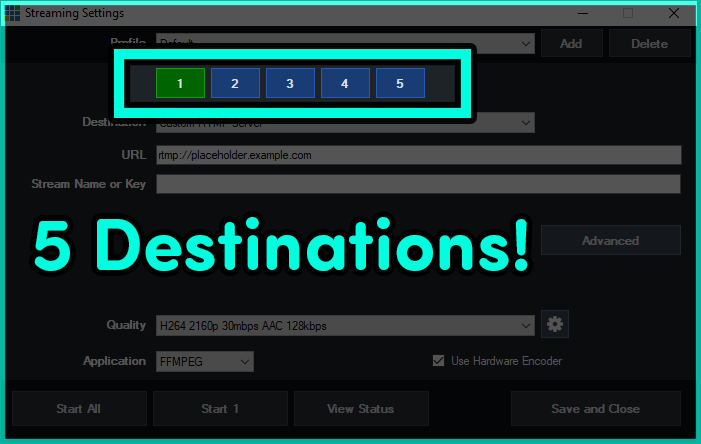
Now that you can use 8 hardware encodes with an NVIDIA GeForce card, vMix has opened up the number of streaming destinations to 5! This leaves another 3 free for other encodes like records! Having trouble keeping up with how many hardware encoders you’re doing? Well vMix now has an Encoder tab in the Statistics section, where you can manage the number of encoders you’re currently using.
New playback triggers!

vMix 28 now features 2 triggers for inputs that have a playback time. For example someone could now perform a function at a particular time during a video playout.

  • OnPlaybackTime
  • OnPlaybackTimeRemaining

New MultiView Options!

MultiView2 has been added to vMix, alongside some additional configuration options. This will include the ability to remove preview/output, choose the preview/output mix, select the audio being displayed and the ability to click on the MultiView to move an input to Preview.

Audio Updates

Some exciting new audio updates to make productions a little easier.

  • New System/Application Audio Input for vMix 28.
  • Display and interact with all of your buses directly from the Audio Mixer.
  • The Audio Bus Manager will update live, so you can drive all of your buses with confidence and aplomb.
  • New option to disable the scrollwheel from adjusting the audio faders.
Mix Inputs can now have their own Overlays and Stingers!

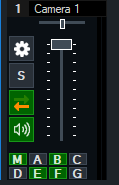
Creating additional Mixes just got taken to a whole new level with vMix 28. You can now create shortcuts to display overlays in a Mix Input and also transition using Stingers!

New Anchor Option in the GT Designer

You can now scale titles using different anchoring options, it doesn’t have to be just Left-Top anymore!

Try vMix for free!

For a Free 60-Day Trial of vMix Pro, just head to the download page on vMix.com. You just need to download, install and enter your email address where it says Register for a fully functional 60 day trial.

vMix 28 will be a free update for those that have purchased after January 1st 2023 or if you’ve purchased a 12 month upgrade…in the last 12 months. vMix Max users can update for free.

If you’re outside of this window and would like to update, you can do so via our Upgrades Page. It’s $60 USD for an additional 12 months of updates. If you don’t want to, you can continue to use your current vMix version.

For more information about vMix, just head to vMix.com!

Follow Us!

vMixDan

If you’d like to keep up to date with new updates, live streams, trade shows and tutorial videos check us out on-

YouTube
Facebook
Instagram

Here’s a full list of all the updates for vMix 28…take a look, you might find something you like!

 Web Telestrator and Monitor

  • Turn any modern browser into a Telestrator device and low latency video monitor!
  • Supports iPad, iPhone, Android tablets and most devices and computers that can run the latest Safari, Chrome, FireFox or Edge browsers.
  • Telestrator allows drawing on screen in real-time across multiple devices with basic pen, shape, image and laser pointer tools.
  • Includes a low latency video preview and up to 10 dedicated shortcut buttons for remote control.
  • When video preview is assigned to MultiView, touch screen can be used to select inputs when enabled in MultiView settings.

MultiView 2 and MultiView Output enhancements.

  • A second MultiView Output is now available with its own unique configuration.
  • MultiView outputs can now just show Inputs, or only a single Input to use as a confidence monitor with audio meters.
  • MultiView sources can now be configured to select Mix inputs directly.
  • MultiView audio meter can now be changed from the default Master.
  • Touchscreen support added via checkbox in settings, also works with Web Telestrator.

Mix Input support for Overlays and Stingers

  • Overlay and Stinger shortcuts can now be configured to display in one or more Mix inputs instead of or in addition to the Output.
  • Stingers can also be directly started for a Mix input from its built in transition button.
  • Mix inputs can now also be assigned directly to an Output.

System and Application Audio Inputs

  • Capture the audio from Windows, automatically excluding the audio in vMix (auto mix minus).
  • Additionally, capture the audio from a single Windows application.

Playback Time Triggers

  • OnPlaybackTime and OnPlaybackRemaining triggers allow configuring actions a few seconds before a video completes, or at multiple key moments throughout playback.

Flatten Layers

  • Added Flatten Layers checkbox to each input. This combines all the layers together as a single “flat” input when used as a source in other inputs. This is useful for cropping all layers at once for example.

GT Anchor Setting

  • Control the animation direction and sizing of text objects with the new Anchor setting in GT.
  • Allows expansion of auto-width text elements from the right instead of the left for example.

Audio Bus/Mixer Enhancements

  • Right click menu to show all buses on an audio mixer as smaller buttons.
  • Settings – Audio Outputs checkbox added to Always show all Bus buttons in Audio Mixers
  • Audio Bus Manager will now update in realtime in response to shortcuts or mouse clicks in main mixer
  • Settings – Audio checkbox to disable scrollwheel adjusting audio faders

5 Streaming Destinations

  • Streaming destinations increased from a maximum of 3 to 5.

New Shortcuts

  • VideoCallConnect, VideoCallReconnect, ZoomJoinMeeting
  • SetBusVolumeFade
  • SetStingerGTInput1-4
  • ReplayJumpToSelectedInPoint, ReplayJumpToSelectedOutPoint, ReplaySetChannelAToBTimecodeAndCamera, ReplaySetChannelBToATimecodeAndCamera, ReplayUpdateSelectedSpeedFromValue

Other features

  • NDI updated to version 6.1.1
  • SRT Updated to version 1.5.4, added IPv6 support and improved reliability and resiliency for bad encoders.
  • Added initial BlueSky support to vMix Social (Beta)
  • Support for high frame rates in Decklink cards
  • Added AJA support for Kona X
  • Web Browser input custom CSS support
  • New Encoder tab added to Statistics, provides an overview of all the encoders currently in use. Handy to determine how many NVENC are remaining on GeForce cards.
  • Added Recording Buffer option to Replay, to provide additional storage buffering to compensate for sustained performance issues on some SSDs
  • Outputs information added to API XML
  • Removed the following streaming destinations, due to being discontinued or no longer adequately supported: StreamSpot, TikiLIVE, Twitter
    If you are using these streaming destinations, refer to the provider’s documentation on using the RTMP streaming option in vMix instead.
  • Optimised API XML to improve performance during rapid polling.
  • New OnReplayEventsCompleted trigger
  • vMix will now indicate if Resizable Bar (ReBAR) is enabled in Settings – Performance. If detected GPU Mem indicator will no longer be limited to just the GPU cache memory.
  •  

vMix Bluesky!

26 November 2024 om 02:07

We’ve decided to start a Bluesky account. It’s going to be mainly for posting AI images of bananas and pygmy hippos doing things, but also for announcements and the like. If you’d like to follow us you can find our profile here- vMix on Bluesky.

  •  

vMix Laptops 2024-2025

15 November 2024 om 07:26

What a year! Things took a bit of a left turn this year with the new Intel Core Ultras and AMD Ryzen AI CPUs. These have taken a heavy focus on AI and power consumption, which don’t really impact vMix. Instead of buying 4 new laptops for testing, we’ve stuck with the 14th Gen Intel Core laptops. In particular the i9 14900HX, which is a little different from the previous recommendations of the i7s. We bought an i7 but noticed some lacklustre performance at low load.

Here’s what we went for-

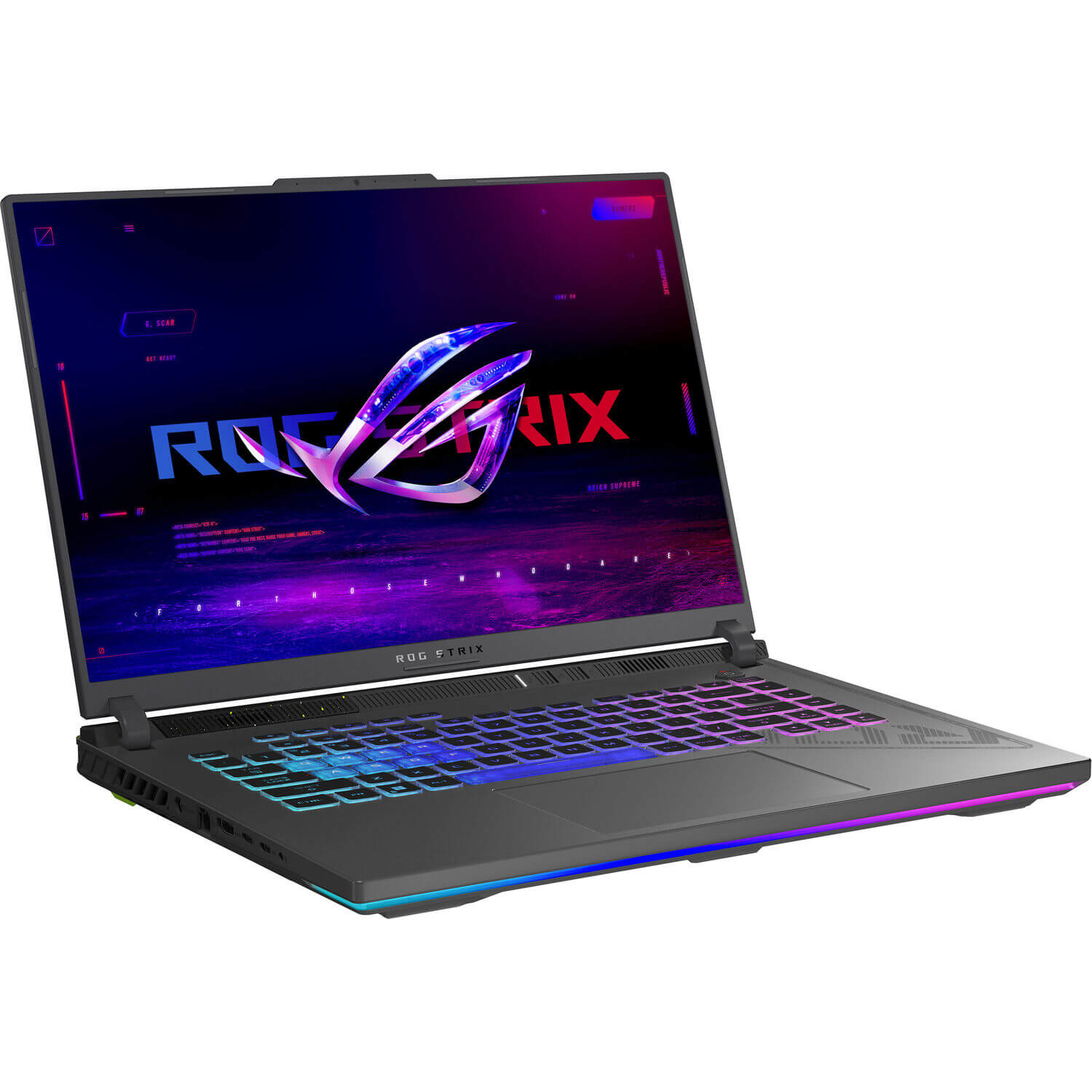
ASUS 16″ Republic of Gamers Strix G614JVR-ES94

  • Intel i9 14900HX processor
  • RTX 4060 GPU
  • 16GB DDR5 Ram
  • Thunderbolt 4
  • 1TB SSD
  • Advanced Optimus

What about other laptops??

You can purchase a different brand of laptop but just make sure that it has similar specs. Here’s what we’d recommend if you were in the market for a new laptop in 2024/2025.

  • Intel i9 14900HX processor or better
  • RTX 4060 or better
  • 16GB DDR5 Ram or more
  • Advertises that it has Advanced Optimus or a MUX switch
  • 1TB SSD
  • Thunderbolt 4 if you need it!

Do I need to update?

Not really. If you can buy a 12th Gen or 13th Gen i7 like the 12700H or 13700H, you’ll save a bit of money and get good results. These might come with a GeForce RTX 3060 which will have Resizable BAR but not AV1 encoding. If you want AV1 encoding you’ll need a GeForce RTX 4060 or better.

See our Sapphire Reference System page for the latest vMix Laptop news!

Laptop best practices!

Check out our Knowledge Base article about getting the most out of your laptop with vMix- https://www.vmix.com/knowledgebase/article.aspx/264/laptop-best-practices

  •  

vMix 27 is here!

22 Januari 2024 om 04:02

vMix 27 is now available for download via the vMix.com download page! If you’re a vMix Max user or purchased vMix from January 2022 then you can update right now for free. Prior to this date, it’s a $60 fee for 12 months of updates if you’d like to experience the new vMix 27 features! For a quick overview of vMix 27, check out this 2 1/2 minute video brought to you by vMix CEO, Martin ‘De Wielrenner’ Sinclair.

Zoom Integration

vMix 27 will allow users to connect directly to Zoom meetings! vMix will manage all of your audio and video, so there’s no more need to have 5 laptops just for Zoom participants. Zoom integration makes it really easy to add remote guests to your production, using a tool that most people are already familiar with! There are tons of features at your disposal with this new update so check out the quick start guide to get up and running or the in-depth video to know EVERYTHING!

Audio Upgrades- Audio Bus Manager, Bus Mixer, PFL

New audio updates in vMix will help take your audio workflows to the next level! A new Audio Bus Manager allows for quick and seamless routing of your inputs to audio buses. Just open it up from the hamburger menu and assign buses in seconds! The Audio Bus Mixer enables you to change the audio levels of an input within a bus. This can be done from your input’s audio settings and also where you’ll find the new PFL option!

AV1 and HEVC streaming to YouTube

vMix 27 enables AV1 and HEVC streaming to YouTube via the Quality Settings streaming menu. You’ll just need to make sure that you have a GPU that supports either HEVC or AV1. We’re excited about these options as you’ll be able to stream with great quality but with much less bandwidth!

New Layer Designer

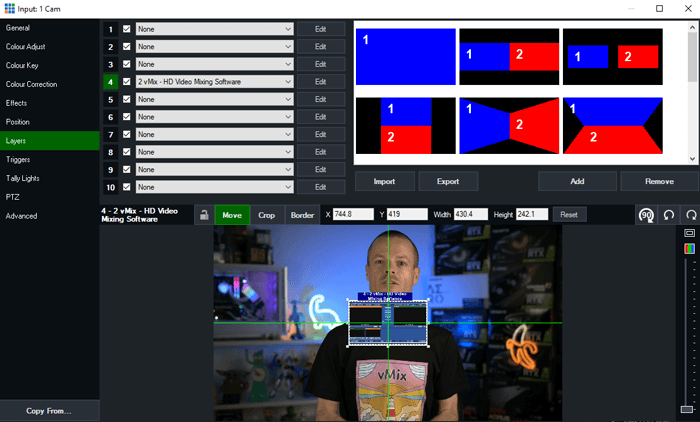
For simpler editing on your layers, vMix 27 now has more options for layer control including alignment, borders, and cropping.

vMix 27 Layers

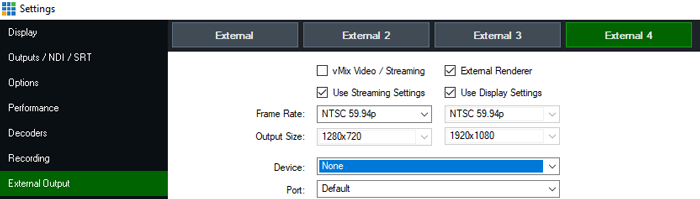
4 External Outputs

Yes. 4. This is an experimental new feature that will require a very powerful computer and the right capture card but it’s now available in vMix 27 for vMix MAX, 4K and PRO.

Try vMix for free!

For a Free 60-Day Trial of vMix Pro, just head to the download page on vMix.com. You just need to download, install and enter your email address where it says Register for a fully functional 60 day trial.

vMix 27 will be a free update for those that have purchased after January 1st 2022 or if you’ve purchased a 12 month upgrade…in the last 12 months. vMix Max users can update for free.

If you’re outside of this window and would like to update, you can do so via our Upgrades Page. It’s $60 USD for an additional 12 months of updates. If you don’t want to, you can continue to use your current vMix version.

For more information about vMix, just head to vMix.com!

Follow Us!

vMixDan

If you’d like to keep up to date with new updates, live streams, trade shows and tutorial videos check us out on-

YouTube
Facebook
X
Instagram

Here’s a full list of all the updates for vMix 27…take a look, you might find something you like!

Zoom Meetings
  • vMix can beome a participant in a Zoom Meeting and access the raw video and audio feeds of all participants in up to 1080p HD
  • Show up to one participant a time in vMix HD, or as many participants as your Zoom plan and internet allow in 4K, Pro and Max editions
  • Each Zoom input can be assigned a participant and dynamically switch between camera and sharing as needed, or multiple Zoom inputs to show both at the same time.
  • Free Zoom plans allow up to 360p per participant while paid Zoom plans can support up to 1080p. Refer to the Zoom web site for more information.
  • A separate plugin is required which can be downloaded from https://www.vmix.com/zoomplugindownload
  • New triggers for Zoom including OnZoomActiveSpeaker, OnZoomActiveSpeakerWhileInOutput, OnZoomActiveSpeakerSelf
AV1 and HEVC support for RTMP Streaming
  • These video compression formats provide higher quality at the same bitrate as H264 and are supported by selected streaming providers. (Currently YouTube Live)
  • AV1 requires a NVIDIA GeForce 4050 or higher. HEVC requires a NVIDIA GeForce 2050 series or higher GPU
New Layer Designer
  • The Input Settings – Layers tab now allows sizing, positioning and alignment of layers with an interface similar to GT Designer
  • Includes three modes: Move, Crop and Border allowing fine tuned adjustments of each layer in pixels
  • Layers can be easily aligned to other layers and grid lines in the currently selected Safe Area
  • Undo/Redo support for adjustments
  • Border animations have been improved to support dynamic adjustment of borders when merging (as long as the borders are the same thickness and colour)
Audio Bus Manager and new Audio features
  • New Audio Bus Manager available from the hamburger menu, allows easily assigning audio buses for every input from a single interface
  • New Pre-Fader Listen toggle for every input individually and the ability to also set the audio meters to pre/post fader for inputs
  • New Bus Mixer for each input allows selecting a different volume for each bus
Over 150 new shortcuts!
  • Loop, SoloAllOff, SoloPFL, SoloPFLOn, SoloPFLOff
  • SetVolumeBusMixer, SetVolumeBusMixerM-G, SetVolumeChannelMixer1-16
  • SetFrameDelay
  • SetLayerAnimated, SwapLayerAnimated
  • SetLayer*Zoom, SetLayer*PanX, SetLayer*PanY, SetLayer*X, SetLayer*Y, SetLayer*Width, SetLayer*Height, SetLayer*Rectangle, SetLayer*CropX1, SetLayer*CropX2, SetLayer*CropY1, SetLayerCrop*Y2, SetLayer*Crop
  • Effect*On, Effect*Off, Effect, SetEffect*Strength
  • SetCCLiftY, SetCCGammaY, SetCCGainY
  • ReplayScrollSelectedEvent
  • Undo
Stream Deck+ Support
  • Dials and Touchscreen taps can now be assigned to shortcuts
  • Many shortcuts have been updated to work with dials automatically such as Colour Correction
  • This requires the latest vMix for Stream Deck plugin to be installed (v1.4) via the Stream Deck store
Other Features
  • Web Browser input Chromium version updated to version 115
  • NDI updated to version 5.6
  • OBSBot support added via MF (Media Foundation) driver
  • Castr added as Streaming Destination dropdown
  • Migrated vMix and related apps to .NET Framework 4.8
  • (Custom XAML may no longer work correctly, as it was officially deprecated back in vMix 24)
  • vMix now defaults to supporting High-DPI displays in the user interface
  • Improved performance when capturing Windows with Local Desktop Capture
  • Ability to disable the cursor when capturing Windows with WindowsGraphicsCapture method
  •  

How to stream to Instagram Live with vMix

14 December 2023 om 06:51

As of the 14th of December 2023, all Professional Instagram accounts now have access to stream via streaming software like vMix! That means you can now officially stream to Instagram directly from vMix. You don’t have to worry about 3rd party applications or work-arounds, just create a stream on Instagram Live and enter your details into vMix.

What Instagram account do you need to have in order to stream using software on your computer?

You will need a Professional account to use Instagram Live and vMix. You can change your existing account to Professional by doing the following-
1. Go to Instagram.com and log in.

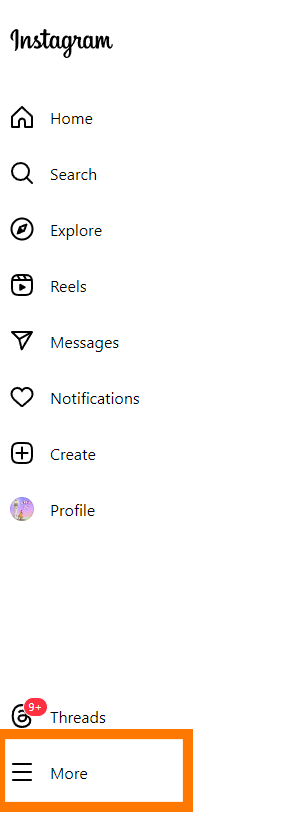
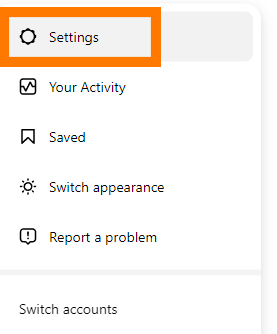
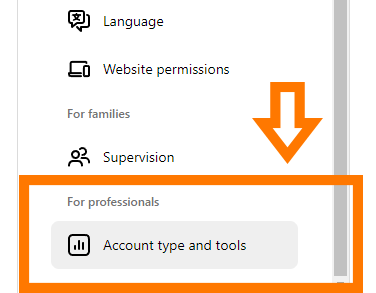
2. Click More and then Settings. These are in the bottom left of the screen.

3. Then select Account type and tools


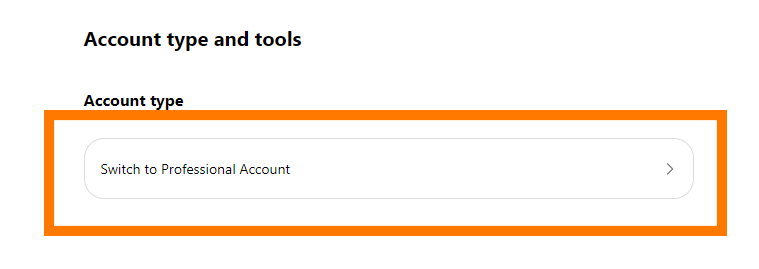
4. Then select Switch to professional account.


5. Then you’ll need to agree to the new account conditions and complete the application.

Once completed you’ll then be able to live stream to Instagram Live.

Here are some of the recommended specs for Instagram Live-

Video format

  • 9×16 aspect ratio (recommended but not required)
  • 720p @ 30 fps (note: 30 fps is recommended, but Live Producer can also support 60 fps if desired. When using 60 fps, the Live Producer preview screen will still display 30 fps. This is normal and we are currently investigating how to correct this.)
    • Resolution: 720×1280
    • Video bitrate range: 2,250–6,000 Kbps
    • Alternatives (supported but not recommended): 480p @ 30 fps, 360p

https://about.instagram.com/blog/tips-and-tricks/instagram-live-producer

How do you live stream to Instagram Live?

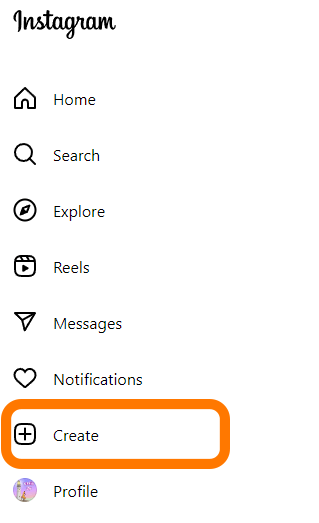
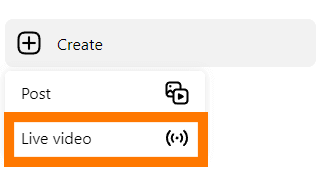
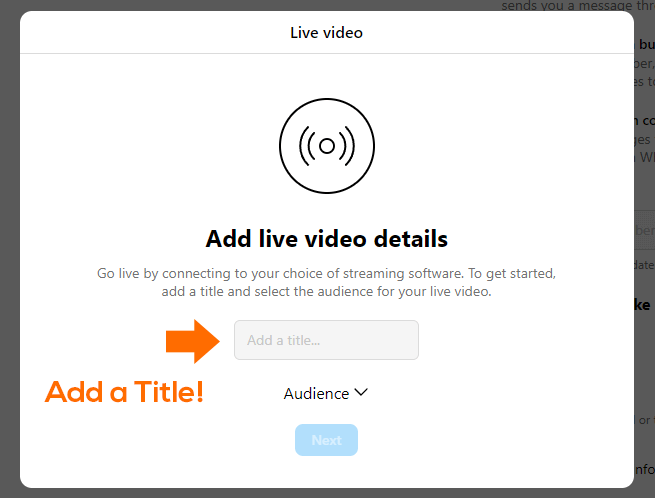
1. Firstly, you need to click on Create and then select Live Video

2. Give your stream a title

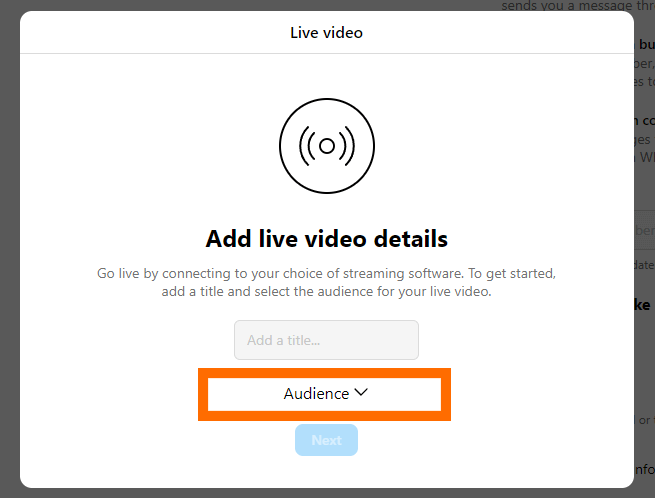
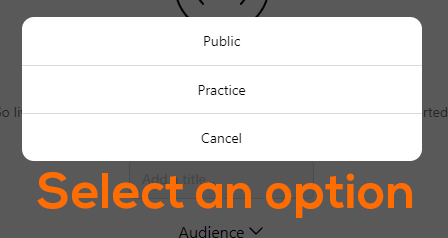
3. Then choose an audience. You can select Practice so that only YOU can see it OR Public so everyone can see it.

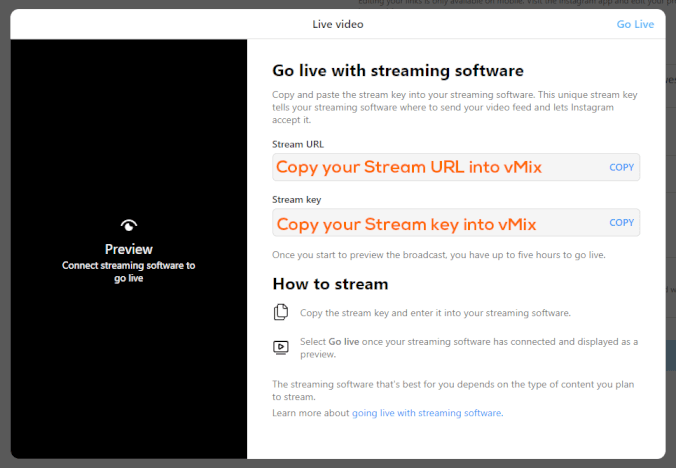
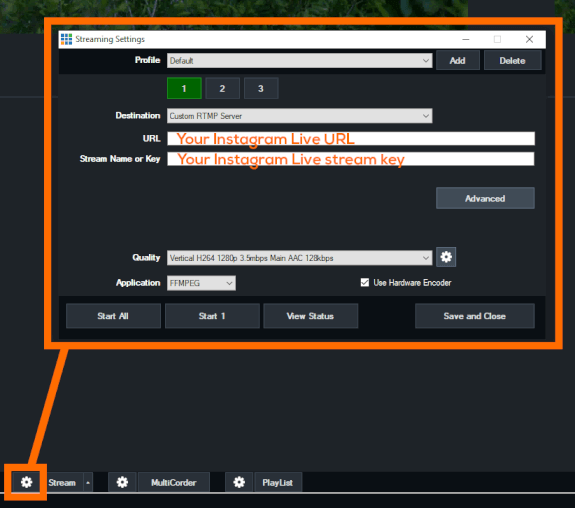
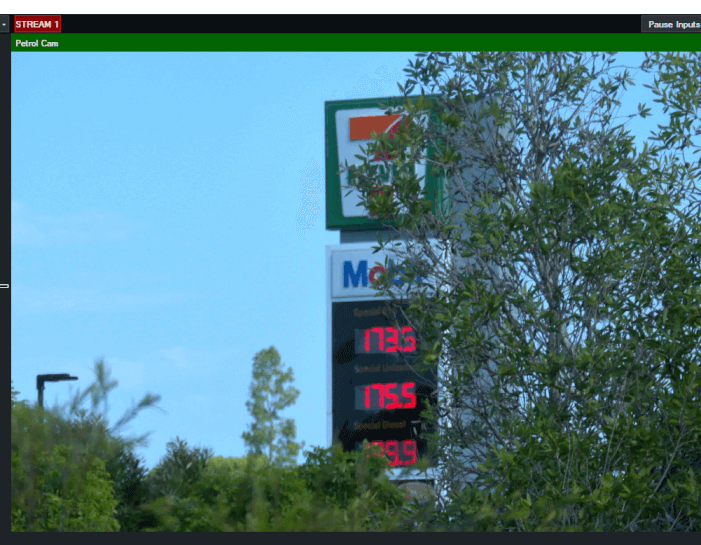
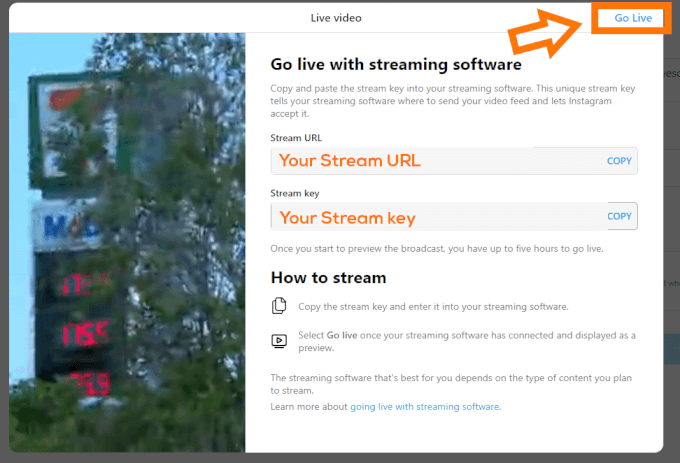
4. Then copy your Stream URL and Stream key into your vMix Streaming Settings.

Now we’re in vMix!

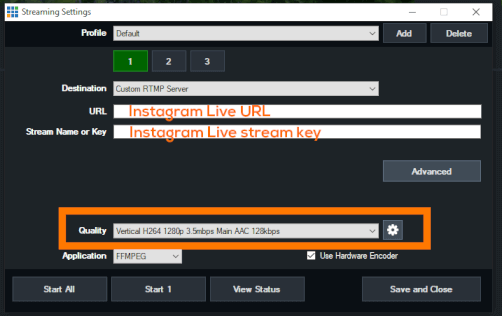
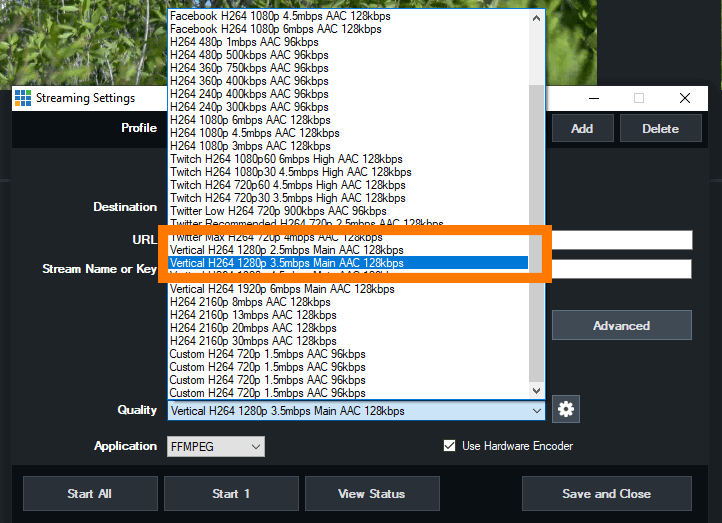
5. Now we can adjust the streaming output to be vertical 1280p

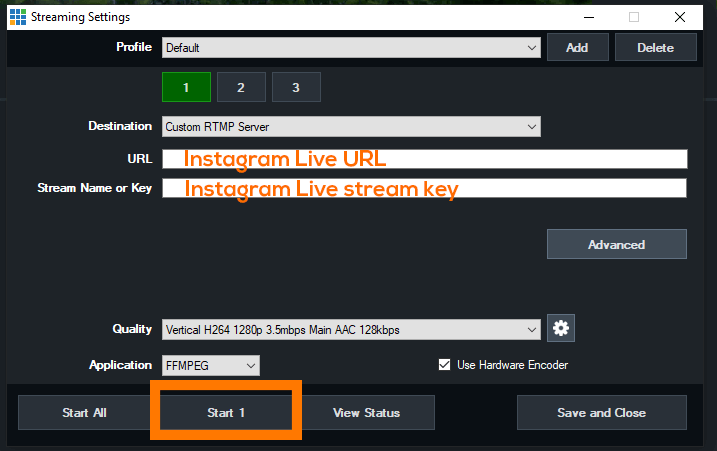
6. Once that’s done we can start streaming, by clicking the Stream button in vMix!


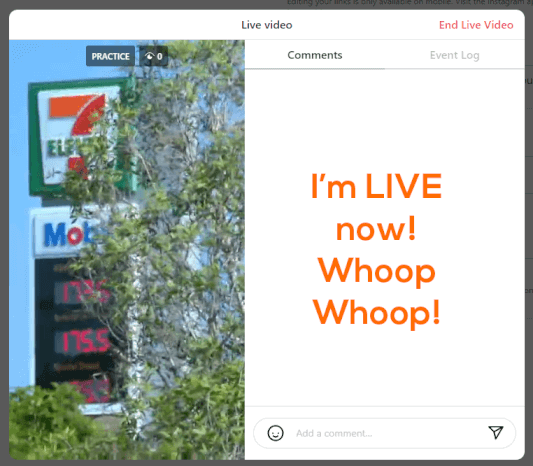
7. Now that we’ve started the stream in vMix, we need to preview it in Instagram Live. Click Go Live to make your stream appear on Instagram. Please note that when you Go Live on Instagram, your viewers will see your stream from the point in which you activated it in vMix!

8. We did it! We’re now live streaming to Instagram Live!

Things to consider!!!!!

Recording

Instagram Live doesn’t archive by default, so if you’d like to share your video after it’s done you will need to turn on archiving. This can only be done on a phone! You’ll need to log in, go to the hamburger menu>Settings and privacy>Archiving and downloading. Then turn on Save live to archive. Currently these archives only last for 30 days and can only be downloaded or viewed via a phone.

You might also want to record in vMix so that you have a permanent copy.

Timing

As mentioned before, your stream content starts when you start in vMix. Instagram will spool that video and when you click Go Live, it will start playing. Remember that! You don’t want to accidentally stream something you don’t want.

You’re going to still need a phone!

There are a number of settings and features that can’t be accessed via the website. You’ll still need to have Instagram on your phone to set all of this up and to also access the archive if you need to.

Test Test Test

This is all pretty new to most of us. Instagram Live has been around for a long time on phones, but encoder access has been quite limited. Settings and procedures may change in the future but for now be sure to test it all out with your workflow.

  •  

vMix on tour 2023! Europe and USA!

14 Augustus 2023 om 06:03

We’re packing our bags and heading off on a world tour! Although we won’t be doing sold-out arena shows, we will be at IBC in Amsterdam and NAB New York in….New York!

IBC 2023

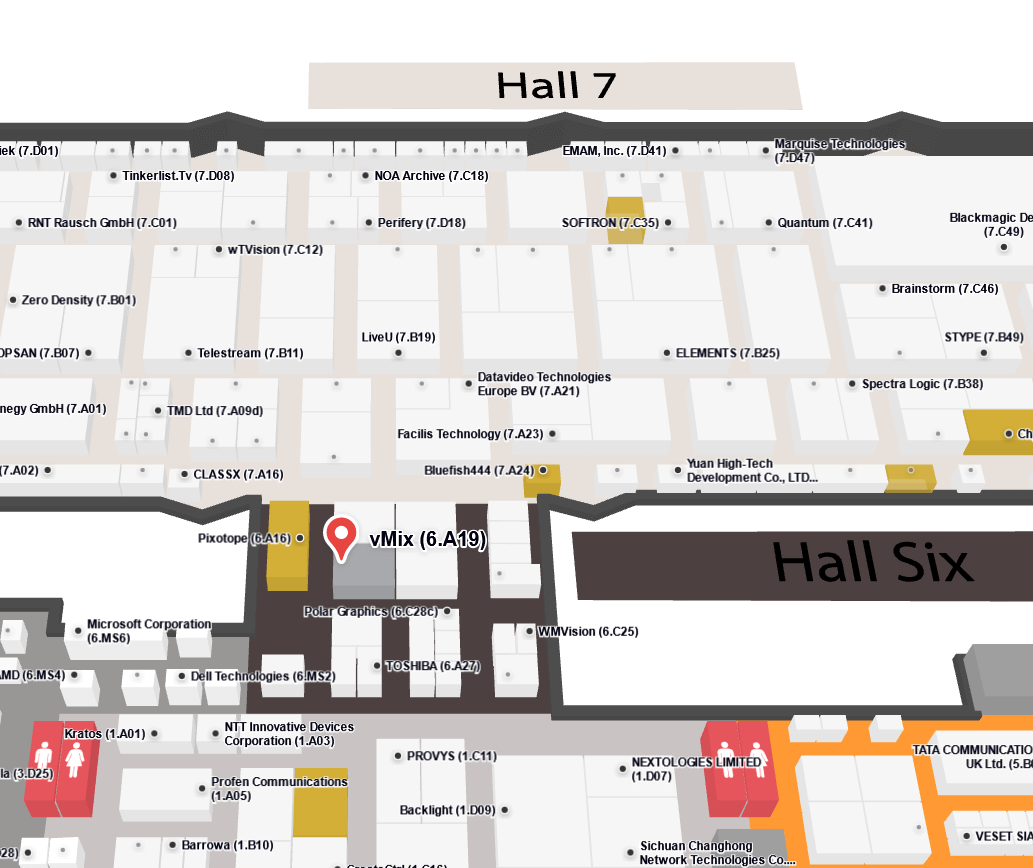
September 15-18th 2023 will see IBC hit the halls of the RAI in Amsterdam. vMix will be located in the beautiful Hall 6, just near Hall 7, some food places and a great selection of toilets. We’ll have a number of workstations if you’d like to see how vMix works. There will also be an Instant Replay station and a vMix Instant Replay Expert if you’d like to be shown the ropes. If we can work out how to ship 2000 mousepads to Amsterdam, we should have some mousepads to add to your collection. Amsterdam is great for stroopwafel and networking with other broadcast enthusiasts, so drop by our booth if you’re coming along.

Booth – 6.A19

NAB NY 2023

If you’ve been looking for a good reason to finally go to New York City, then this might be it! I’ve heard there are other famous locations and things to do there but we I think of New York, I think of small broadcast trade shows! The Javits Center will play host to the NAB NY show on October 25-26, 2023.It’s a pretty good opportunity to speak directly to companies, especially those with a presence on the East Coast of the US. NAB in Las Vegas can sometimes be a little big to really connect with people, so NAB NY gives you a lot more 1 on 1 time with people. NAB NY also has the smallest allocation of vMix mousepads in the world. Typically only 100 mousepads are made for the show making them a real hot commodity on the secondary mousepad markets.

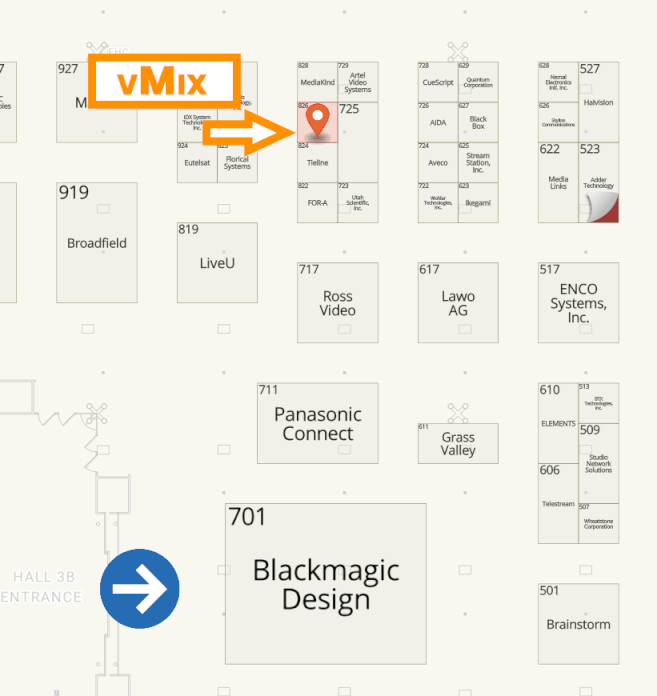
Booth- 826

Events, discounts and more information

For more information about vMix events, check out our EVENTS page.

  •  

vMix 26 is now available

23 Januari 2023 om 06:23

vMix 26 is here and ready for download! You can download it now via vMix.com. If you’ve got vMix Max, you’re able to update to the latest update right now! For those that have purchased vMix from January 2021 then it will be a free update. Prior to this date, it’s a $60 fee for 12 months of updates. Totally up to you if want to experience the new features that vMix 26 has to offer! What are they you might ask??

Input Effects

Do you often think about blur effects or LUTs? vMix 26 now allows you to add these effects to your input! You can add a Gaussian blur effect to all or some of the input. LUT support for PNG and CUBE files.

Vertical Production Tools

Apparently vertical video isn’t going anywhere! You can now create professional vertical streams and recordings with vMix! There is a new vertical HD preset (1920p), vertical GT templates, vertical recording options and auto detection of pre-recorded MP4 vertical videos from smart phones.

You’ll be able to create HD widescreen AND HD vertical content from the same preset and stream to different destinations accordingly!

SRT Updates For Audio and Replay

vMix now supports the ability to receive multiple tracks of audio which will be combined automatically and made available to the input’s channel matrix and mixer. On the output side, support has been added to split the single multi-channel track into multiple stereo audio tracks.

SRT support has been added to Instant Replay. CBR support has also been added to SRT.

15 Mix Inputs!?

vMix 4K, Pro and Max users will now have the ability to use 15 Mix Inputs in their production!!! That’s a whole lotta submixes and crazy stuff you can do!!

NDI® 5.5

vMix 26 now includes built-in support for the latest NDI 5.5.

Web Browser Update

Chromium Version 103 has been added compatibility with new web sites and HTML overlays.

Try vMix for freeeeee!

For a Free 60-Day Trial of vMix Pro, just head to the download page on vMix.com. You just need to download, install and enter your email address where it says Register for a fully functional 60 day trial.

vMix 26 will be a free update for those that have purchased after January 1st 2021 or if you’ve purchased a 12 month upgrade…in the last 12 months.

If you’re outside of this window and would like to update, you can do so via our Upgrades Page.

For more information about vMix, just head to vMix.com!

Oh and if you like the Social Medias, we’re all over the place.

Facebook
Instagram
YouTube
Twitter

vMixDan

Here’s a full list of all the updates for vMix 26…take a look, you might find something you like!

Input Effects

  • New Gaussian Blur effect for all inputs. Add multiple blur effects each with its own cropping and strength.
    Requires a recent fast graphics card for the best results.
  • New LUT effect for all inputs.
    Supports PNG (OBS style) and CUBE files (Davinci Resolve etc). Create your own colour grading files and use them in vMix!

Stream Delay

  • New Stream Delay option in Quality settings for streams. See help file for more information.

New Vertical Production Tools

  • Vertical HD Preset (1920p)
  • Vertical GT Templates
  • 90 Degree rotate button in Position tab, will zoom to fit new rotated source.
  • Automatic detection of rotation in MP4 files recorded using smart phones.

NDI 5.5

  • vMix 26 now includes built-in support for the latest NDI 5.5
    Note many new NDI features are in the free NDI Tools. Check out NDI.tv for more information.

15 Mix inputs total in 4K, Pro and Max

  • Supports Output Only mode in Mix Inputs, which hides the preview and preview/output controls for a more compact input.

SRT Replay, Multi-Track Audio and CBR support

  • SRT inputs can now be used as Instant Replay sources. This requires turning off Use Hardware Decoder when adding the SRT input, as Instant Replay uses the CPU.
  • vMix now supports the ability to receive multiple tracks of audio which will be combined automatically and made available to the input’s channel matrix and mixer.
  • On the output side, support has been added to split the single multi-channel track into multiple stereo audio tracks.
  • SRT outputs now support CBR mode

Web Browser Input Updated

  • Chromium Version 103 for compatibility with new web sites

Other

  • PTZ support for Insta 360 Link with MF (Media Foundation) driver for better performance.
    Note that audio needs to be added as a separate input, as it is detected as a separate Microphone in Windows.
  • Bluefish444 Key+Fill support on selected cards
  • Bluefish444 multi-channel audio output on selected cards
  • New Audio Matrix presets to allow easy selection of stereo pairs to Master
  • Added support for 1440p
  • GT Line Spacing added
  • GT Images now have a TopRight align option
  • Intel Graphics ARC and 12th Gen now supported
  • New Replay shortcuts: ReplayMarkInOutLiveFuture, ReplaySetChannelAToBTimecode, ReplaySetChannelBToATimecode, ReplaySetTimecode
  • New Facebook Stream Key destination for manual streams
  • All old XAML title templates have been moved to the Legacy tab
  • Input names now appear in Input Settings – Position dropdown
  • Added new Preview input. This in combination with the Output input provides the ability to build custom Output MultiView layouts.
  • Transition buttons will now highlight red during transitions
  • Copy/Paste buttons added to Input Position tab
  • X-Keys T-Bar Module Red/Blue LED support
  •  

Using a drone in your live video production!

16 Augustus 2022 om 01:34

If you’ve ever wanted aerial content in your live production, you’ll need to take a look at a drone. Drones allow you to capture video from the skies and provide a really unique perspective on things!

How do you get the live camera feed from your drone?

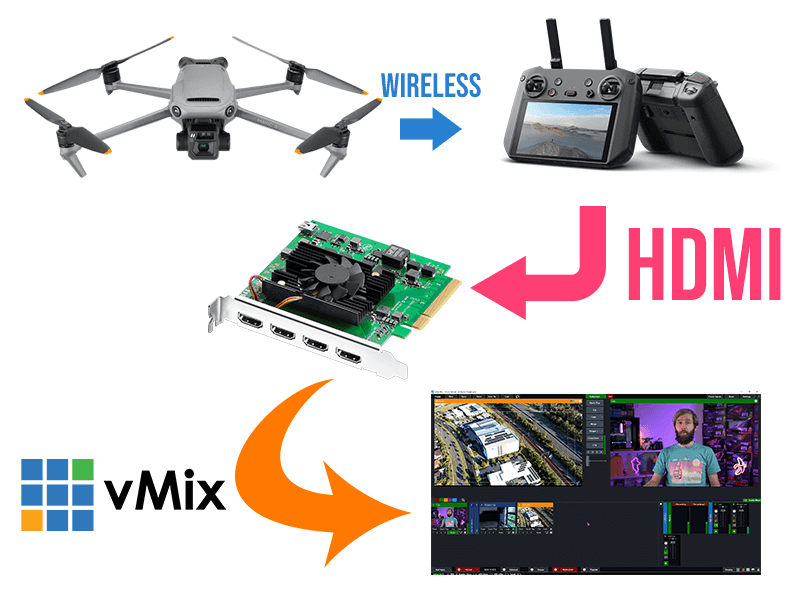
Most video capture is done by cameras that are physically connected to your capture equipment through HDMI or SDI cables. As you can’t fly a 2km long HDMI cable attached to your drone, you’ll need to utilise the live video transmission from the drone wirelessly.

Most consumer grade drones will be manufactured by DJI, so that’s we’ll be discussing in this article. DJI drones send a live video feed from the drone’s camera back to the controller so that you can have a first person view of the flight. It’s this live video feed that can also be used for live video productions. There are 2 main ways to pull the live video feed from the drone-

  1. HDMI video output from the DJI Controller
  2. RTMP stream from the controller/phone app

HDMI Video Output

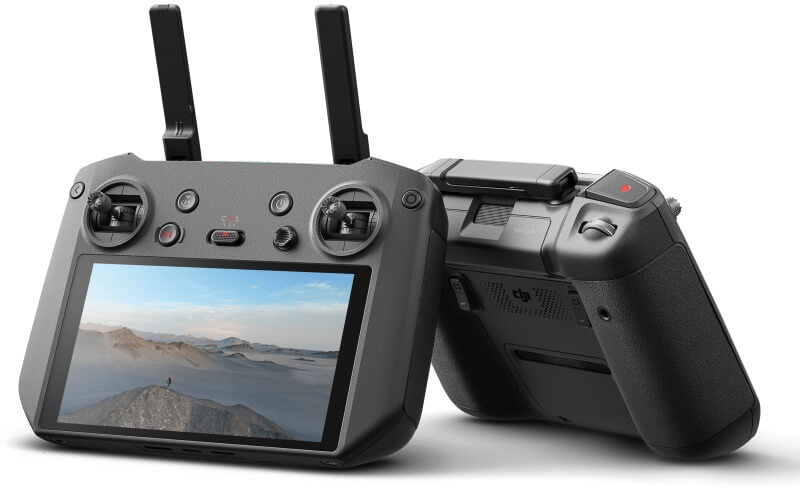
Some of the higher end DJI controllers have a HDMI output port for the live video. Depending on your drone, you may need to purchase this separately. You also need to make sure that your drone supports the use of one these controllers. In 2022, the DJI RC Pro in one of the controllers that offers HDMI output directly.

DJI RC PRO Controller

If you have cameras in your production with a cable, then this will use exactly the same method. Plug a HDMI cable into your controller and then plug it into your capture device. If you have an SDI based production, then you’ll just need a SDI to HDMI converter.

Using hardware for your video capture is almost always going to be the best way to go, and drones are no exception. When we use drones in our live streams we use this method as it provides the lowest latency and best quality.

RTMP stream

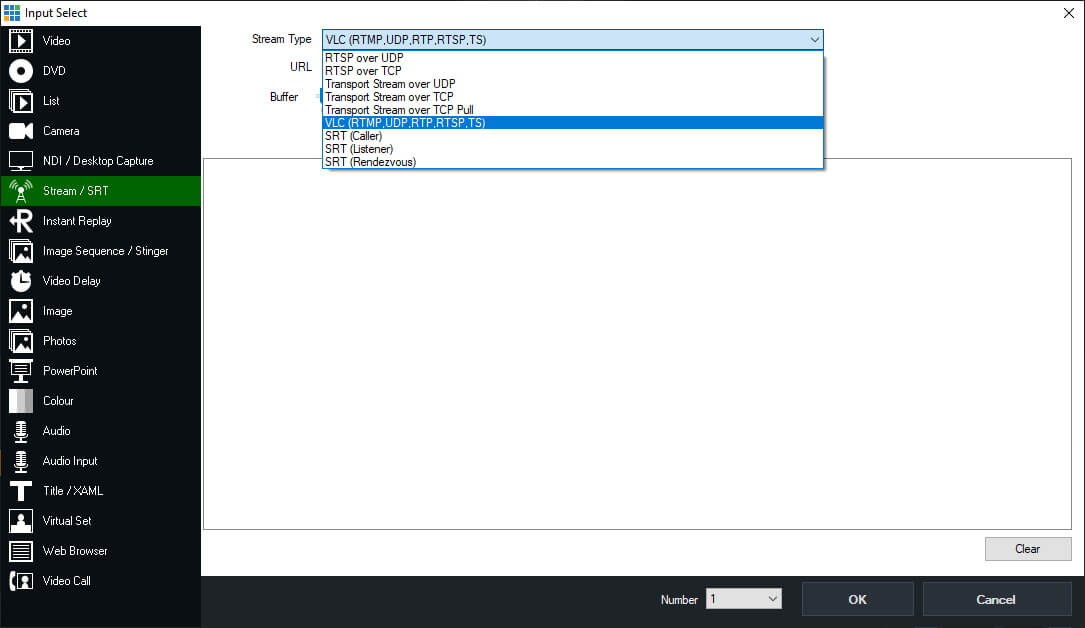
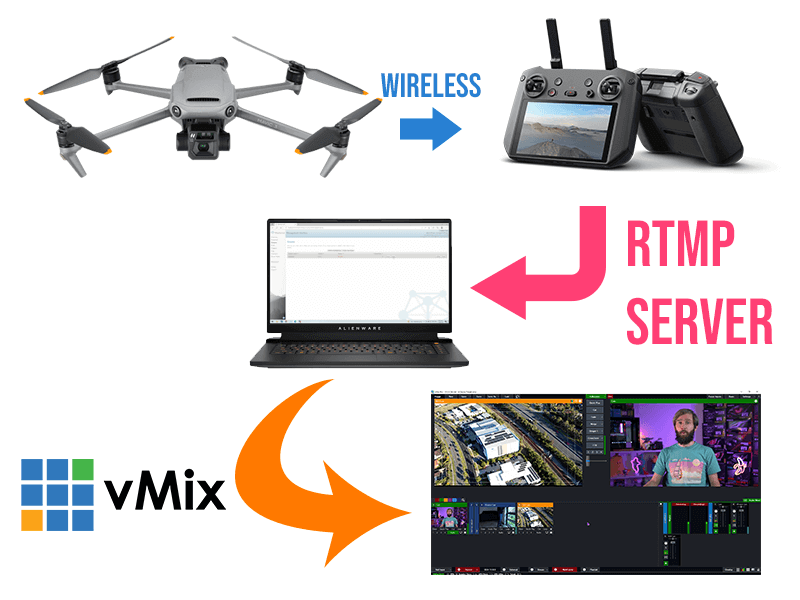
DJI controllers/app allow for a custom RTMP stream output. If you wanted to use this stream in vMix, you’d need to setup an RTMP server to receive the drone stream and then output a video feed from the RTMP server. There are plenty of paid and free RTMP servers such as MIST Server, Nimble Streamer, Wowza, RTMP Mini Server and more. Once you’ve set up a server, you copy the server URL and stream name into your controller and then start your drone stream. Your RTMP server will give you the option to output in a number of streaming protocols. So you just need to select one that’s supported by vMix (RTSP, SRT,HTTP, RTMP) and add that to your production.

Using the Custom RTMP option will introduce more latency to your video output so it may not be ideal for your production. However, it does mean that you don’t need to purchase a more expensive controller. If you already have a drone, then try out this method to see if fits your purpose.

Our tutorial video

Here’s a video on using drones in your video production-

  •  

How to capture Tablet and Phone screen content?

8 Augustus 2022 om 02:46

Whether it’s for gaming, lectures or training, being able to capture your tablet or phone screen is a valuable asset for live video. We thought we’d take a look through at the different options for capturing screens, whether it’s an Android phone or tablet or perhaps an iOS device.

HARDWARE

With any live production, it’s always best to use hardware. That way you get a direct connection to your content and don’t have to worry about things you can’t control! When your production is mission critical, using a free app that has a time limit or 30 second unskippable ads for Disney+, will not end well!

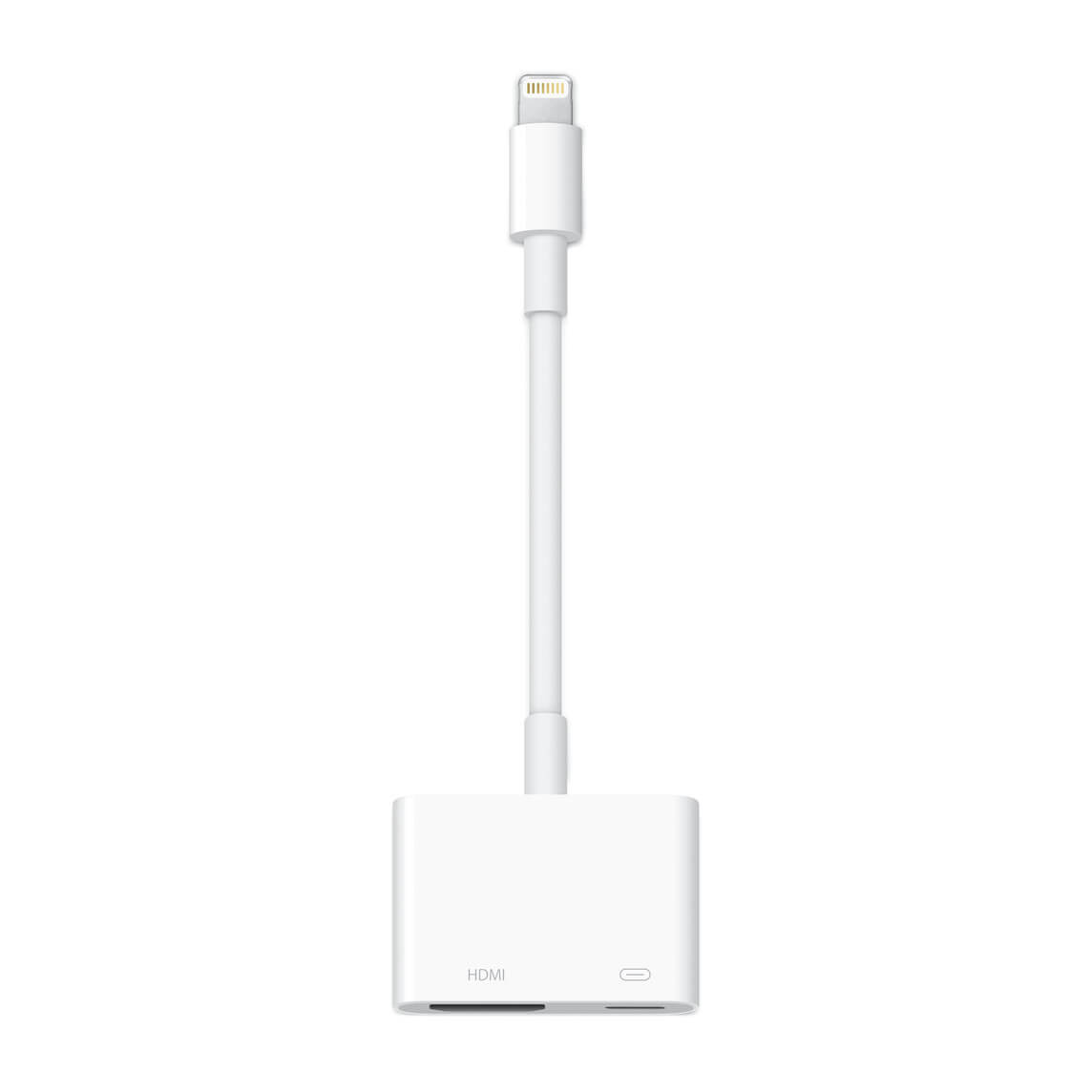
Devices that support outputting content from the USB or Lightning port will allow you to convert the video signal to HDMI. You can then input that into your capture card or device. There are a number of different devices out there, you’ll just need to make sure that you device supports this type of output.

For example, not all Samsung devices support usb-c output for the live capturing of the screen. They have a list on their website that lists compatible devices. We tend to only have lower-end tablets here at vMix HQ and unfortunately most of the A series tablets don’t support it. However, our Galaxy S Series mobile phones do support it!

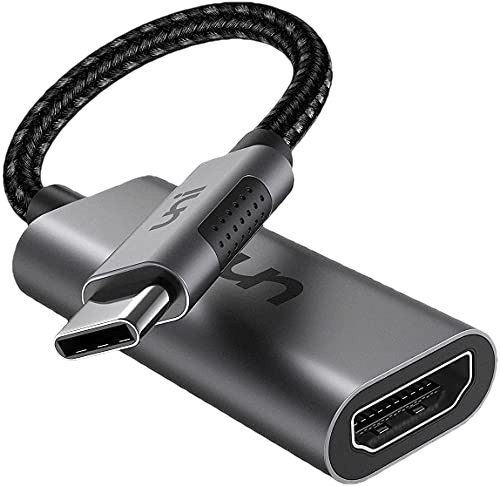
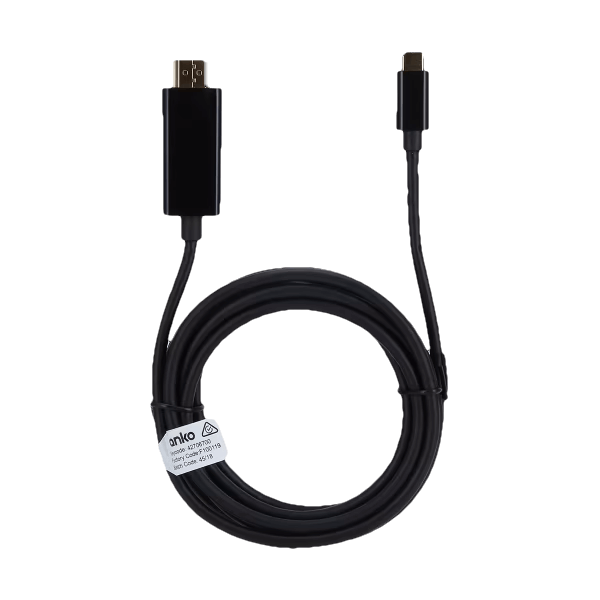
Here are some of the different form factors of adapters that you can get. Some include a longer HDMI cable and others require a HDMI cable plugged into the adapter. You can pick them up off Amazon or even Kmart here in Australia for $19!

For iOS devices, you’ll need to some research to see if your device supports outputting live screen video. You will also need to check what kind of port the device has. Newer iPads have USB-C whereas as iPhones and older iPads use lightning! Apple sell their own adapters and they look like this-

APPS!

Apps that can connect directly to vMix

The easiest apps to use are the ones that will send your phone/tablet screen directly to vMix. The app will use NDI, RTSP, TCP, SRT or HTTP to send the signal over the local network, then you can add it to your production using the appropriate input in vMix.

iOS Apps

Newtek offer an NDI HX Capture App for $10 USD which converts your screen output to a NDI HX source for vMix. If you’ve got NDI set up already, then this is a super easy solution.

Elgato Screen Link is another option, however we had mixed results with this, especially latency. They have a free option that you might want to try before buying.

You could also use the Larix Screencaster App if you’re into SRT!

Android Apps

Due to the lack of NDI apps, we’d recommend taking a look at using an app that stream your screen on the local network. There are plenty that will use RTSP, HTTP or TCP to output the screen for use in vMix.

Screen Stream Mirroring seemed to work for us and gave us multiple ways of sending the screen. You have to pay for it to remove the ads.

Again, Larix Screencaster is available for Android if you want to use SRT.

Apps that cast to your PC and then you can screen capture the app!

Yes, you read that right. You can use apps that will mirror your screen to corresponding software on your computer and then you can capture that screen in vMix. Apps like Let’s View allow you to do this. There are plenty of apps that will do this, so I’d recommending trying some out. Using the screen capturing method is not high on our list of recommendations though.

Give a try!

Have you been tasked with capturing a phone or tablet screen in a production? I’d definitely try out the options that we’ve gone over to see what works for you. If you need the highest quality and most reliable capture, then hardware is the way to go. If you don’t really need super great quality then using a cheap app will save you a lot of money.

Here’s a video where we go over some of the options-

  •  

Laptops for live streaming 2022

1 Augustus 2022 om 02:41

Welcome to “vMix recommends a laptop” 2022 edition! This year we’ve taken a bit of a left turn because we’ve found something that hits the sweet spot of functionality and price. In the last few years we’ve put forward 2 laptops,

  • a higher end laptop with all the bells and whistles (including Thunderbolt connectivity).
  • a laptop that was more affordable that you could use for USB and NDI productions

In our annual search for a new gen laptop we stumbled across a laptop that was affordable and offered Thunderbolt 4 support. The ASUS TUF Gaming F17 came in a $1500 USD and had all of the things that you’d usually associate with a more expensive laptop, although in a slightly less fancy approach.

2022 laptop specs

This year we were looking for-

  • 12th Gen Intel i7 CPU- 12700H
  • NVIDIA GPU- RTX3060
  • Thunderbolt 4
  • MUX Switch
  • DDR 5 Ram
  • SSD

The ASUS TUF F17 hit all of these requirements and gave us no reason to buy a secondary laptop! Here’s our video rundown….

What other laptops will work well with vMix?

If you follow our spec guide above you’ll be able to find a great laptop for live production and vMix. Typically Thunderbolt laptops will be a little more expensive, so if you 100% don’t need Thunderbolt then you can easily save some cash there. If you want an older gen Intel laptop then you just need to look for-

  • High end i7
  • Dedicated NVIDIA GPU- xx60, but the 3060 will give you Resizable BAR which is a plus
  • 16GB Ram
  • MUX Switch or G-Sync
  • SSD

Wait, what about AMD laptops??

The 12th Gen Intel laptop CPUs have outperformed the 6000 series AMD CPUs so we’re recommending them. If you’re a huge AMD fan then the 6800H processors will still work fine. If you’re looking for an older generation AMD laptop, the 4800H CPU is the oldest one you should consider.

Already have a laptop?

If you’ve already got a laptop, then check out our free 60-day Trial and see how it goes. You might be able to use your existing equipment instead of buying something new. For all the latest updates on what computers and laptops we recommend, visit our Reference Systems page.

  •  

Firefox 136.0

11 Maart 2025 om 17:55

New

  • You can now enable the updated Firefox sidebar in Settings > General > Browser Layout to quickly access multiple tools in one click, without leaving your main view. Sidebar tools include an AI chatbot of your choice, bookmarks, history, and tabs from devices you sync with your Mozilla account.

    screenshot Firefox browser with the sidebar enabled and the customize sidebar settings displaying the various settings

  • Keep a lot of tabs open? Try our new vertical tabs layout to quickly scan your list of tabs. With vertical tabs, your open and pinned tabs appear in the sidebar instead of along the top of the browser. To turn on vertical tabs, right-click on the toolbar near the top of the browser and select Turn on Vertical Tabs. If you’ve enabled the updated sidebar, you can also go to Customize sidebar and check Vertical tabs. Early testers report feeling more organized after using vertical tabs for a few days.

    screenshot of the firefox browser with vertical tabs enabled

  • The Clear browsing data and cookies dialog now allows clearing saved form info separately from browsing history.

    screenshot of the Clear browsing data and cookies dialog. Demonstrating the separate options for form data and browsing history

  • Smartblock Embeds allows users to selectively unblock certain social media embeds that are blocked in ETP Strict and Private Browsing modes. Currently, support is limited to a few embed types, with more to be added in future updates.

  • Firefox now upgrades page loads to HTTPS by default and gracefully falls back to HTTP if the secure connection fails. This behavior is known as HTTPS-First.

  • On macOS, some background tabs will be moved to lower power cores, reducing energy usage.

  • Hardware-accelerated playback of HEVC video content is now supported on macOS.

  • Hardware video decoding is now enabled for AMD GPUs on Linux.

  • On Linux, Firefox is now available on ARM64 (AArch64), with installation options via APT and tarballs. Flatpak support is coming soon.

  • The Weather forecast on the New Tab page is expanding to additional regions, including Mexico, Brazil, Argentina, and Chile, as part of an ongoing regional rollout.

    This feature is part of a progressive roll out.

    What is a progressive roll out?

    Certain new Firefox features are released gradually. This means some users will see the feature before everyone does. This approach helps to get early feedback to catch bugs and improve behavior quickly, meaning more Firefox users overall have a better experience.

  • Address autofill enabled for users in the United Kingdom.

    This feature is part of a progressive roll out.

    What is a progressive roll out?

    Certain new Firefox features are released gradually. This means some users will see the feature before everyone does. This approach helps to get early feedback to catch bugs and improve behavior quickly, meaning more Firefox users overall have a better experience.

Fixed

  • Firefox will now prefer the PNG format when copying images out of Firefox, allowing the preservation of transparency.

  • Various security fixes.

Changed

  • For New Tab stories, the Save to Pocket action was moved from a button to the context menu along with other actions, such as Bookmark.

  • The macOS DMG installer packages now use LZMA for compression, reducing download size and installation time.

  • Due to recent changes in macOS Sequoia, the shortcut for completing search strings to .com addresses has been changed from Ctrl+Enter to Cmd+Enter.

Enterprise

Developer

  • The Developer Tools debugger editor now uses Codemirror 6, which improves performance.

Web Platform

  • Added support for the Intl.DurationFormat object; this enables language-sensitive duration formatting.

  • Added support for the CSS :open pseudo-class for styling elements that can be toggled “open” to display more content.

  • Added support for the :has-slotted pseudo-class, allowing authors to style the contents of a <slot> element when it is not empty or not using the default value.

  • Added support for the CookieStore API, an asynchronous cookie API for scripts running in HTML documents and service workers.

  • Added support for ARIA elements reflection.

  • Firefox now sends a referrer from meta refreshes and Refresh headers.

  • Added support for sending and receiving the AV1 video codec over WebRTC. Both singlecast and simulcast are supported for sending.

  • Added support for sending multiple simultaneous versions of the same source over WebRTC, commonly called simulcast, with the H264 video codec. H264 is the second video codec after VP8 to be supported for sending simulcast.

  • The value plaintext-only can now be specified for the contenteditable attribute, making the raw text of an element editable but without supporting rich text formatting.

  • Added support for the text replacement feature in an input field on macOS. Web content can enable/disable this using the HTML autocorrect attribute.

Unresolved

  • Users clearing "History" and/or "Site settings" on shutdown on previous versions will also have clearing "Cookies and site data" and "Temporary cached files and pages" enabled after updating to Fx136 even if they previously haven't checked these settings.
    Affected users can go to "Privacy & Security" settings directly after the upgrade and uncheck both boxes to avoid getting logged out. (Bug 1952564)

Community Contributions

  • With the release of Firefox 136, we are pleased to welcome the developers who contributed their first code change to Firefox in this release, 10 of whom were brand new volunteers! Please join us in thanking each of these diligent and enthusiastic individuals, and take a look at their contributions:

  •  

Firefox 135.0

7 Maart 2025 om 14:08

New

  • Firefox Translations now supports more languages than ever! Pages in Simplified Chinese, Japanese, and Korean can now be translated and Russian is now available as a target language for translating into.

  • The credit card autofill feature is now being gradually rolled out to all users globally.

    This feature is part of a progressive roll out.

    What is a progressive roll out?

    Certain new Firefox features are released gradually. This means some users will see the feature before everyone does. This approach helps to get early feedback to catch bugs and improve behavior quickly, meaning more Firefox users overall have a better experience.

  • AI Chatbot access is now being gradually rolled out to all users. To use this optional feature, choose AI Chatbot from the sidebar or from Firefox Labs. Then, complete the provider selection to see the chat interface become available on the sidebar.

    This feature is part of a progressive roll out.

    What is a progressive roll out?

    Certain new Firefox features are released gradually. This means some users will see the feature before everyone does. This approach helps to get early feedback to catch bugs and improve behavior quickly, meaning more Firefox users overall have a better experience.

  • Firefox now enforces certificate transparency, requiring web servers to provide sufficient proof that their certificates were publicly disclosed before they will be trusted. This only affects servers using certificates issued by a certificate authority in Mozilla's Root CA Program.

  • Additionally, the CRLite certificate revocation checking mechanism is also being gradually rolled out, substantially improving the performance of these checks.

    This feature is part of a progressive roll out.

    What is a progressive roll out?

    Certain new Firefox features are released gradually. This means some users will see the feature before everyone does. This approach helps to get early feedback to catch bugs and improve behavior quickly, meaning more Firefox users overall have a better experience.

  • Firefox now includes safeguards to prevent sites from abusing the history API by generating excessive history entries, which can make navigating with the back and forward buttons difficult by cluttering the history. This intervention ensures that such entries, unless interacted with by the user, are skipped when using the back and forward buttons.

  • Users on macOS and Linux are now given the option to close only the current tab if the Quit keyboard shortcut is used while multiple tabs are open in the window.

Fixed

  • Made improvements to the Translations feature which will reduce the likelihood that models will invent new, made-up words under some circumstances.

  • Various security fixes.

Changed

  • The refreshed New Tab layout previously rolled out in Firefox 134 to users in the United States is now being made available in all countries where Stories are available. It features a repositioned logo to prioritize Web Search, Shortcuts, and Recommended Stories at the top. The update also includes changes to the card UI for recommended stories and allows users with larger screens to see up to four columns for better use of space.
    Screenshot of the updated New Tab page

    This feature is part of a progressive roll out.

    What is a progressive roll out?

    Certain new Firefox features are released gradually. This means some users will see the feature before everyone does. This approach helps to get early feedback to catch bugs and improve behavior quickly, meaning more Firefox users overall have a better experience.

  • The “Do Not Track” checkbox has been removed from preferences. If you wish to ask websites to respect your privacy, you can use the “Tell websites not to sell or share my data” setting instead. This option is built on top of the Global Privacy Control (GPC).

  • The "Copy Without Site Tracking" menu item was renamed to "Copy Clean Link" to help clarify expectations around what the feature does. "Copy Clean Link" is a list based approach to remove known tracking parameters from links. This option can also now be used on plain text links.

  • Linux binaries are now provided in XZ format, replacing the previous BZ2 format, offering faster unpacking and smaller file sizes.

Developer

  • A warning is now displayed when content-visibility is used on elements where size containment does not apply.

  • Introduced a new console command $$$ that allows searching the page, including within shadow roots.

  • Enhancements to WebExtension debugging: Workers are now available in the Console panel’s context selector and breakpoints function correctly in content scripts.

Web Platform

  • Added support for a post-quantum key exchange mechanism (mlkem768x25519) for HTTP/3.

  • The attribute values which indicate the coordinates of PointerEvent may now be fractional values rather than only integers. This allows web apps to handle the events with higher-precision coordinates when the target element is transitioned by CSS and/or the viewport is zoomed.

  • The behavior of mouseenter, mouseleave, pointerenter and pointerleave events was changed for improved spec compliance when the last mouseover or pointerover event target is removed.

  • Added support for the WebAuthn getClientCapabilities() method.

Community Contributions

  • With the release of Firefox 135, we are pleased to welcome the developers who contributed their first code change to Firefox in this release, 16 of whom were brand new volunteers! Please join us in thanking each of these diligent and enthusiastic individuals, and take a look at their contributions:

  •  

Firefox 135.0.1

7 Maart 2025 om 14:08

Fixed

  • Fixed drop-down menus being unusable on some sites relying on certain mousemove event behavior. (Bug 1944191)

  • Fixed scrolling to the wrong location with anchor tags in some situations. (Bug 1946899)

  • Fixed being unable to restore closed windows and tabs via the History menu when upgrading from an older Firefox version. (Bug 1947503)

  • Fixed broken search functionality when updating to Firefox 135 with a custom search engine with an overly-large icon installed. (Bug 1946156)

  •  
❌